
- What is WordPress 7.0
- The History of WordPress: from Blog to AI Platform
- AI Infrastructure in the Core: how I connected and what I tested
- Visual and Navigation Improvements in WordPress 7.0
- What is the Future of Updates for WordPress
On May 20, 2026, WordPress 7.0 «Armstrong» was released — the first version where artificial intelligence is embedded directly into the CMS core, rather than as a separate plugin. Such large-scale changes can be called the beginning of a new era, comparable in scale to the introduction of the Gutenberg editor in 2018. I tested the update on real sites and in this article, I will show what works from what was promised, how much it costs to connect AI, which features are still raw — and whether it is worth rushing to switch to the new version of the CMS at all.

What is WordPress 7.0
WordPress 7.0 Armstrong — is a major update named after jazz musician Louis Armstrong — following the tradition of naming major releases after jazz musicians. The main news is the implementation of AI infrastructure directly into the core: now Claude, Gemini, and ChatGPT can be connected directly in the admin panel settings.
According to the official announcement, over 875 authors worked on the version. The result of the international team's work was over 420 fixes and improvements. And this is not surprising, as WordPress Armstrong — is the 30th major release since the first version in 2004. At the time of writing, over 70 localizations have been completed: the Ukrainian localization (marked as uk in the table) for version 7.0.x is completed at 92%. On the corresponding page of the official site, you can learn about the Ukrainian localization for all versions of the content management system.

Important! Minimum technical requirements have increased: WordPress 7.0 requires at least PHP 7.4, and developers recommend PHP 8.3 or higher. PHP 7.4 is no longer receiving security updates, so in practice, it is advisable to switch to 8.3-8.4.
If you rent a cheap reliable hosting at Cityhost.ua, you can check and change the PHP version in your personal account in a couple of clicks.

For comparison «before and after», I used two test sites on the TasteWP platform with the standard Twenty Twenty-Three theme and occasionally switched to GeneratePress:
- WP 7 New V — clean WordPress 7.0;
- WP Old — WordPress 6.8.5.
I chose 6.8.5 for testing instead of a newer version due to the specifics of TasteWP: when I created a fresh site, it automatically pulled the latest build and updated to 7.0, so for a clean comparison, I had to keep one of the sandboxes on the old version. Additionally, I checked features on my own English-language site already on the Armstrong release, but in terms of appearance, I focused specifically on the two clean sandboxes without plugins.
Also read: What is WordPress in 2026: the best CMS for beginners and professionals
The History of WordPress: from Blog to AI Platform
On May 27, 2003, Matt Mullenweg and Mike Little released the first version of WordPress — a fork of the blogging engine b2/cafelog. At that time, no one anticipated that in two decades this «blogging platform» would power, according to W3Techs data as of July 1, 2026, 41.5% of all websites on the internet.
The transition from a blog to a full-fledged platform occurred gradually, but there are several points that fundamentally changed the nature of the system:
- 2010 — WordPress 3.0 added custom post types and taxonomies and integrated Multisite into the core. It was then that the system transformed from a blogging engine into a full-fledged CMS.
- 2018 — WordPress 5.0 brought the block editor Gutenberg, the biggest UX change in the platform's history. The community received it ambiguously, but this decision laid a solid foundation.
- 2022 — WordPress 5.9 launched Full Site Editing: headers, footers, and templates could now be edited directly in the block editor.
- 2026 — WordPress 7.0 was supposed to complete the third phase of the Gutenberg project (team collaboration) with real-time co-editing. But this feature was removed 12 days before the release, instead focusing on AI infrastructure.
Thus, we see three key versions: 3.0 made WordPress a true CMS, 5.0 changed the editing process, and 7.0 adds AI as a foundational layer of the platform. So on May 20, 2026, it was not just another update, but the beginning of a new era in WordPress development.
AI Infrastructure in the Core: how I connected and what I tested
WordPress 7.0 does not start writing texts or generating images by itself. The new infrastructure only provides the ability to connect AI providers to the site. To perform specific actions on the web resource, such as reducing or increasing text using artificial intelligence, an official plugin is required — AI.
- What is WP AI Client in WordPress 7.0
- How to activate artificial intelligence in WordPress
- What the AI plugin can do in WordPress Armstrong
- How much does AI Anthropic cost in WordPress
What is WP AI Client in WordPress 7.0
WP AI Client — a new provider-agnostic AI infrastructure directly in the core of WordPress. It is something like a socket in the wall: it establishes a standardized connector to which an artificial intelligence provider can be connected.

In the Settings → Connectors section, three default providers appear: Anthropic, Google, OpenAI. Each connects via an API key, and all compatible plugins on the site automatically gain access to this artificial intelligence. As developers note: plugins no longer need to build their own integration for each provider — they refer to a single interface, and WordPress itself routes the request.
Let's consider how to connect AI to WordPress via Anthropic:
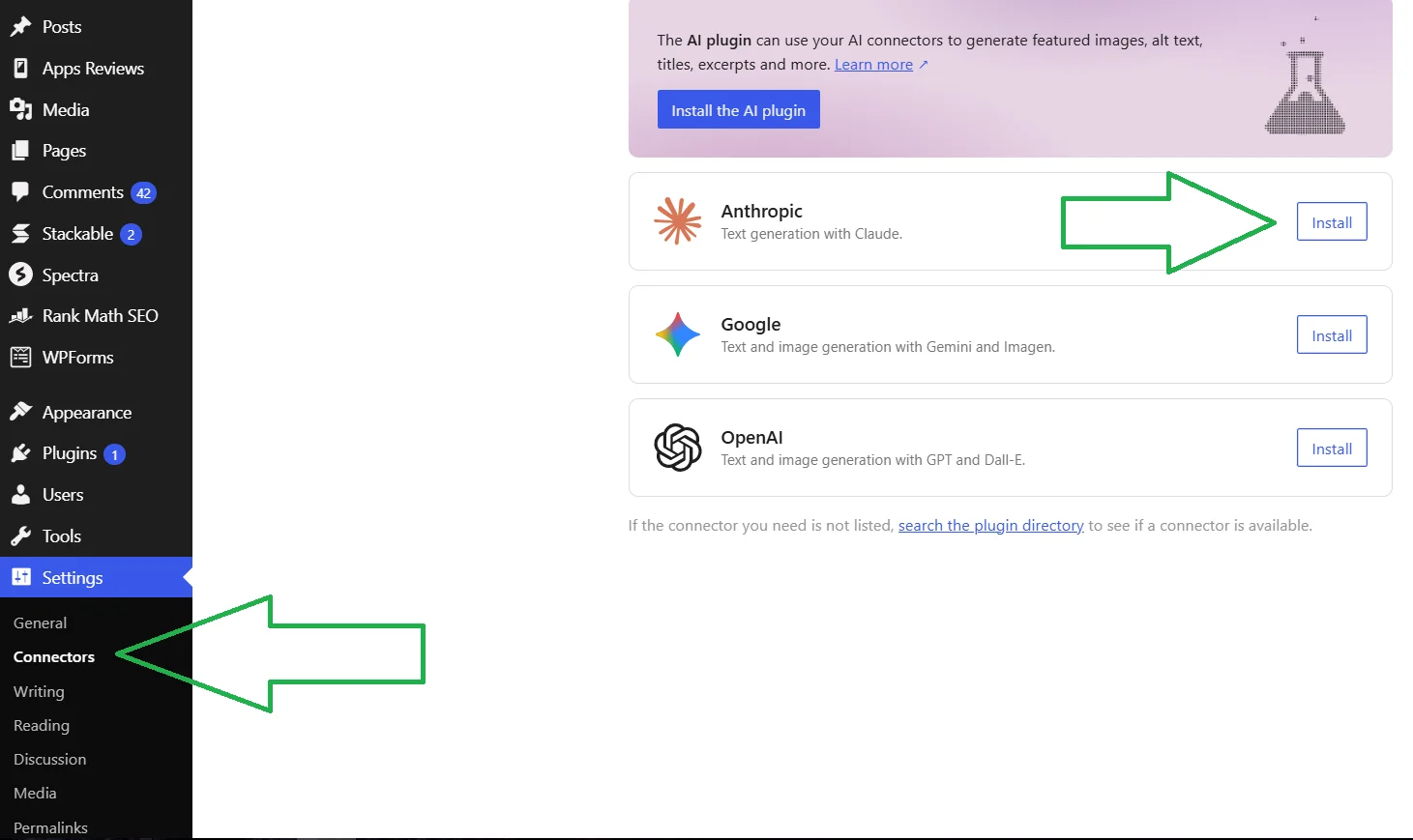
- Click Install next to Anthropic in Connectors.
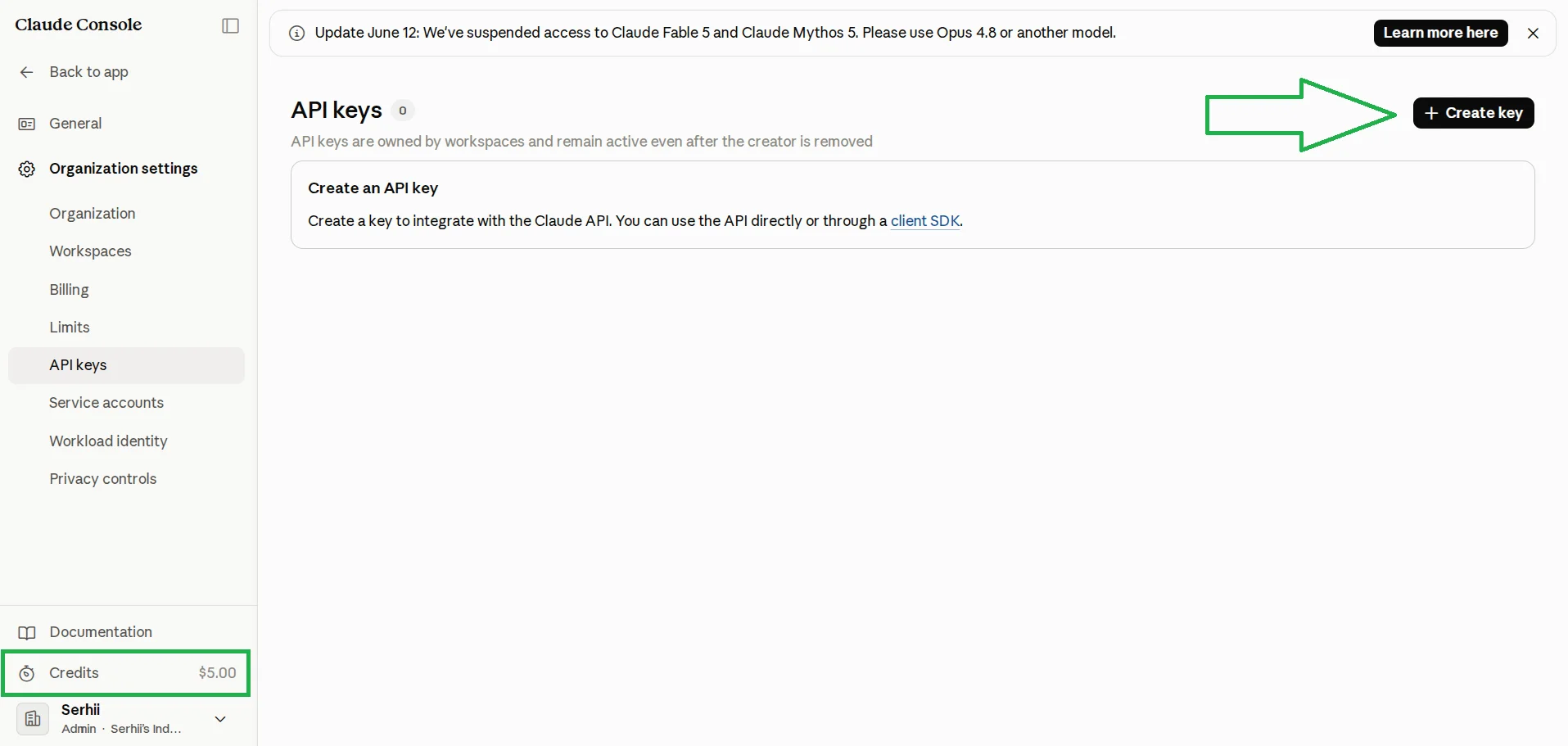
- Go to console.anthropic.com, register, and top up your balance. I topped up $5, but with tax, it came to $6 (270.27 UAH was deducted from the card). After that, click Create Key and generate the API key.
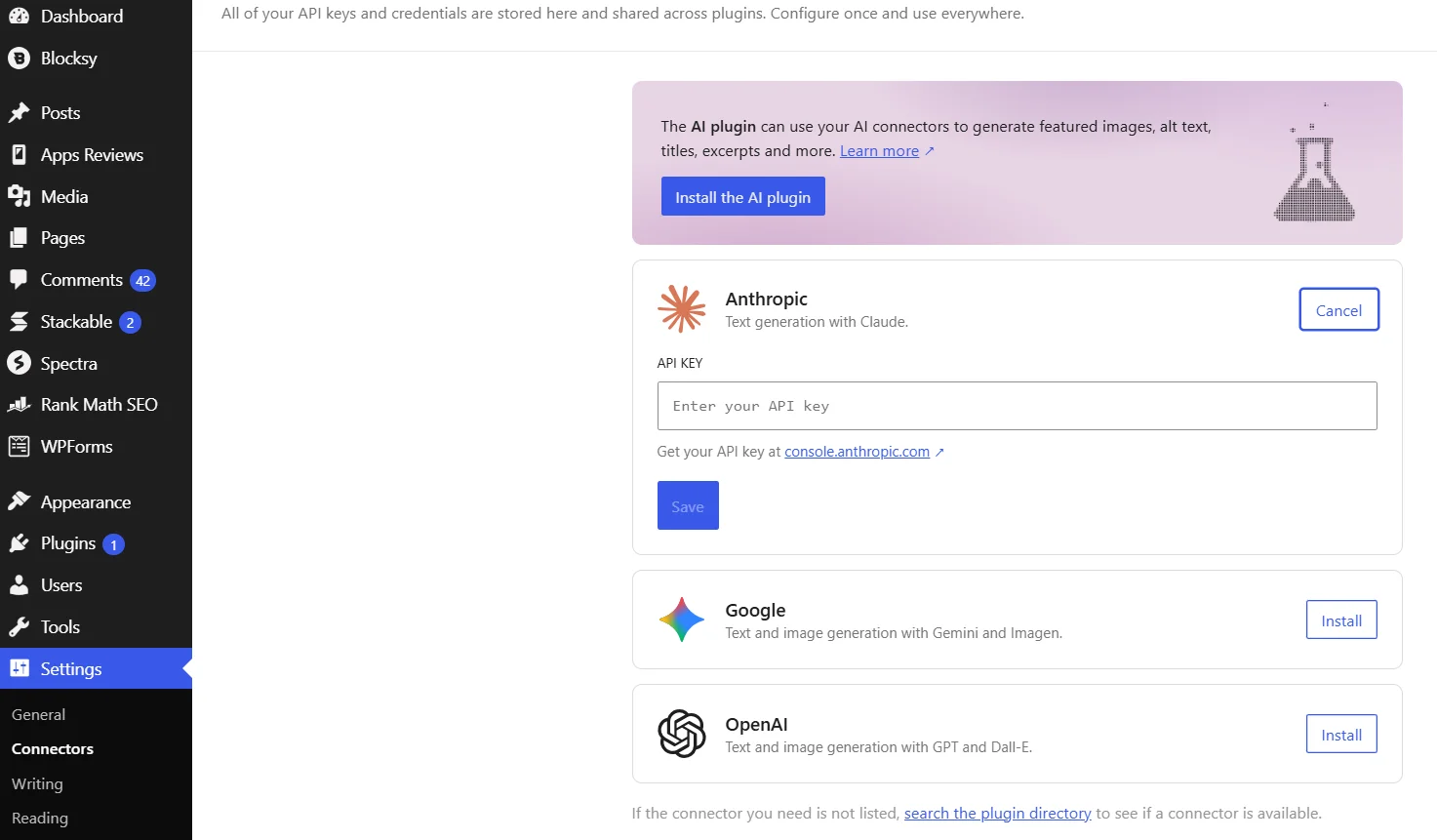
- Return to the admin panel, paste the key, and click Save.
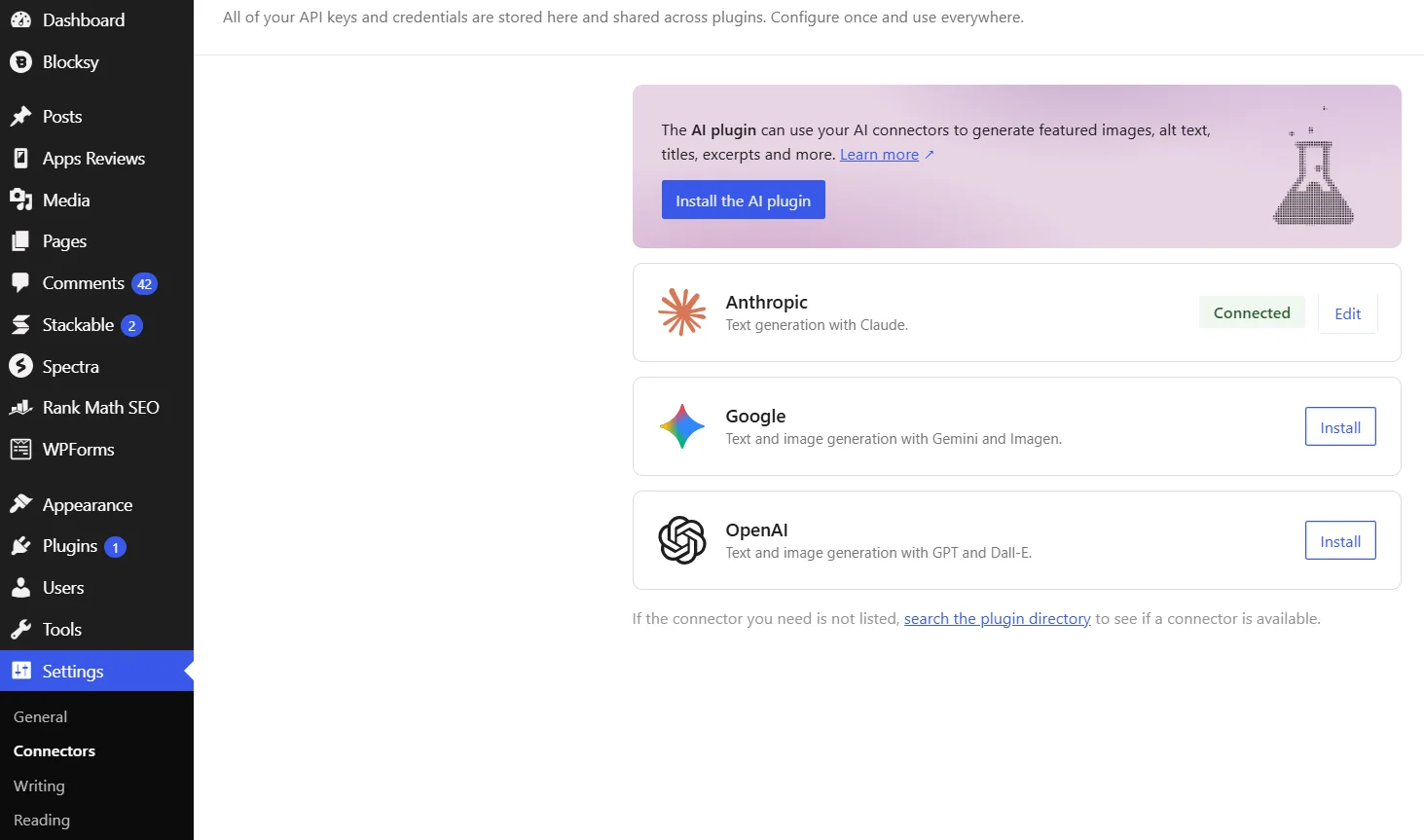
Look at the screenshot. If everything went successfully, next to your provider, there should also be a green background label saying «Connected». If you use multiple providers, they can also be connected — there are no restrictions in this regard.
Important! According to the official Connectors documentation, API keys in WordPress 7.0 are stored in the database without encryption — they are only masked in the interface. A specific bug has already been found: the provider connection form for Anthropic allows the browser to auto-fill the key, visually exposing it. Patchstack founder Oliver Sild warned about a wave of thefts of such keys — a stolen key means thousands of requests at your expense. Therefore, I recommend setting spending limits on the AI provider's side, and on sites with multiple authors — enable Connector Approvals in Settings → AI (Admin Experiments section).
How to activate artificial intelligence in WordPress
Connecting a provider — is only the first part. For real AI functions to appear in the editor, a second component is needed — the official AI plugin from the WordPress team (previously known as AI Experiments). If we return to the analogy: this is the «household appliance» that connects to our «socket».
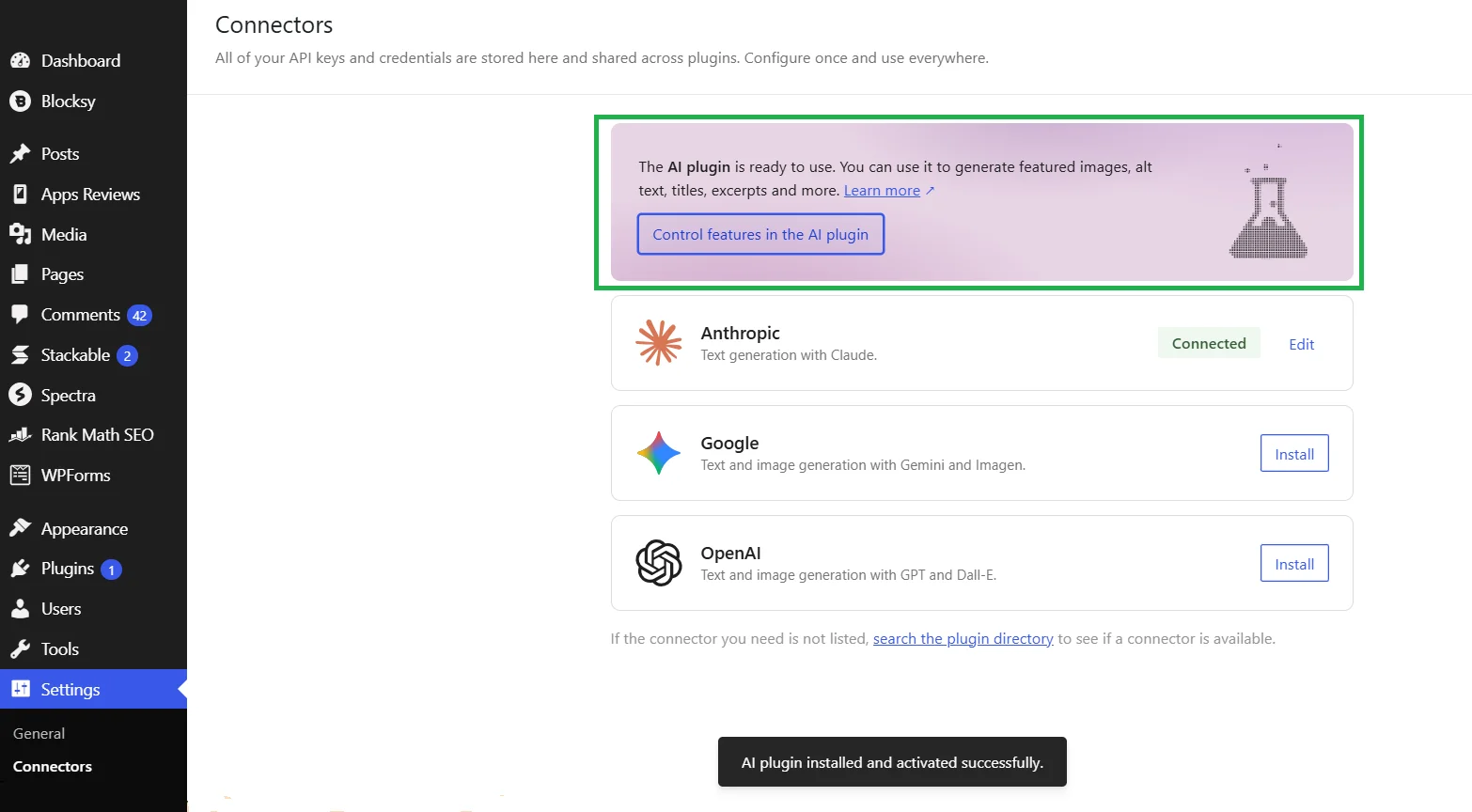
In the same Connectors menu, click Install the AI plugin. Now the button changes to Control features in the AI plugin, and a message about the successful installation of the plugin appears.
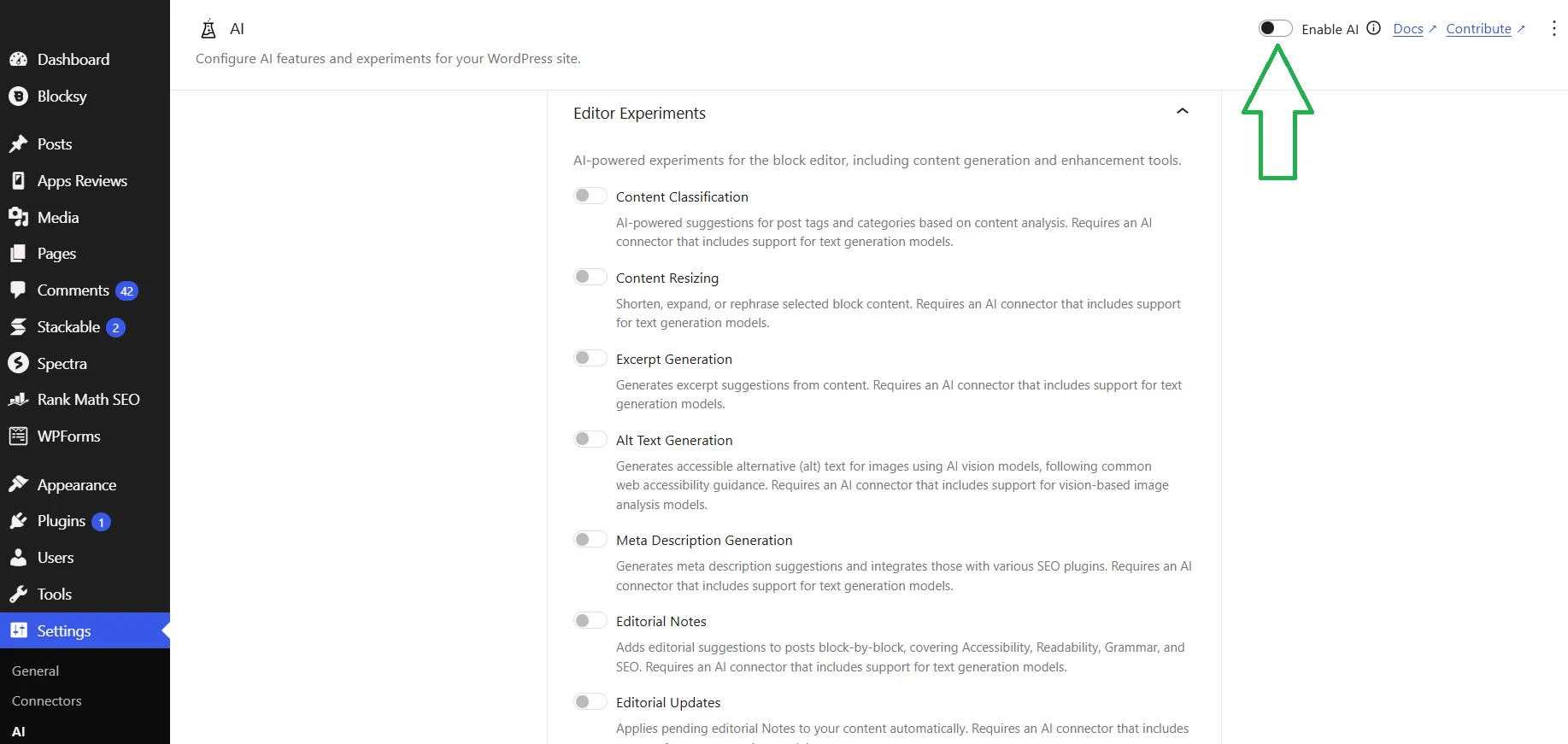
We click on Control features in the AI plugin or go to Settings → AI and see two blocks: Editor Experiments (adds features for working with content) and Admin Experiments (expands the capabilities of the admin panel). The switches are inactive by default, so you first need to click the Enable AI button in the upper right corner.
What the AI plugin can do in WordPress Armstrong
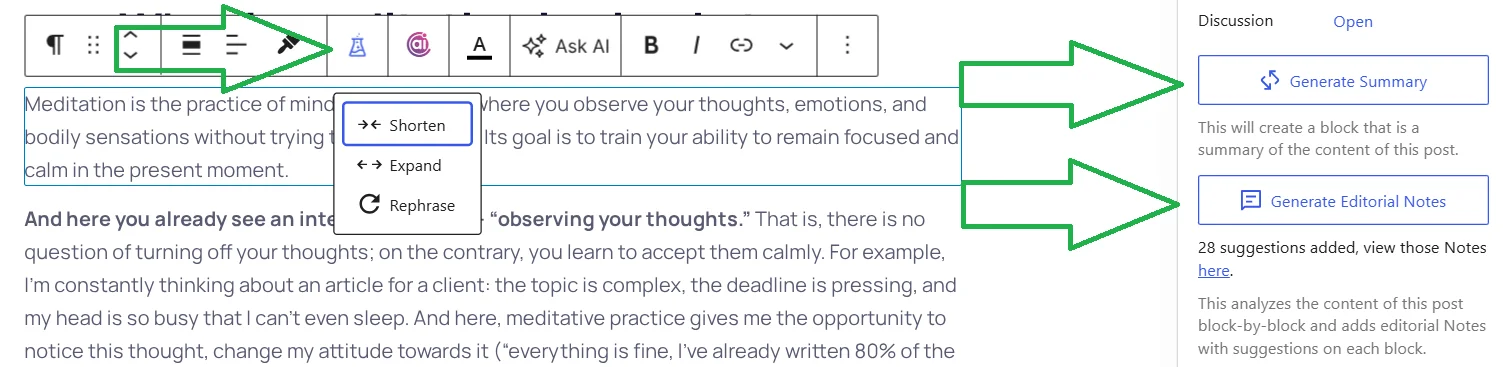
In working with text, AI in WordPress 7.0 is similar to the best AI plugins, such as Elementor AI. It also allows you to reduce, increase, and rephrase text content. Additionally, the native WP extension can suggest categories and tags based on content, generate a short post description for readers, alt text for images, analyze posts block by block for accessibility, readability, grammar, SEO, and generate images.
Important! I did not test image generation: it works through OpenAI or Google, while I already connected Anthropic, which does not create images. According to WordPress, the plugin generates images along with alt text directly in the editor, without switching to third-party services.
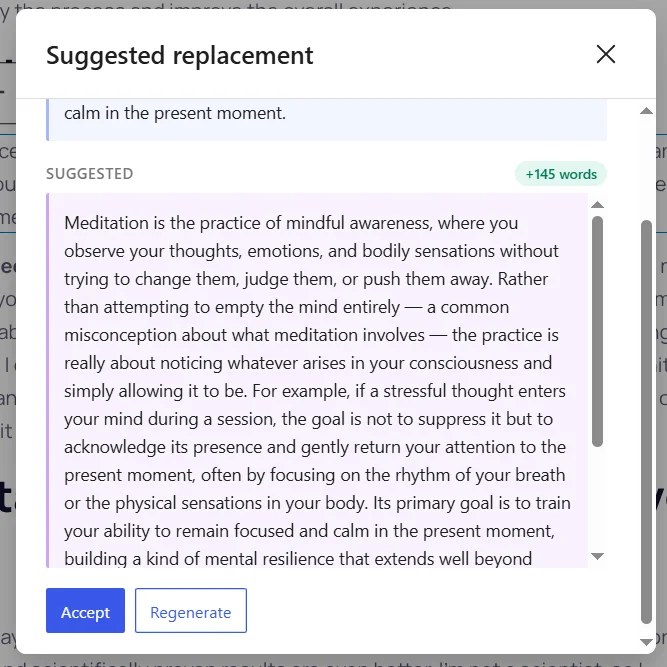
I tested the work with content in two languages. For English text, I used Expand: the system added 145 words to my paragraph. The result is really good: a clear definition and analysis of the main goal of meditation with an example.
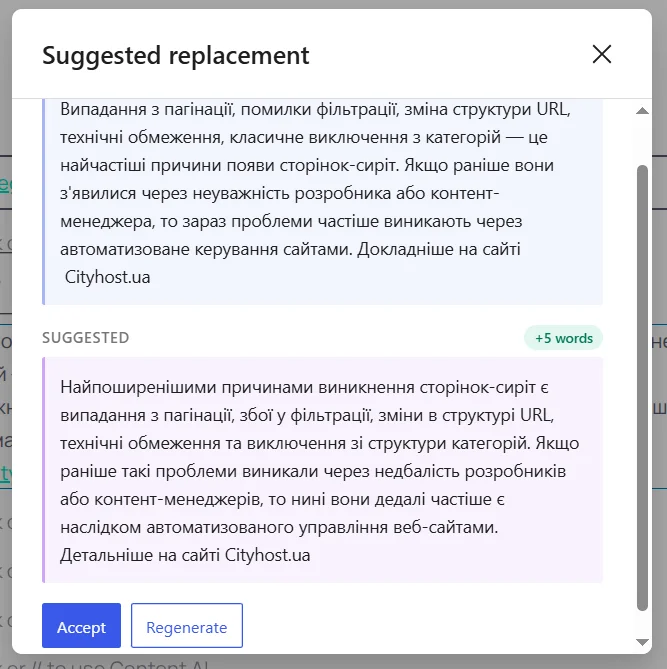
I tested the Rephrase function on the article «How to find orphan pages on the site»: I took one small paragraph and got a classic rewrite.
I also checked Comment Moderation in Admin Experiments. I expected that after activation, all comments would be checked, but I only saw two new columns — Sentiment and Toxicity, as well as filters All Sentiments and All Toxicities.
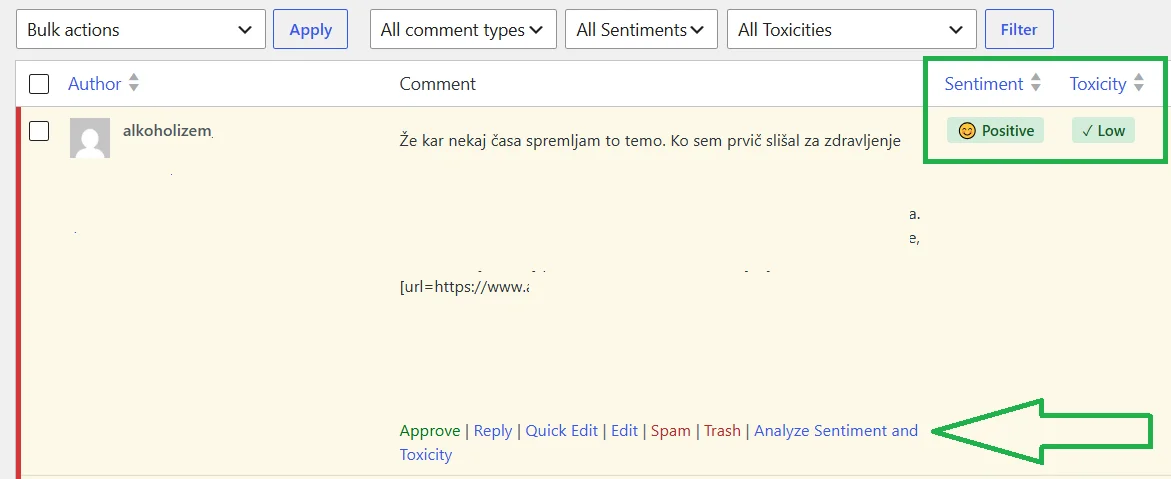
And you can already see in the screenshot how raw this feature is. In the comment, there is advertising spam from a clinic for alcohol treatment with links, and the artificial intelligence rated it as positive and non-toxic.
How much does AI Anthropic cost in WordPress
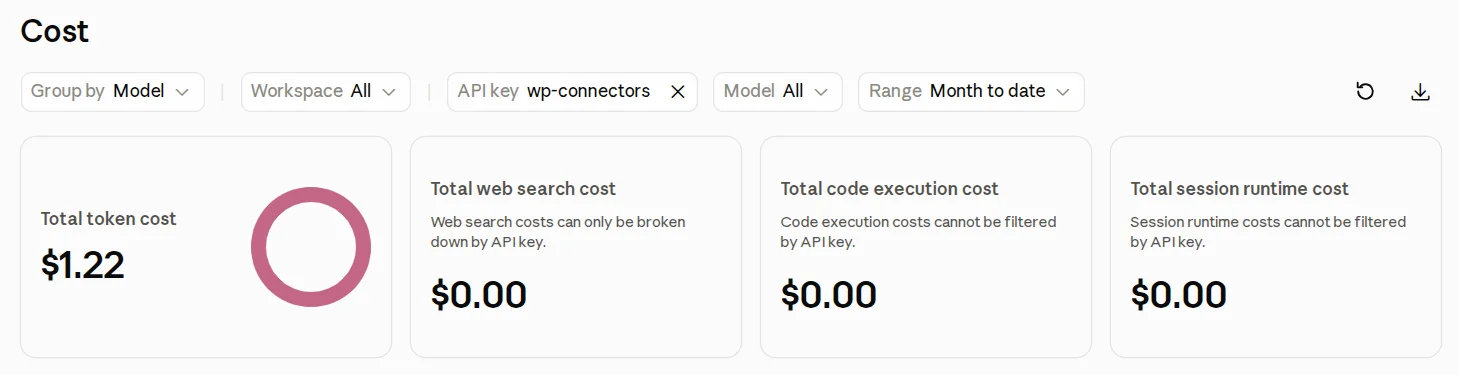
The cost depends on the connected model. By default, Claude Sonnet 4.6 is connected, which costs $3 per million incoming and $15 per million outgoing tokens. During my testing, I spent exactly $1.22. Most of it went to Editorial Notes — AI analyzing my articles and adding edits in the form of notes to each block. My articles have 3000-5000 words, so such expenses are not surprising.
Is it worth connecting AI? If you already have a specialized artificial intelligence plugin like AI Engine or Elementor AI, then WordPress will add little. However, if you need basic editing capabilities, writing alt text, and analyzing the quality of the entire article with comments — you can give it a try. However, for my large articles, WP AI is definitely not suitable: I would rather pay $20 for Claude Pro for a much larger number of features, considering the complete detailed analysis of texts, albeit with more manual work.
Also read: The best AI services for content creation: from texts to images
Visual and Navigation Improvements in WordPress 7.0
Other changes, compared to the implementation of artificial intelligence, are less global. However, features such as quick search, page change preview, additional CSS, and built-in breadcrumbs significantly improve the process of managing an internet project.
- Quick search across the entire site
- Adding notes to yourself and users
- Custom fonts in all WordPress templates
- Improved page change preview
- Additional interesting improvements in WordPress 7.0
Quick search across the entire site
The Command Palette has been working throughout the admin area since WordPress 6.9, but access was only available through a keyboard shortcut. In 7.0, a visible icon «Ctrl+K» appeared in the admin bar — now you don’t have to remember the shortcut, you can just click with the mouse from any screen.
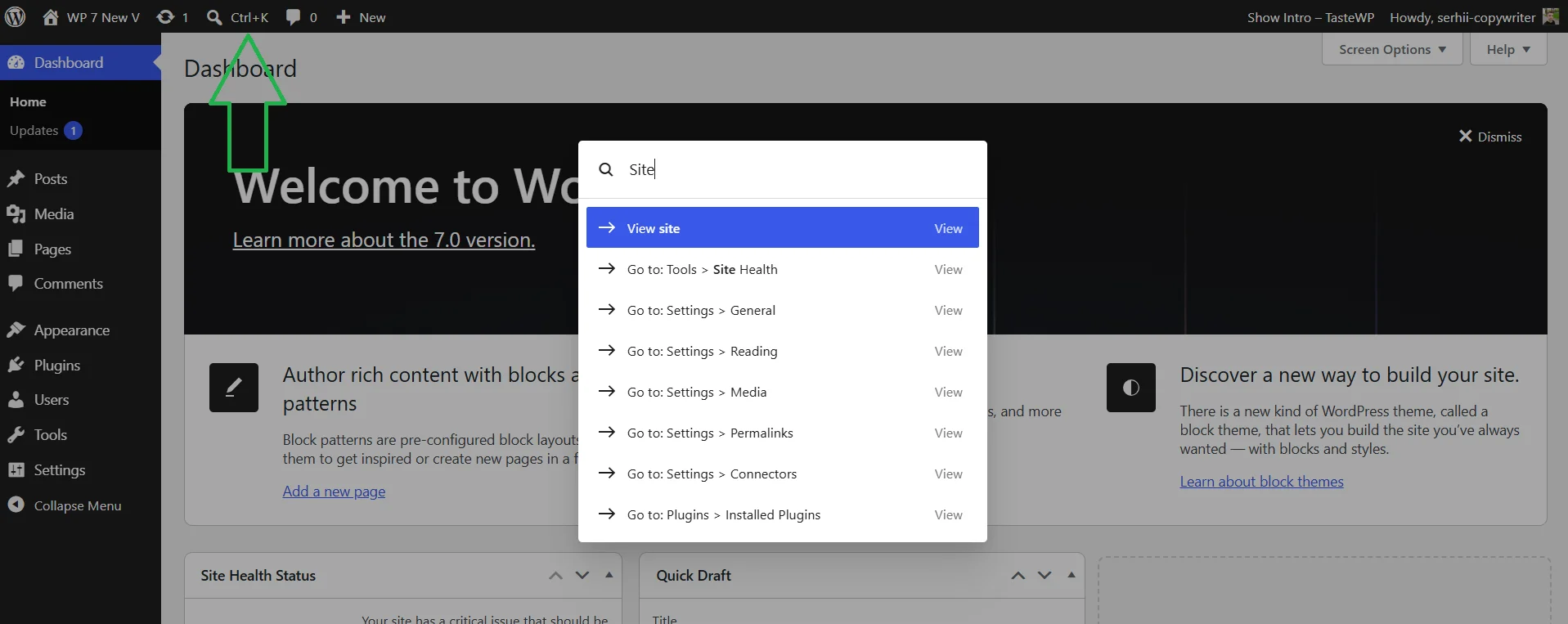
During testing, I noticed an unpleasant moment: if you simply press Ctrl+K, Chrome may intercept the combination and open the address bar. So first, click with the mouse on any area within WordPress, and only then Ctrl+K. The Command Palette finds articles, settings sections, and menu items of activated plugins instantly.
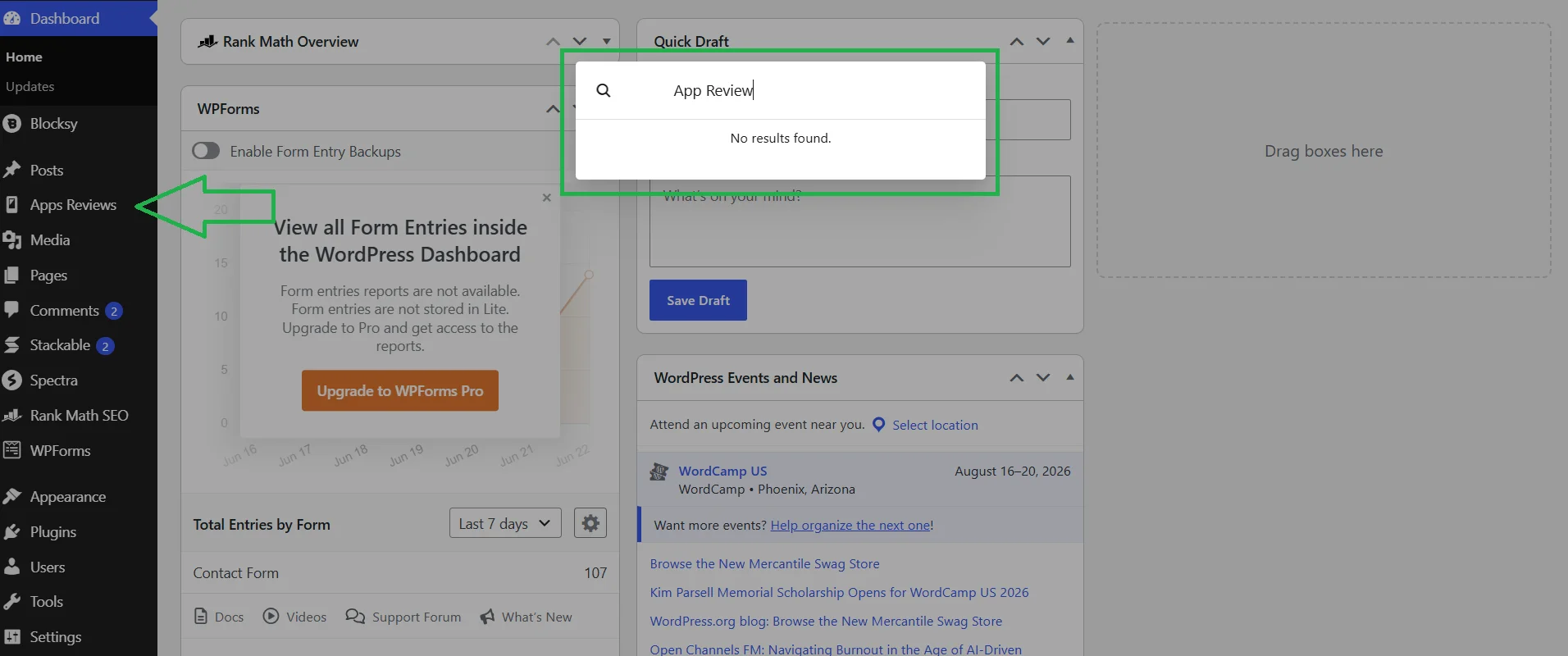
The limitation is custom type posts, for example, my app reviews. I tried to find them, but nothing appeared. Only the ACF categories and the option to create a new review.
Adding notes to yourself and users
The note function by blocks appeared in WordPress 6.9, and in 7.0 it received further development. Notes — are an asynchronous team feedback tool: you leave a comment on a specific block, a colleague reads and responds, and after everyone agrees, the person makes the changes themselves and marks the note as resolved.
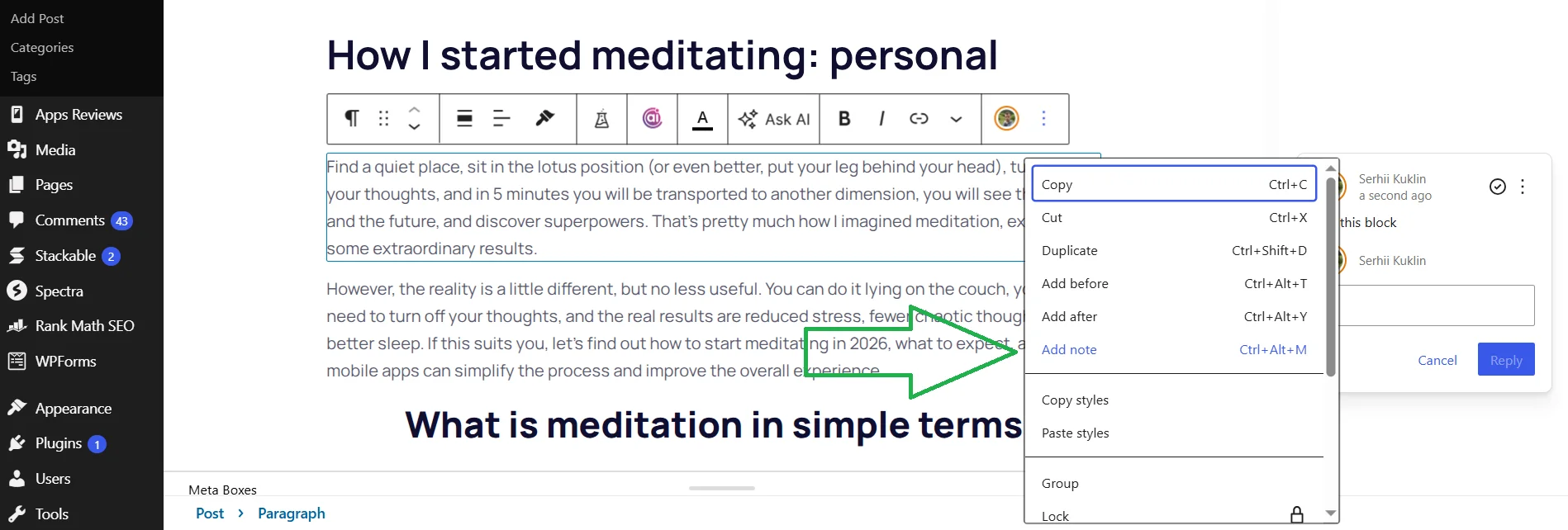
To use it, go to any post, click on the block → three dots → «Add note» or simply use the keyboard shortcut Ctrl+Alt+M. After clicking, a panel opens where you can add a comment tied specifically to that block.
There was also supposed to be the ability for real-time collaborative editing (RTC) of posts, but it was removed from the final release in early May 2026 due to server load issues. The WordPress team plans to return RTC in 7.1 (August 19, 2026), but at the time of writing this article, the final decision on the architecture has not yet been made.
Custom fonts in all WordPress templates
The Font Library (Appearance → Fonts) now works for all types of themes. This feature appeared in WordPress 6.5, but at that time it was only available for block (FSE) themes. In 7.0, it was expanded to classic and hybrid templates. Now through Fonts, you can upload your own font (formats .ttf, .otf, .woff, .woff2 are supported) or install fonts from Google Fonts without additional plugins.
Let's consider how to add a custom font in WordPress using ABeeZee from Google Fonts:
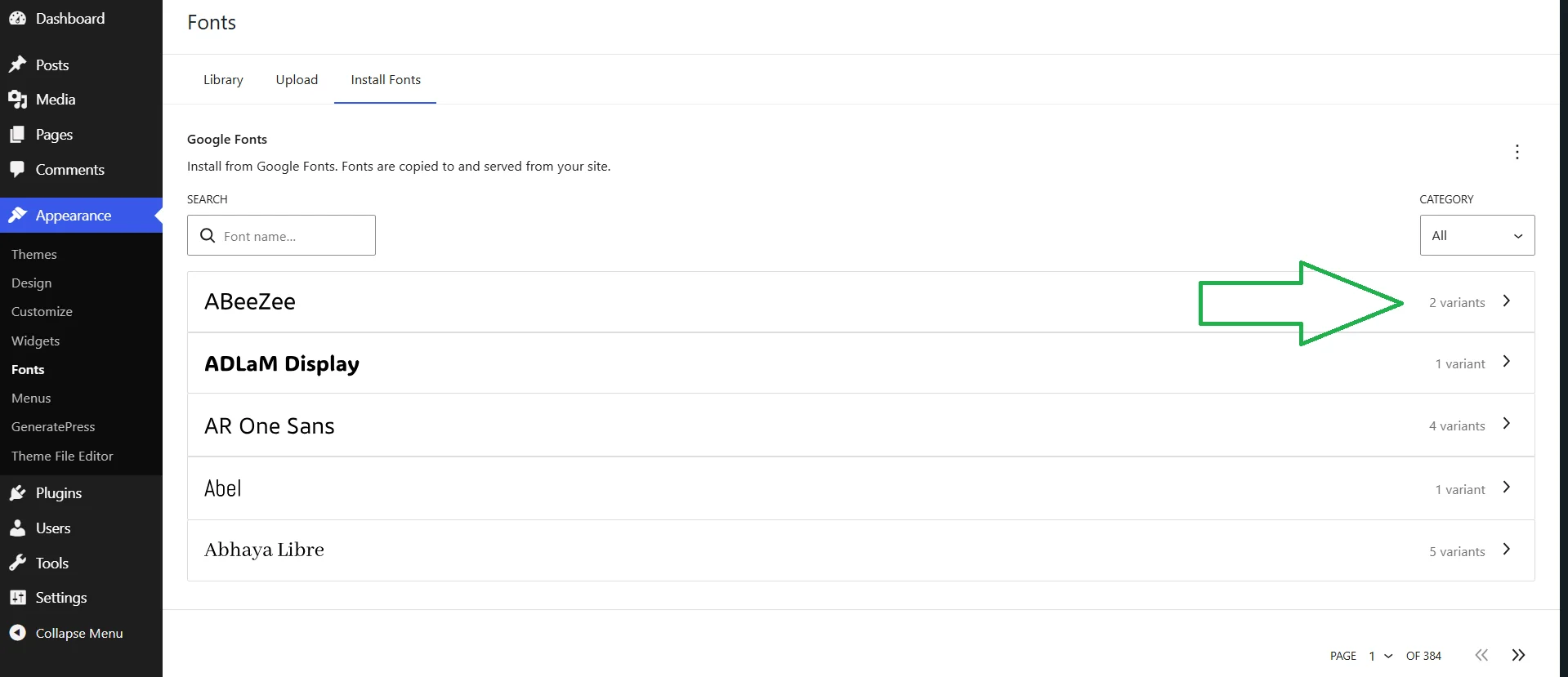
- Go to Fonts → Allow access to Google Fonts.
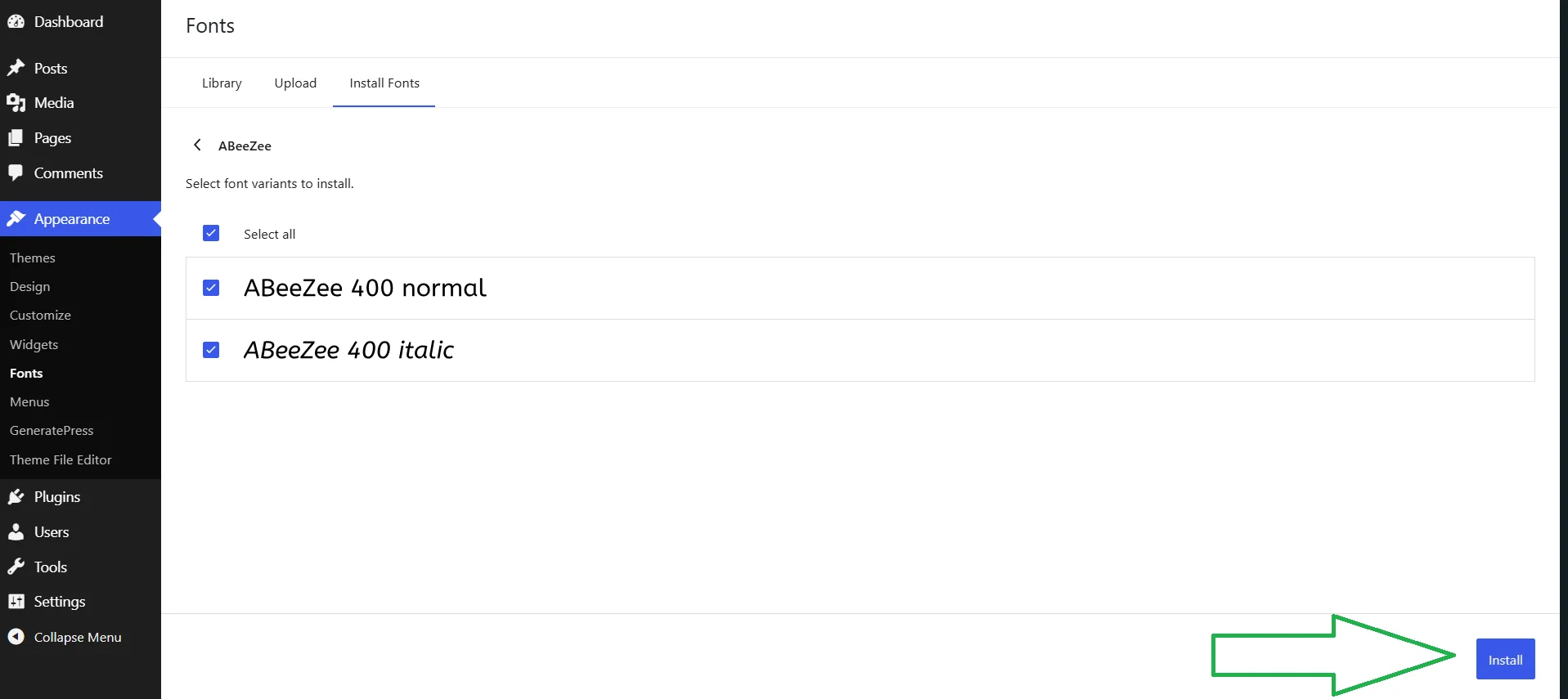
- Select the ABeeZee font in two variations: 400 normal and 400 italic.
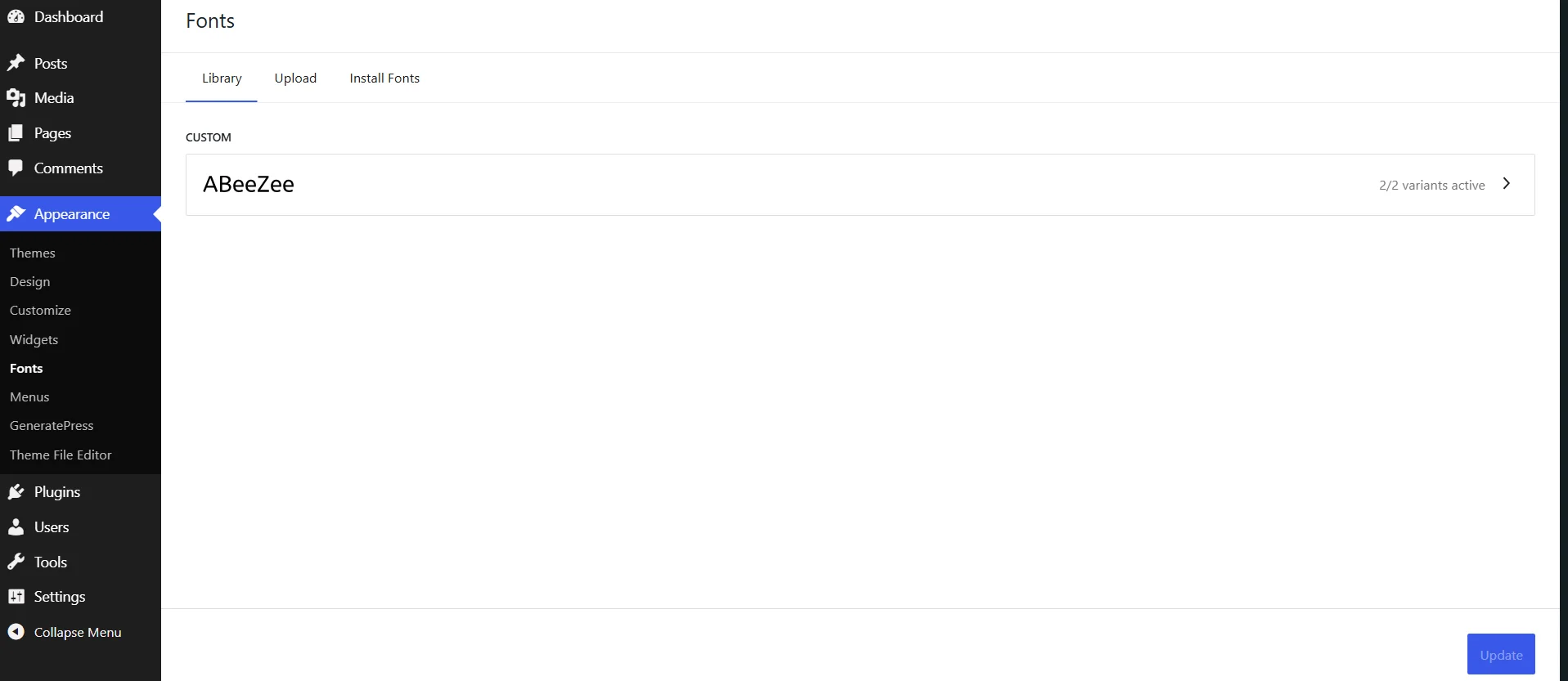
- Click Install, go to Library, and check for the presence of this font.
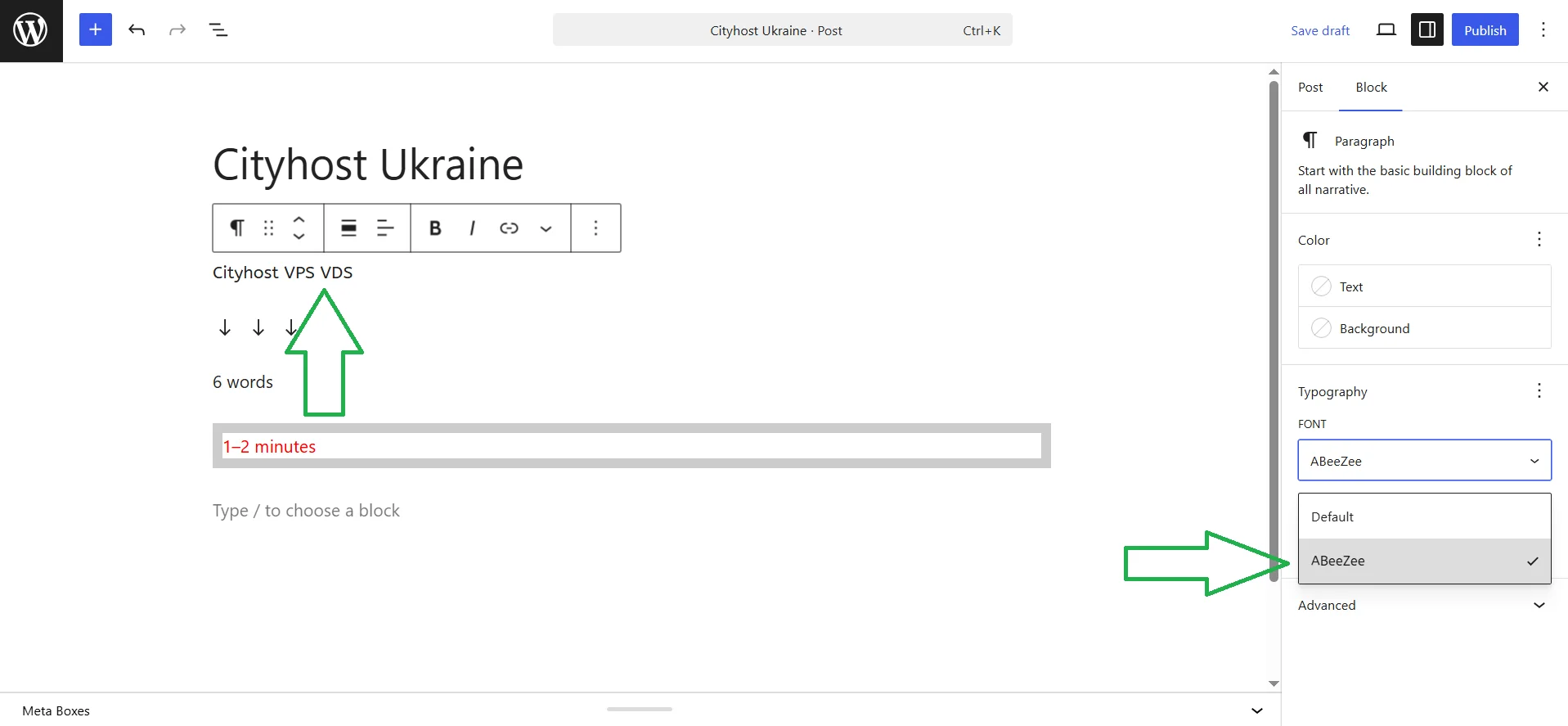
Now we can go to any post or create a new one and use the font we installed. For example, I went to a test post, clicked on the text block → three dots next to Typography → Font. And instead of Default, I set ABeeZee — the text font changed instantly to the new one.
Improved page change preview

Visual Revisions — is a feature that allows you to view all changes to pages and posts and revert to any previous edit. In WordPress 7.0, developers changed the revisions interface: instead of the two-column HTML code «Removed / Added», changes are supposed to be displayed directly in the editor with color coding (green — added, yellow — changed, red — removed).
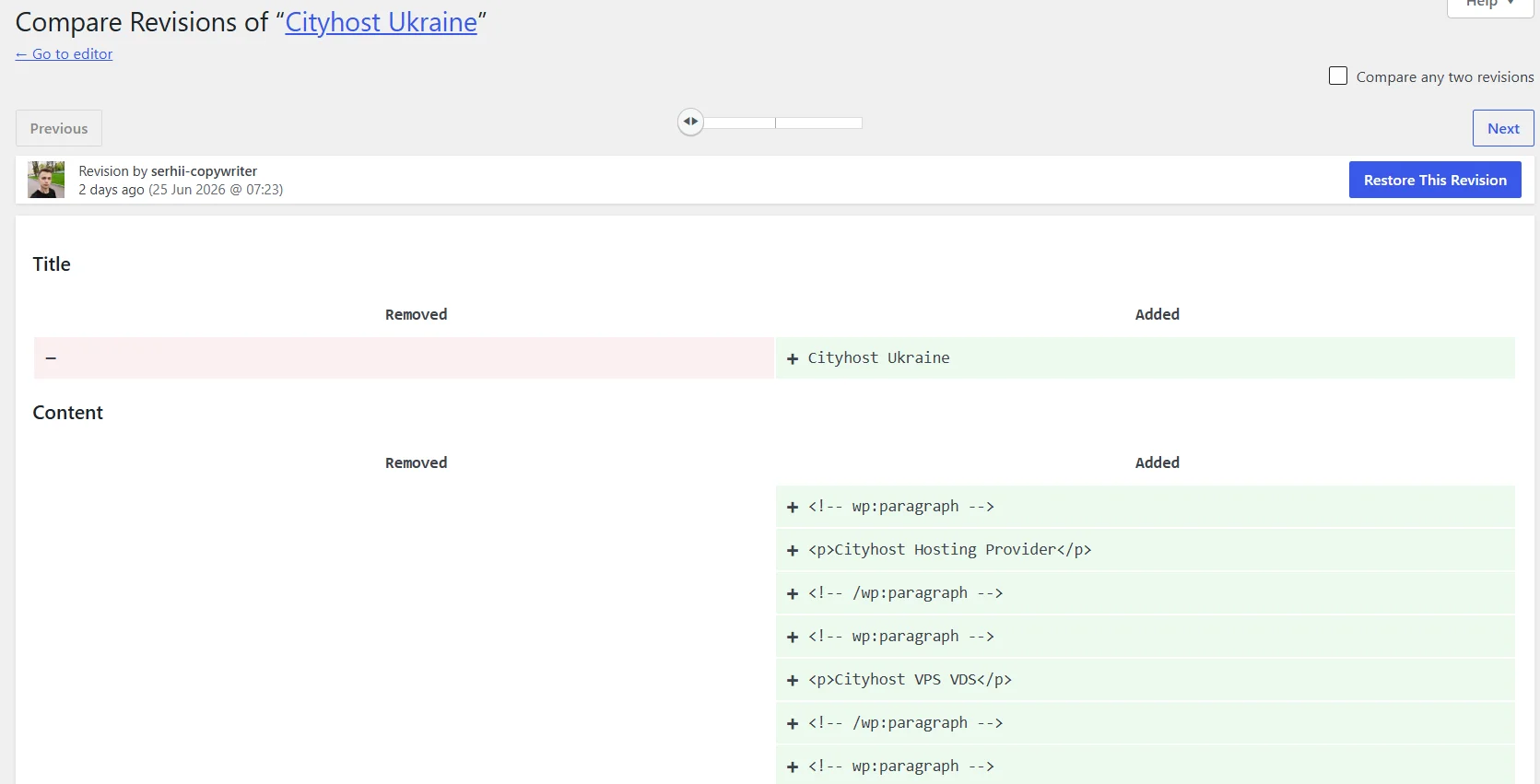
In practice, I encountered the fact that this feature does not work. On my main site with various plugins, including Rank Math SEO, there was the same change preview functionality as on the test WordPress 6.8.5. I thought that maybe some plugins were interfering, so I switched to the test WordPress 7.0 and removed all extensions. However, the revisions system also opened the old page with the usual two-column view.
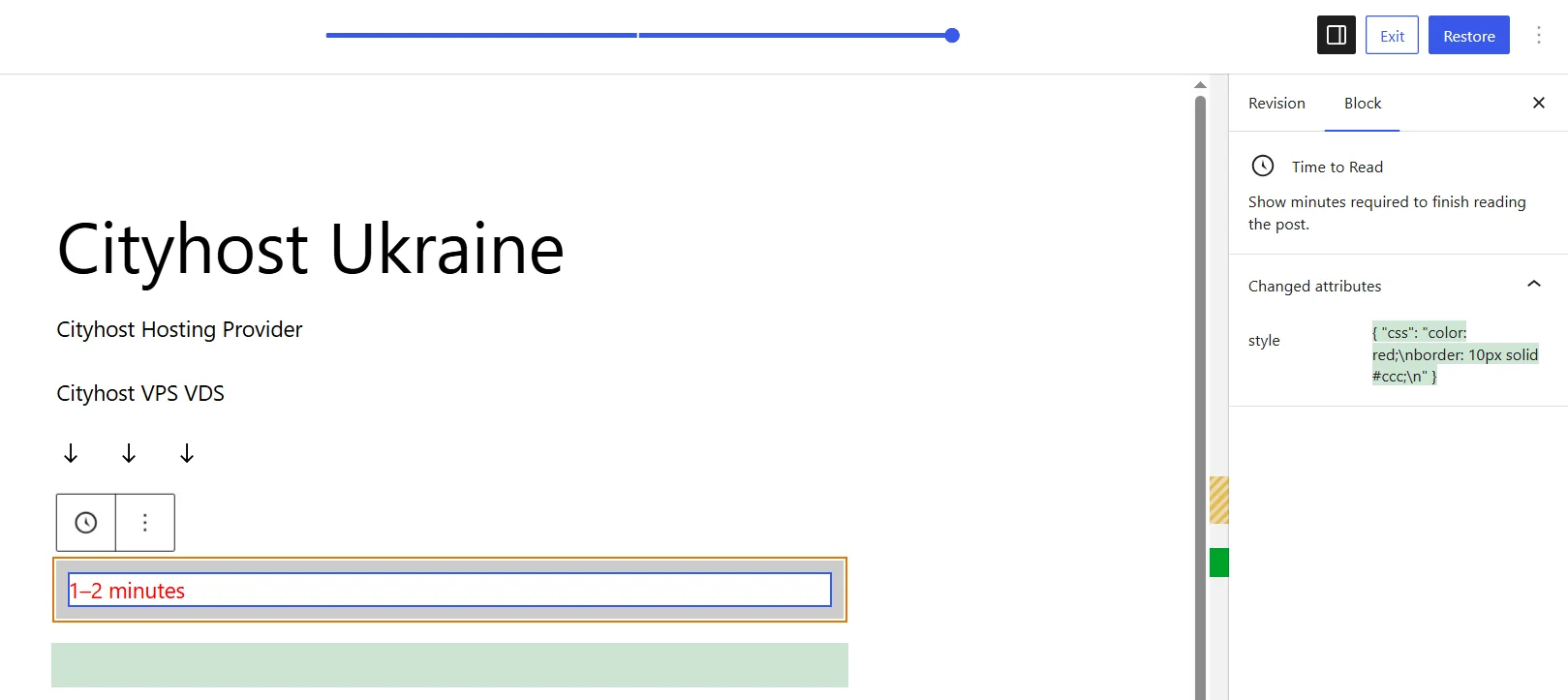
Later I figured out the reason. The problem turned out not to be with the plugins, but with the GeneratePress theme — it does not support the iframed editor, without which Visual Revisions cannot be activated. After switching to Twenty Twenty-Three, the feature worked immediately.
Additional interesting improvements in WordPress 7.0
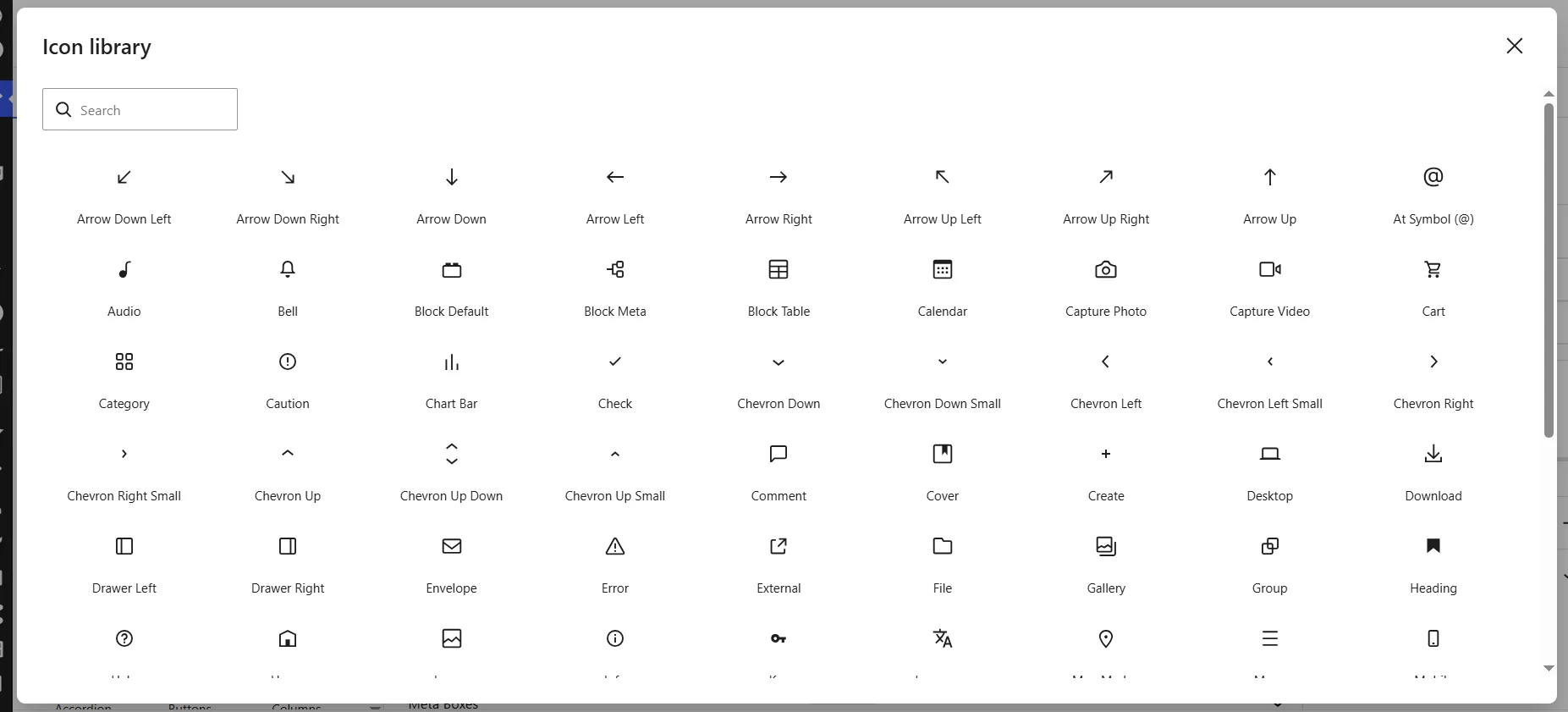
A new element — Icon has appeared in the Media section of the block editor. After adding, the Icon Library opens with a library of WordPress icons in SVG format and a search bar. At the time of testing, there were about 80 icons in the library. Such changes allowed to get rid of third-party plugins, without which it was previously impossible to add icons to text.
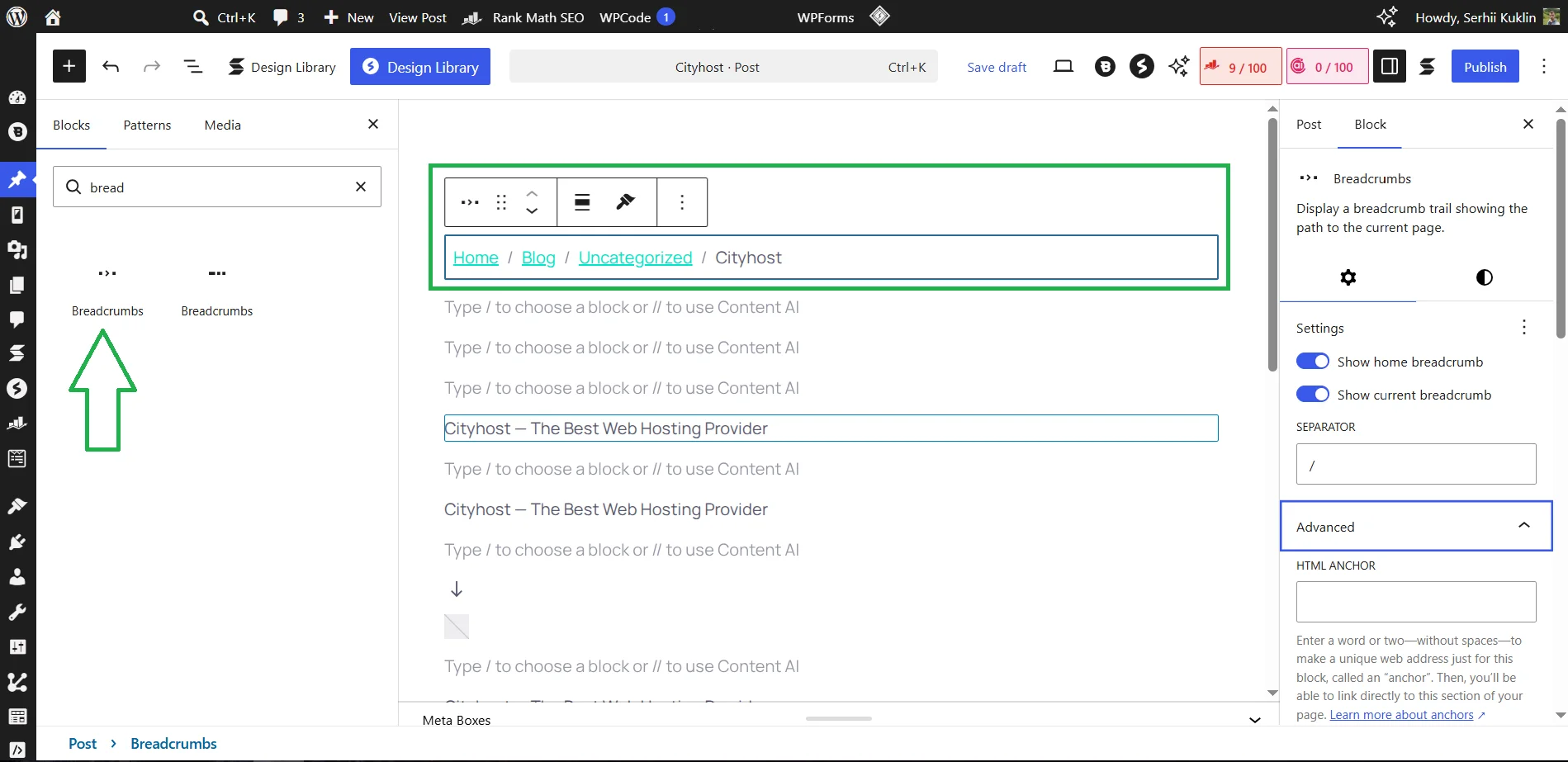
In the Armstrong update, developers added the Breadcrumbs block — a native block for breadcrumbs. If the site already uses Rank Math or Yoast, then in the block inserter there will now be two options: from the core and from the plugin. For sites with an active SEO plugin, there is no need to change anything — the plugin variant is already configured for your site. So the block from the CMS itself is only useful if there is no SEO extension or if flexible placement in an FSE theme is needed without unnecessary dependencies.
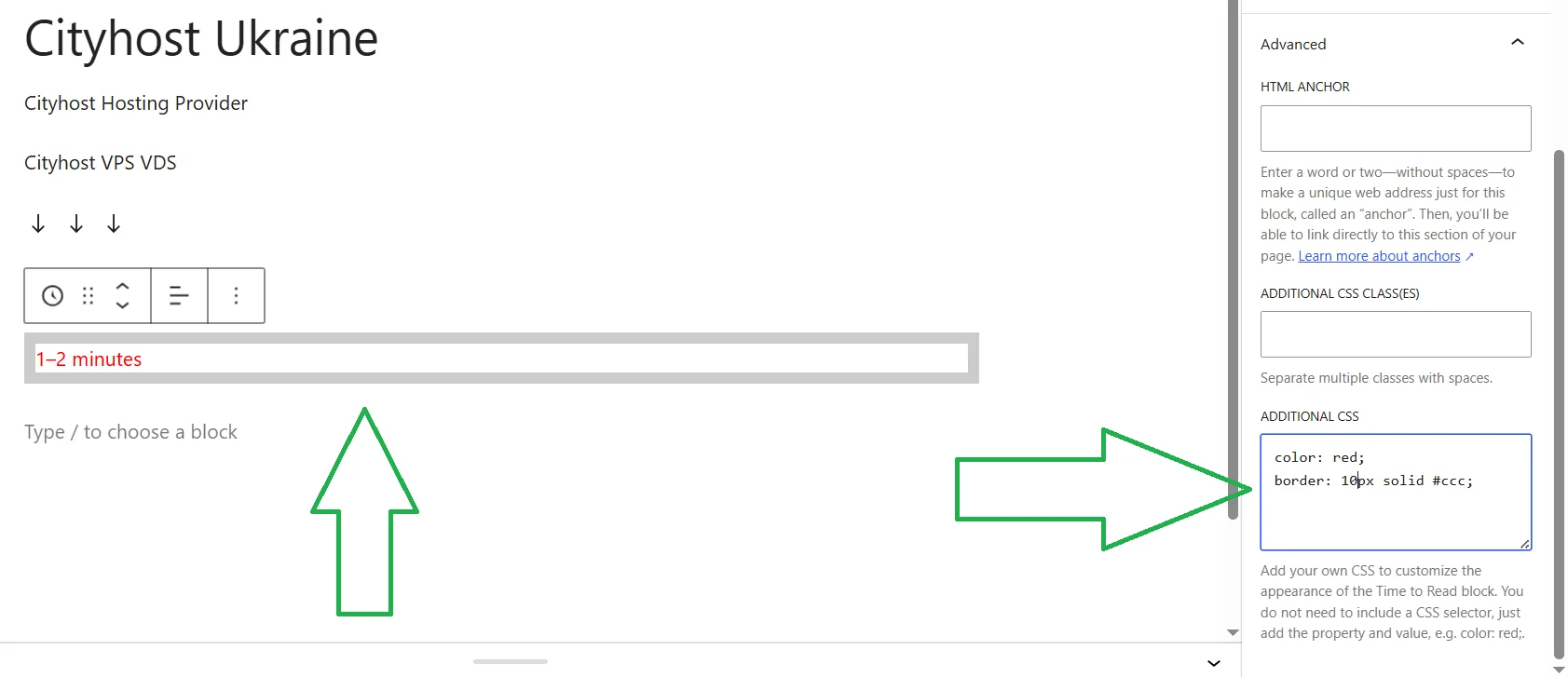
In the settings of any block in the Advanced section, you can now see a new field — Additional CSS. Here you can write CSS directly for a specific block. Previously, for this, you had to either specify a separate class and style in Global Styles or install an extension. Now it is enough to specify only the property and value — without a CSS selector, for example: color: red; or border: 1px solid #ccc;. CSS is stored inside the block and moves with it when copied.
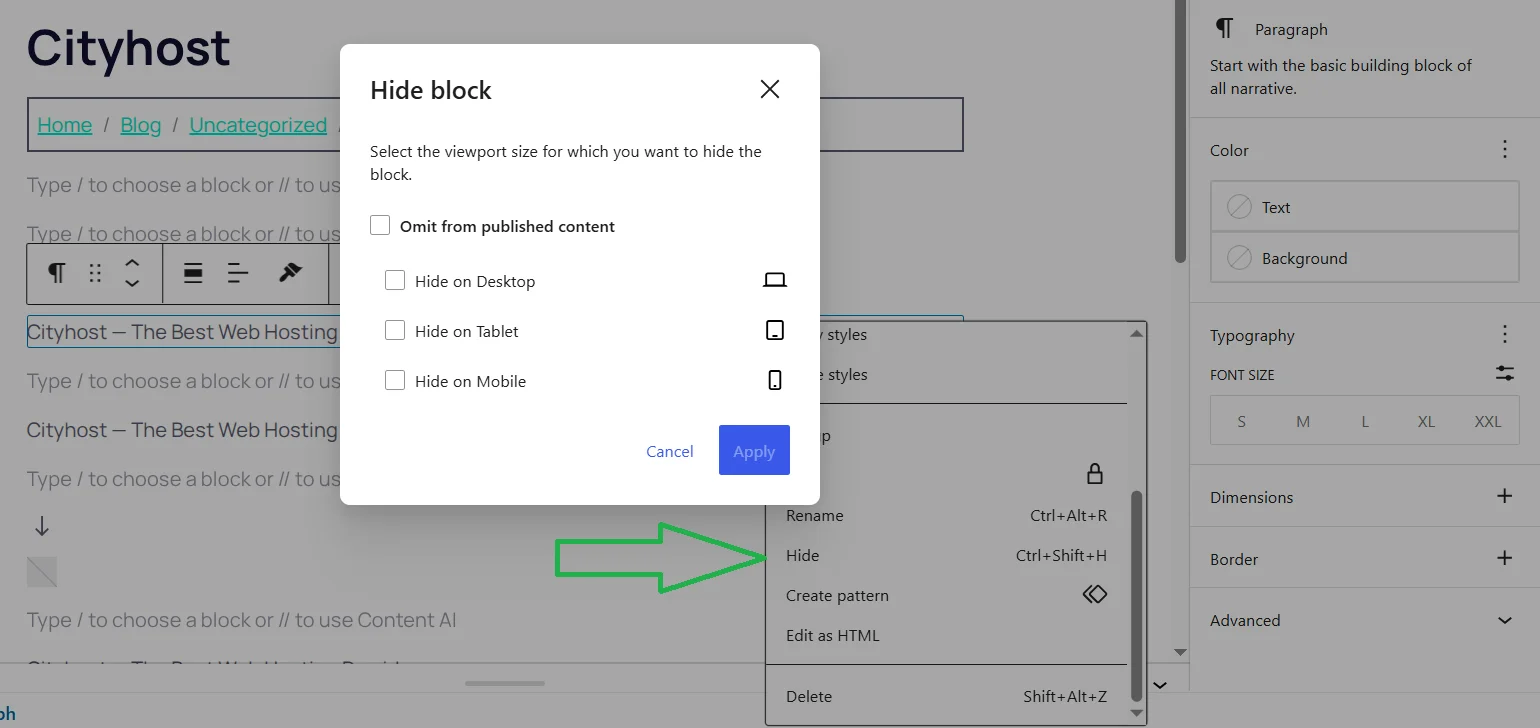
A «Hide» option has appeared in the menu of any block. When clicked, a modal window opens with two options: «Omit from published content» (the block remains in the editor but does not appear on the published page) and device selection (hide on computer, tablet, smartphone).
What is the Future of Updates for WordPress
WordPress 7.0 — is a foundation, not a finished building. The first expected addition is the return of collaborative editing, which they want to add in the next release 7.1, scheduled for August 19, 2026. Matt Mullenweg himself called the delay of 7.0 a one-time exception. Moreover — starting in 2027, he wants (according to his message in Slack, which was published on The Repository website) to return to releasing four major updates a year.
But the key question is — is it worth updating sites to WordPress 7.0? If you have a small blog — you can update, after checking the functionality specifically for your tasks on a test web resource. However, if the project is large, with custom post types, complex plugins, and themes, you may want to wait for the release of version 7.1, which will add new features and likely make the system more stable and reliable.
Personally, on both my test and my own site, I did not regret the update: nothing fundamentally important changed for me in this release, but it also did not negatively affect stability, speed, or ease of use. The main value of the release — is the foundation for AI functions. However, it is currently at a weak level, so I hope that developers will significantly improve it in the next versions of the seventh line.