
- My conclusions after testing AI plugins for WordPress
- The best WordPress plugins with artificial intelligence in 2026
- AI Engine — the best universal AI plugin
- Elementor AI — the best website builder with artificial intelligence
- Angie by Elementor — adding custom features without programming
- GetGenie — the best AI plugin for content generation and search engine optimization
- Tidio — the best AI plugin for comprehensive customer support
- Which AI plugin to choose for your WordPress site
AI plugins for WordPress sites — this is an opportunity to quickly generate content, change the appearance of the web resource, and add interactive elements directly in the control panel. However, just like with regular CMS applications, the problem of choosing the most effective solution arises. So, I spent a week testing 15 well-known extensions in the TasteWP sandboxes, selecting the best AI plugins for WordPress that address key tasks. With them, you can create posts and images, perform search engine optimization, integrate chatbots, improve templates without coding knowledge, and in most cases, this can be done without initial costs.

My conclusions after testing AI plugins for WordPress
An important innovation of 2026 — the emergence of autonomous agents. They differ from regular artificial intelligence by the Model Context Protocol, which allows them to see the entire structure of the site, including active themes, plugin files, and database settings. For example, Angie not only advises what to write or where to insert ready-made code, but independently creates complex structures, changes individual blocks, generates new sections on pages, and registers custom post types.
Another important point is the impact of AI CMS applications on the loading speed of the website's pages. The market is filled with extensions that overload the database and slow down the frontend. I filtered them out, selecting only quality AI plugins for WordPress, in which data processing occurs asynchronously on the backend servers of providers, rather than on your affordable reliable hosting, ensuring minimal impact on loading speed.
But it remains something that everyone must control themselves — EEAT. Search algorithms actively evaluate the content on the site, checking it for "humanity". We have already discussed the chronology of events that led to traffic drops, considering Spam Update and AI Overviews. As you remember, the publication of pure AI content played a negative role, meaning web resources that published texts from artificial intelligence without supplementing them with their unique information faced a loss of positions. So, despite the ability to generate articles directly in the admin panel, they must always be checked, data clarified, links to official sources left, and supplemented with personal experience.
Also read: Vibe Coding: how to create websites and smart widgets using AI without coding knowledge
The best WordPress plugins with artificial intelligence in 2026
For testing, I used the TasteWP platform, which allows you to create a WordPress site for free and manage it for 7 days. The AI plugins described below can also be used for free, but they have limitations either only on their server (you will need to connect a paid plan) or require connection to Google, Claude, ChatGPT, and other APIs with their limitations (payment for both the extensions and the APIs).
All CMS applications are safe: updates at least once every 2 months, no problems during the week of testing. There was also no negative impact on the site's speed; I am already using some tools on my own internet project.
| Plugin | Main task | Best for | Type of AI | Free version | Paid version |
|---|---|---|---|---|---|
| AI Engine | Custom AI solutions | Content projects | External (API) | Yes (non-critical limitations) | $59 per year + API payment |
| Elementor AI | Basic work with the site | Small web resources, MVP. | Built-in | Yes (quickly runs out) | from $4 per month or $49 per year |
| Angie by Elementor | Extending functionality without programming | Web studios, freelancers | Built-in | Yes (sufficient for testing) | from $19 per month |
| GetGenie | Creating and optimizing texts from scratch | Content projects, media | Built-in | Yes (up to 2500 words) | from $9.99 |
| Tidio | Customer support | Online stores, service sites | Built-in | 7-day trial period immediately after registration | from $24.17 and $32.50 per month |
AI Engine — the best universal AI plugin
AI Engine (Meow Apps) — this is the most universal AI plugin for WordPress, supporting dozens of models (OpenAI, Claude, Gemini), training on your data, and an agent protocol for managing the site. It has over 100,000 downloads with an average rating of 4.9. The extension is constantly updated: at the time of writing, the last update was 2 weeks ago. It supports 15 languages, including Ukrainian.
The feature of AI Engine — the Bring Your Own API Key model, meaning it does not have built-in artificial intelligence but connects your internet project with external AIs. For example, I went to the Google AI Studio website, clicked Get an API. I was immediately redirected to the API Key tab with a table where there was a row for Default Gemini API Key, and to the right of the masked key was a copy icon.
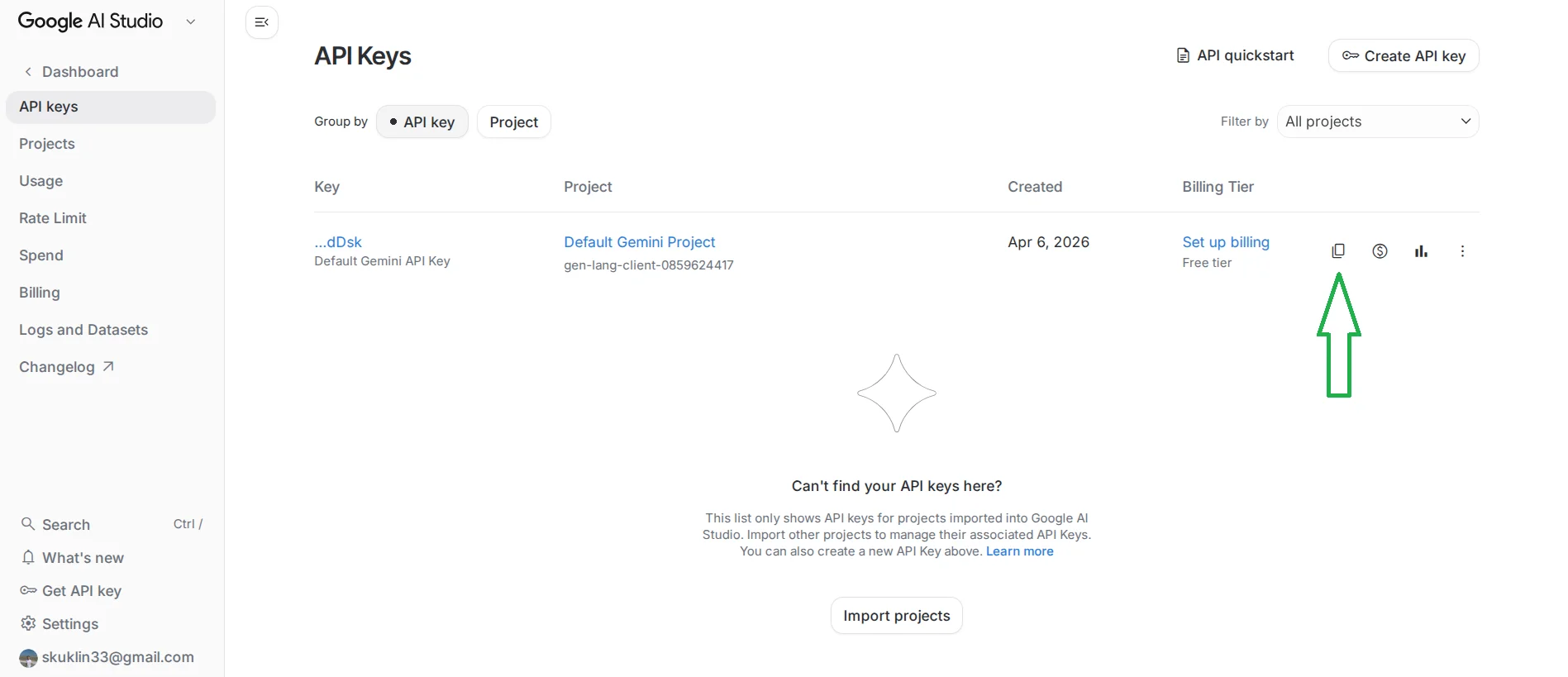
I clicked on it, returned to the AI Engine settings, pasted the key, and clicked "Update models" so that the plugin connected to the Google server. Then I selected the default model: for free testing, Gemini 2.5 Flash is the best choice.
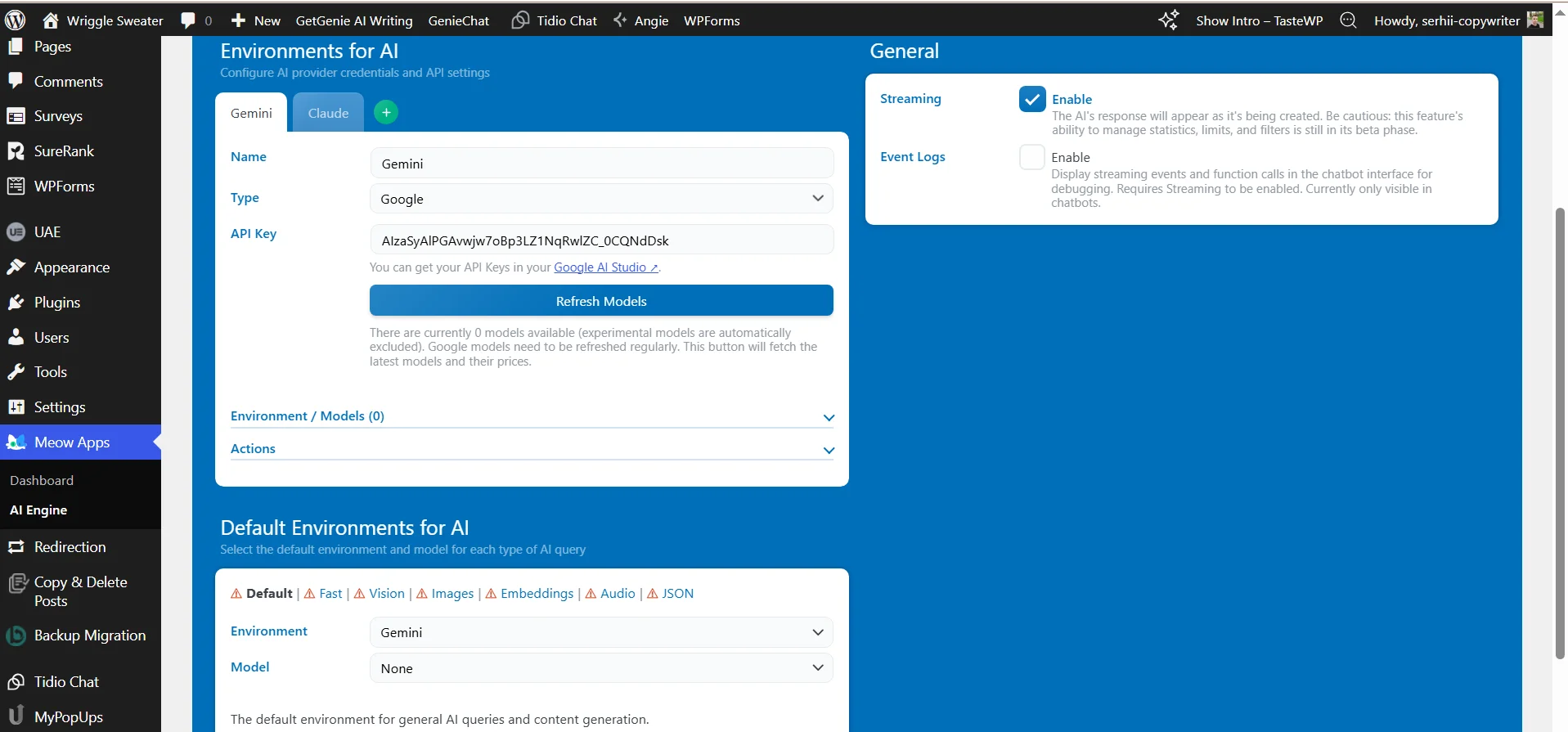
I recommend periodically checking Google AI Studio → Rate Limit to check available limits.
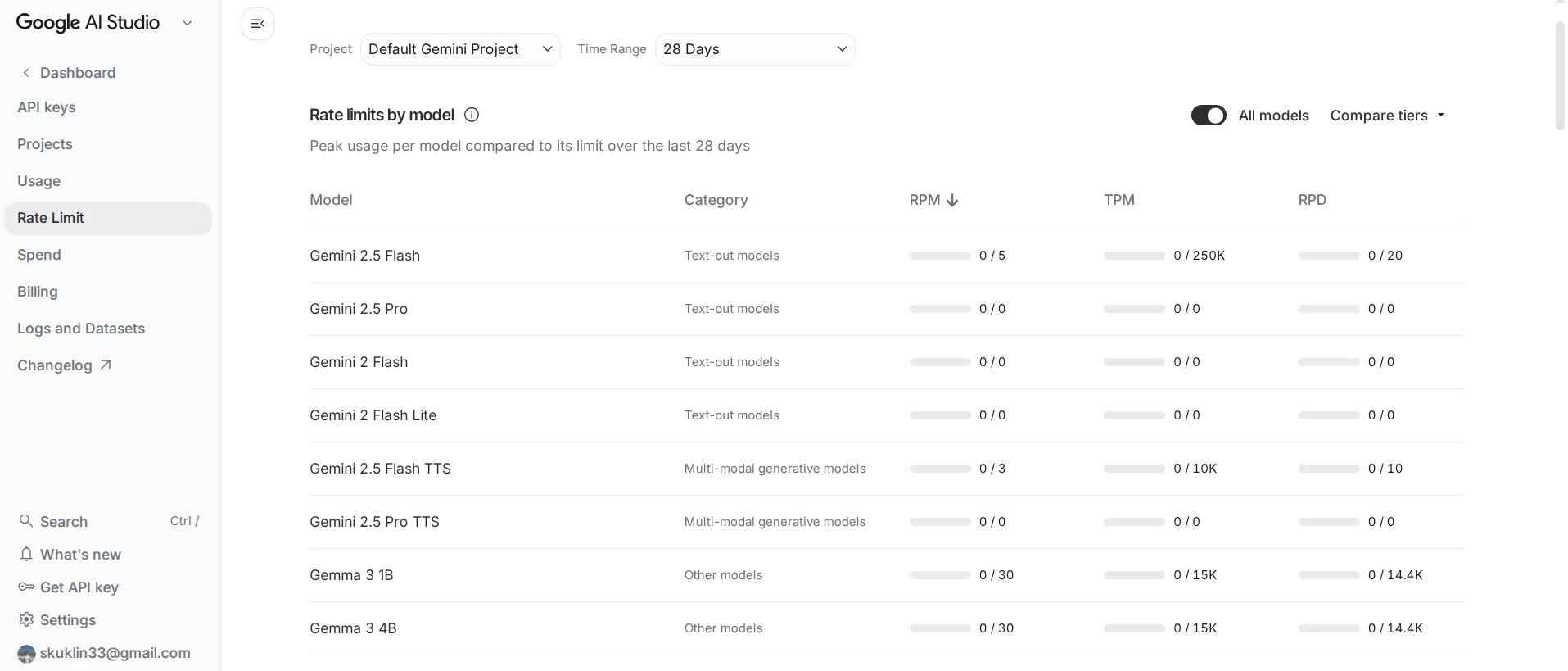
Now let's test the functions of AI Engine:
- Chatbots. I go to the "Chatbots" tab, copy the shortcode, and paste it on the desired page. You can also add it to the sidebar or footer of the site if you know the code or use WPCode — in any other place.
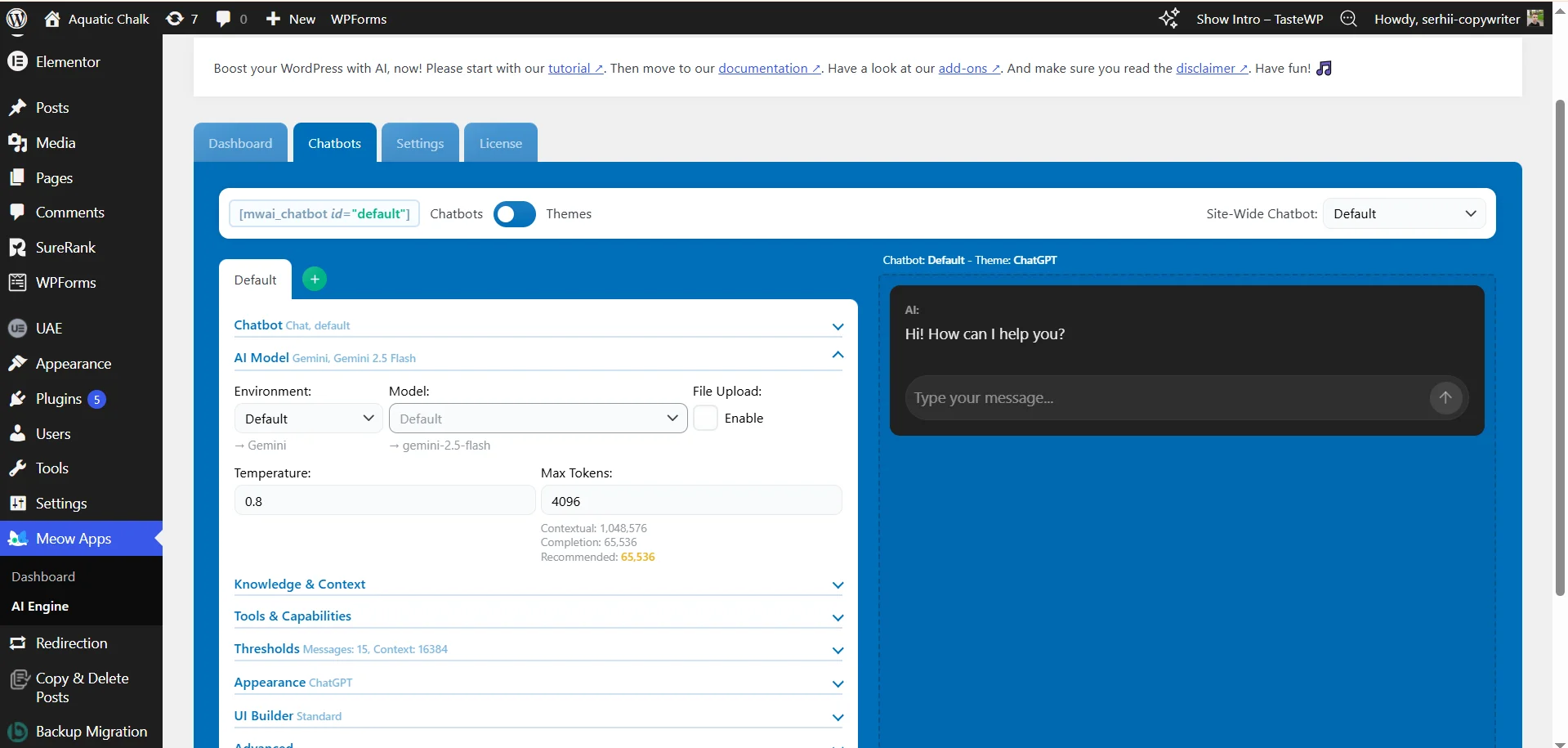
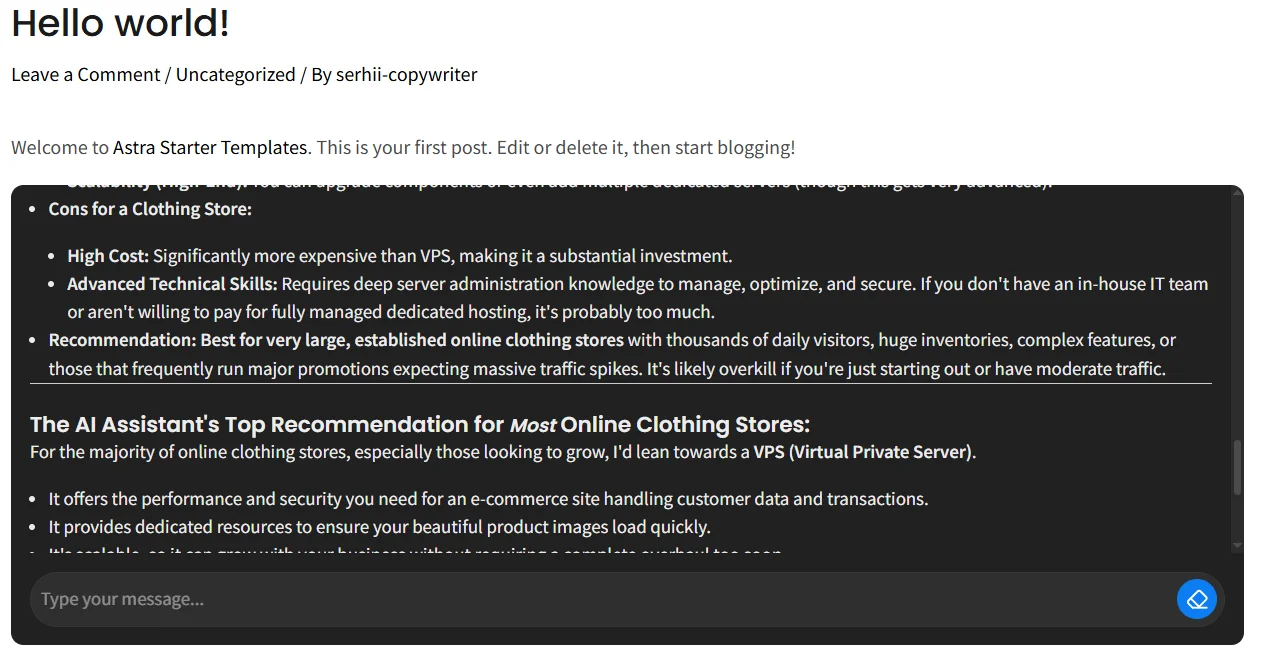
The page displays a classic chatbot. For example, let's ask which hosting (virtual, VPS/VDS, or dedicated server) to choose for an online clothing store. We receive an extended answer describing each type and recommending buying a virtual server for the online clothing store because it "provides the necessary speed, stability, and security at a reasonable price, while allowing for scalability".
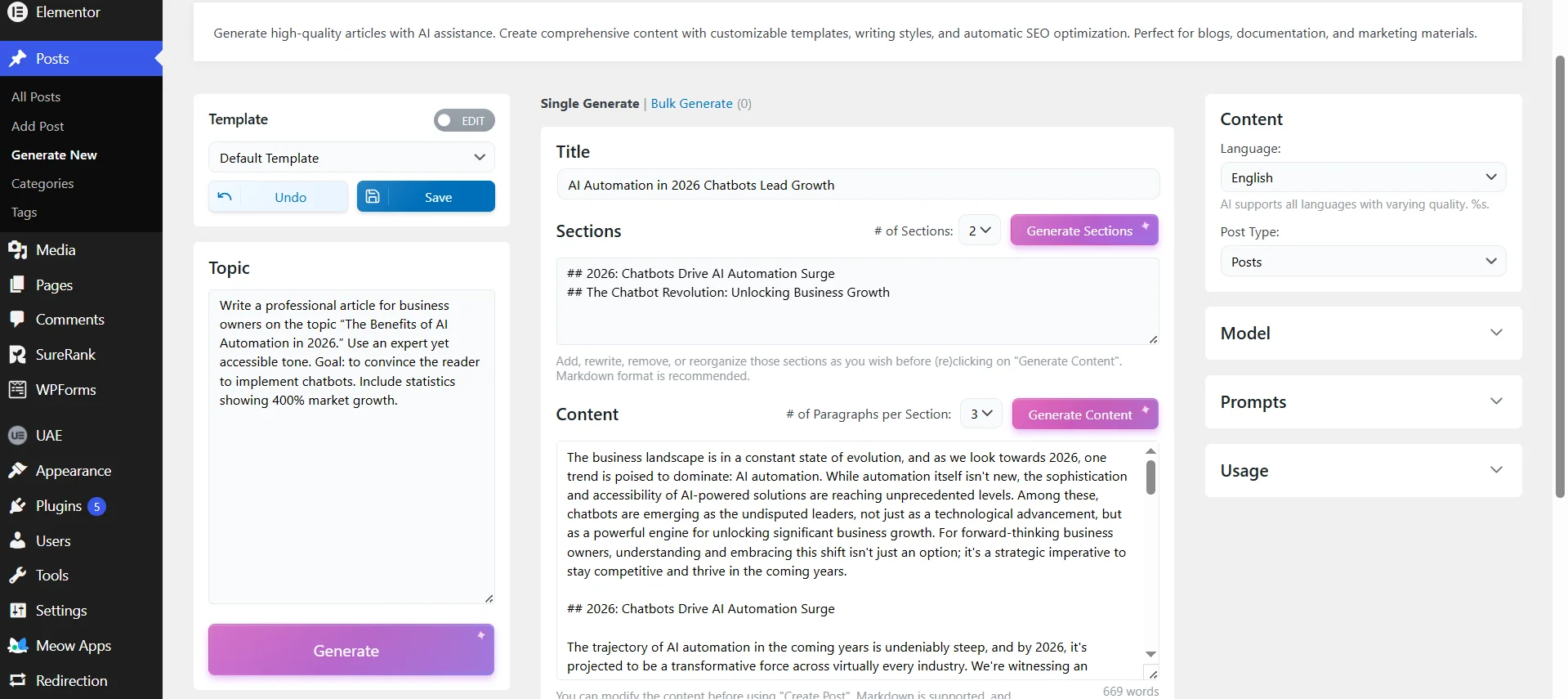
- Text generation. After installing and activating AI Engine, a "Generate New" tab will appear in the "Posts" tab. You can generate posts individually or in groups, meaning you can provide a list of 20 topics, and the plugin will write 20 articles simultaneously, automatically arranging headings, lists, and meta tags. I encountered the problem of the absence of Ukrainian in the list of languages: the plugin understands it but refuses to use it for writing texts because English is selected in the list. The situation can be slightly improved by specifying in the Topic that the article should be exclusively in Ukrainian for Ukrainians, but some parts, as you can see in the example of subtitles, remain in English.
- Text translation. I clicked Create Post after generating in the previous step, after which the article automatically moved to all other WordPress posts. Here, you can also work with the content.
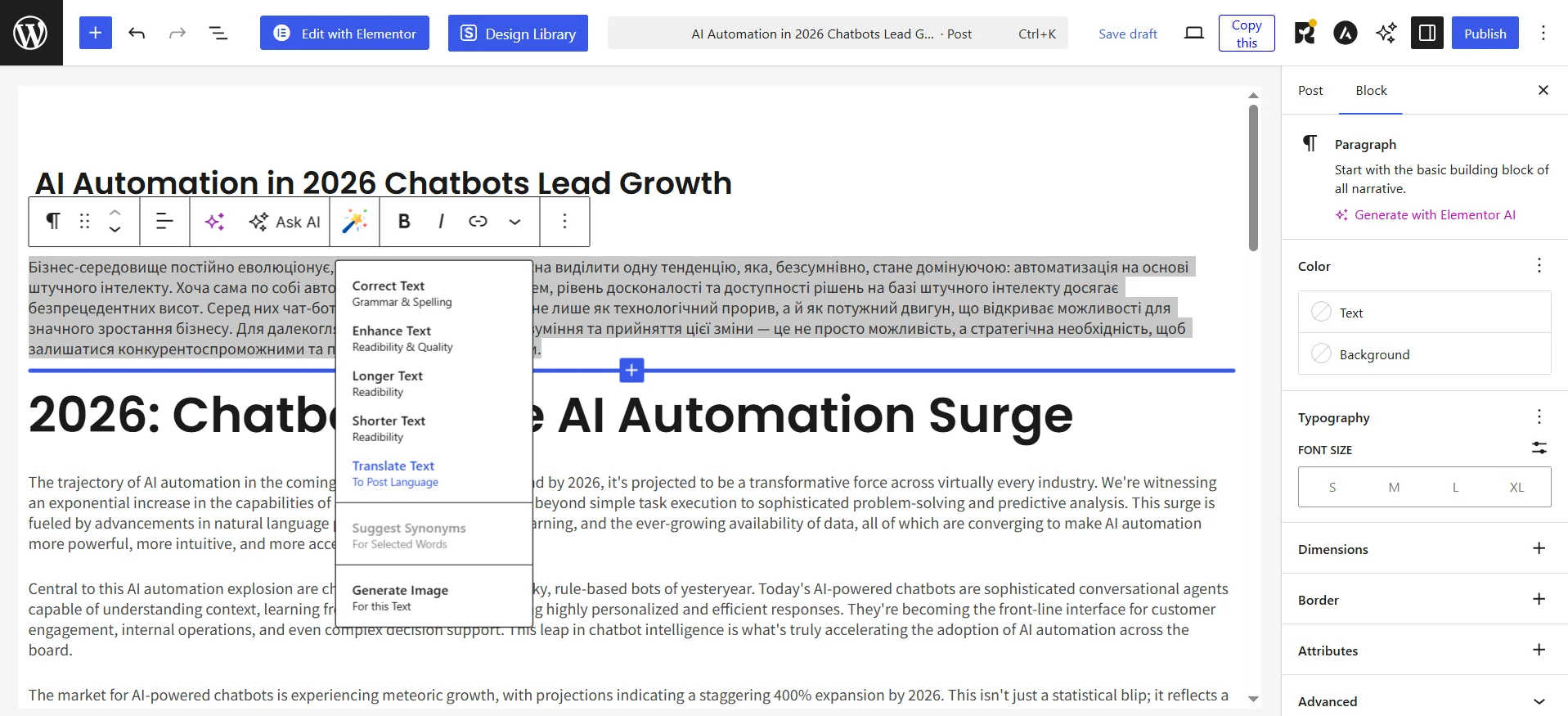
For example, I translated the first paragraph into English myself, then pasted it into the article, highlighted it, clicked on the magic wand, and selected Translate Text (such processes are due to the fact that the AI Engine translation occurs only into the post's language). I received an instant decent result.
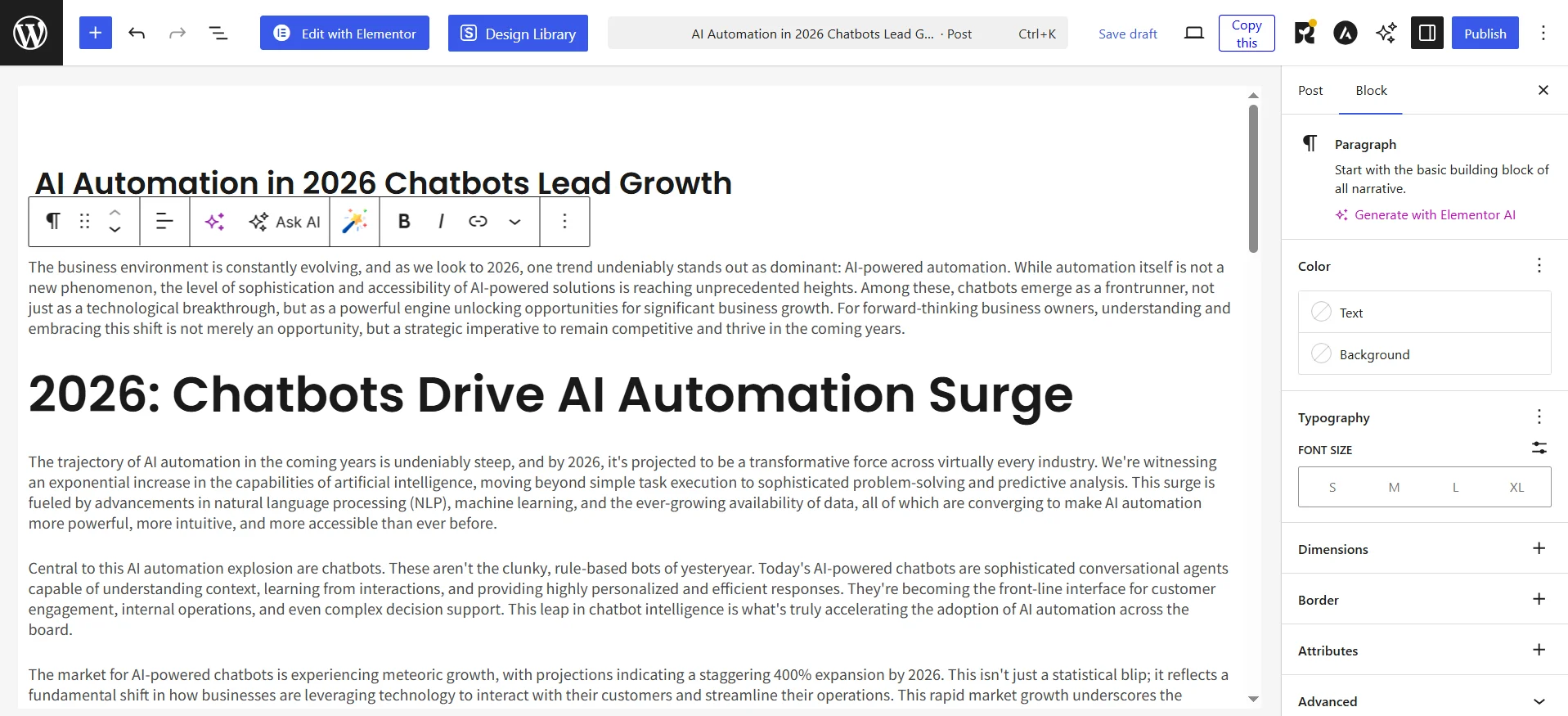
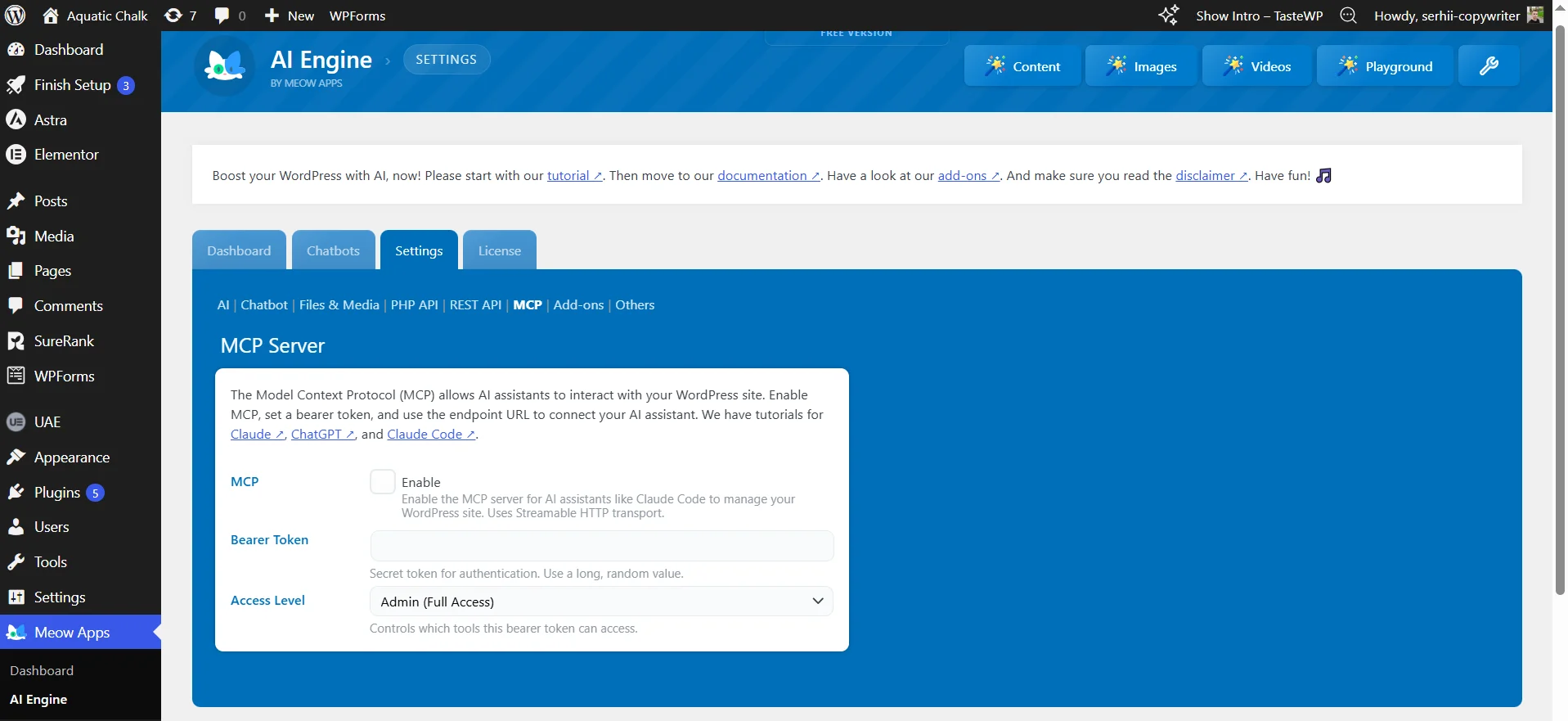
- Text refinement. Similarly, you can correct grammatical errors, make the post longer or shorter, improve readability and quality. For example, let's make the first paragraph long. However, here the result is much worse: the new ready article instead of a slight increase in the first paragraph has no formatting.
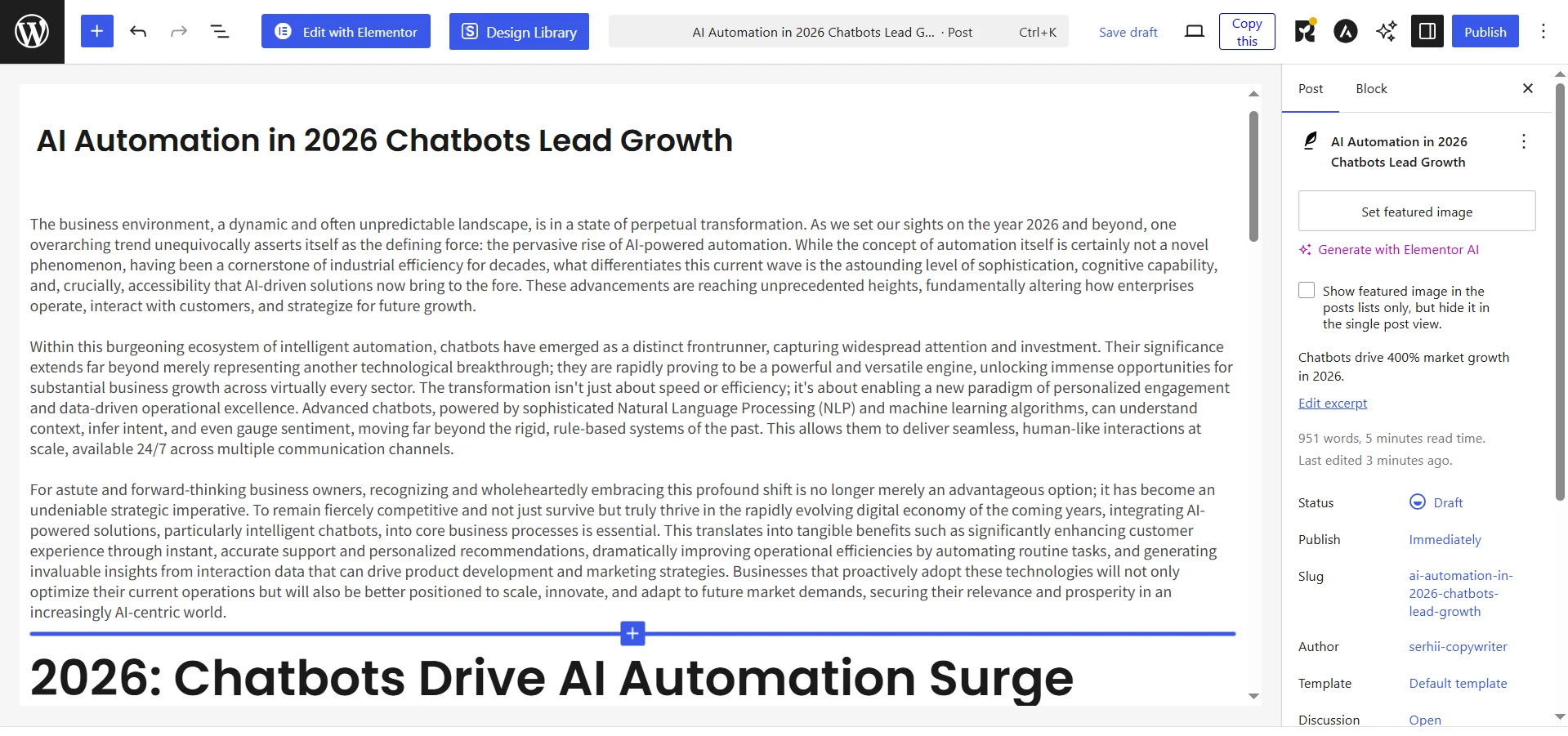
- Site management. Thanks to the MCP protocol, you can go to AI Engine → Settings and grant access to your site to external agents. There are detailed instructions for Claude, ChatGPT, and Claude Code. Then you can directly in the ChatGPT chat give tasks for checking the site, searching and deleting plugins, translating posts, and AI Engine will act as an intermediary, allowing the external AI to perform actions directly in your database and system.
The cost of the paid version of AI Engine is $59 per year for one site, for which you get access to creating interactive forms, real-time audio chat based on artificial intelligence, advanced MCP tools, etc. That is, you have the opportunity to build an autonomous business hub, but you will have to pay. And not only for the plugin but also for artificial intelligence; for example, the Gemini API Key version Gemini 3.1 Pro Preview costs $2.00 for 1 million incoming and $12.00 for 1 million outgoing tokens.
Also read: The best AI services for content creation: from texts to images
Elementor AI — the best website builder with artificial intelligence
Elementor — this is a drag-and-drop WordPress plugin that many people consider the best alternative to the classic Gutenberg editor. The developers added artificial intelligence directly in the latest versions, so you only need to install Elementor, without additional extensions. Then I immediately went to edit the main page, where I saw the usual functionality of this web application, without visible signs of AI.

Only after trying to change various blocks did I notice stars next to the text, photo, and section blocks. This is how I found the following Elementor AI features:
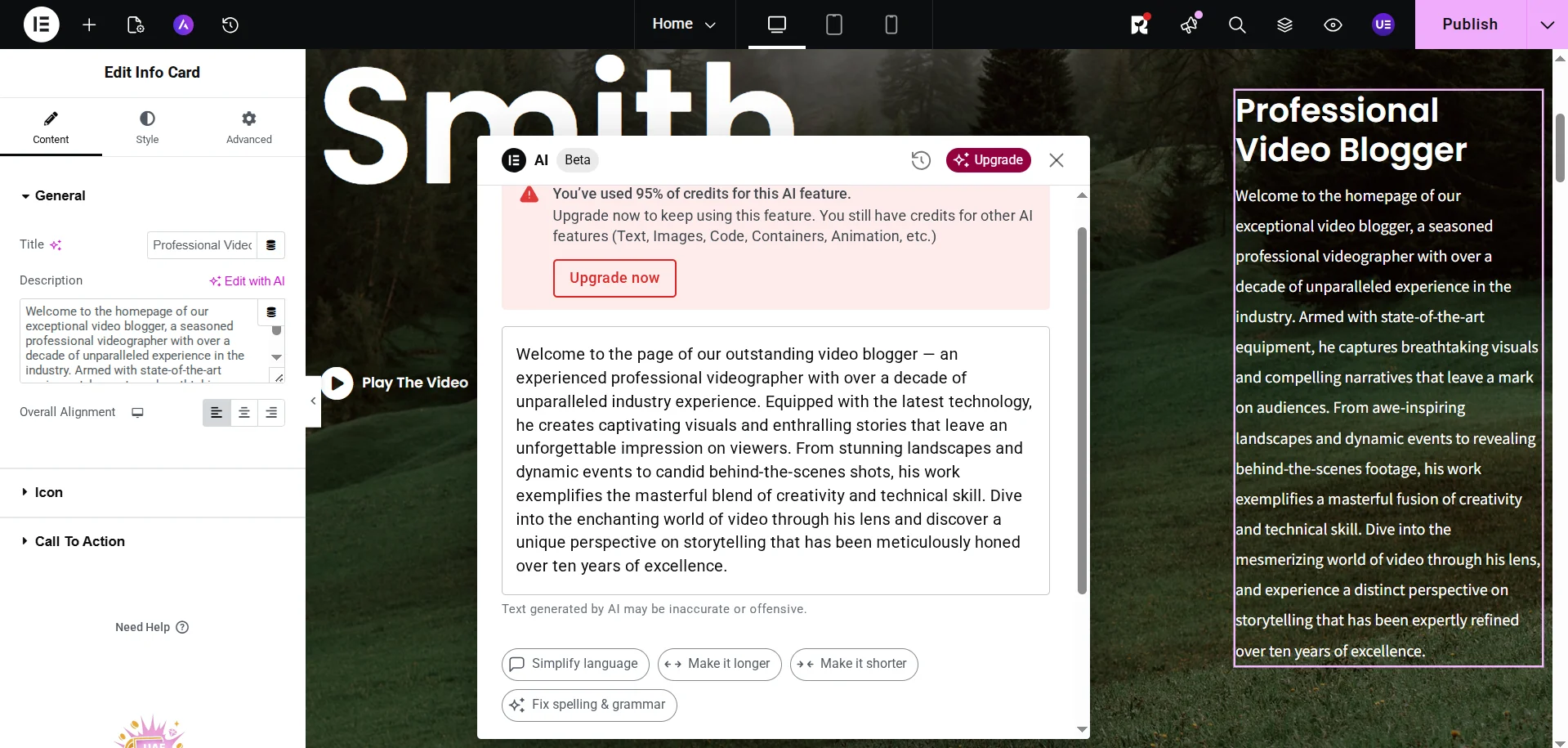
- Working with text. I select the first text block, in the left menu next to Description, I click Edit with AI and receive such a message, meaning I still need to spend time connecting artificial intelligence.
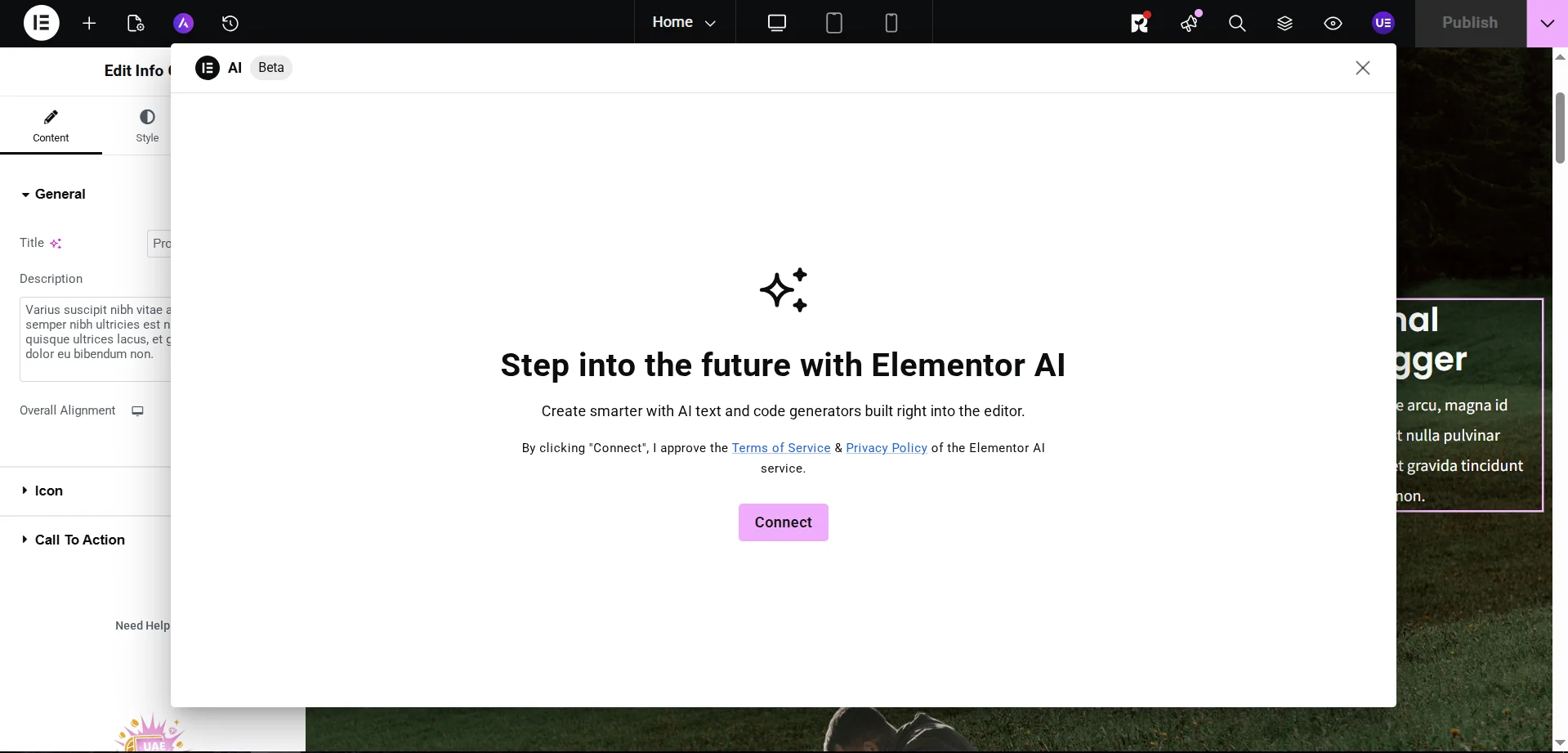
I was redirected to the account creation page, I chose Create an Account → Continue with Google, after which I was returned to the site where I checked the box to agree to the terms of use and clicked Get Started. Finally, we can work with the text, but here it is immediately visible that there are limitations (where would we be without them, but more on that below).
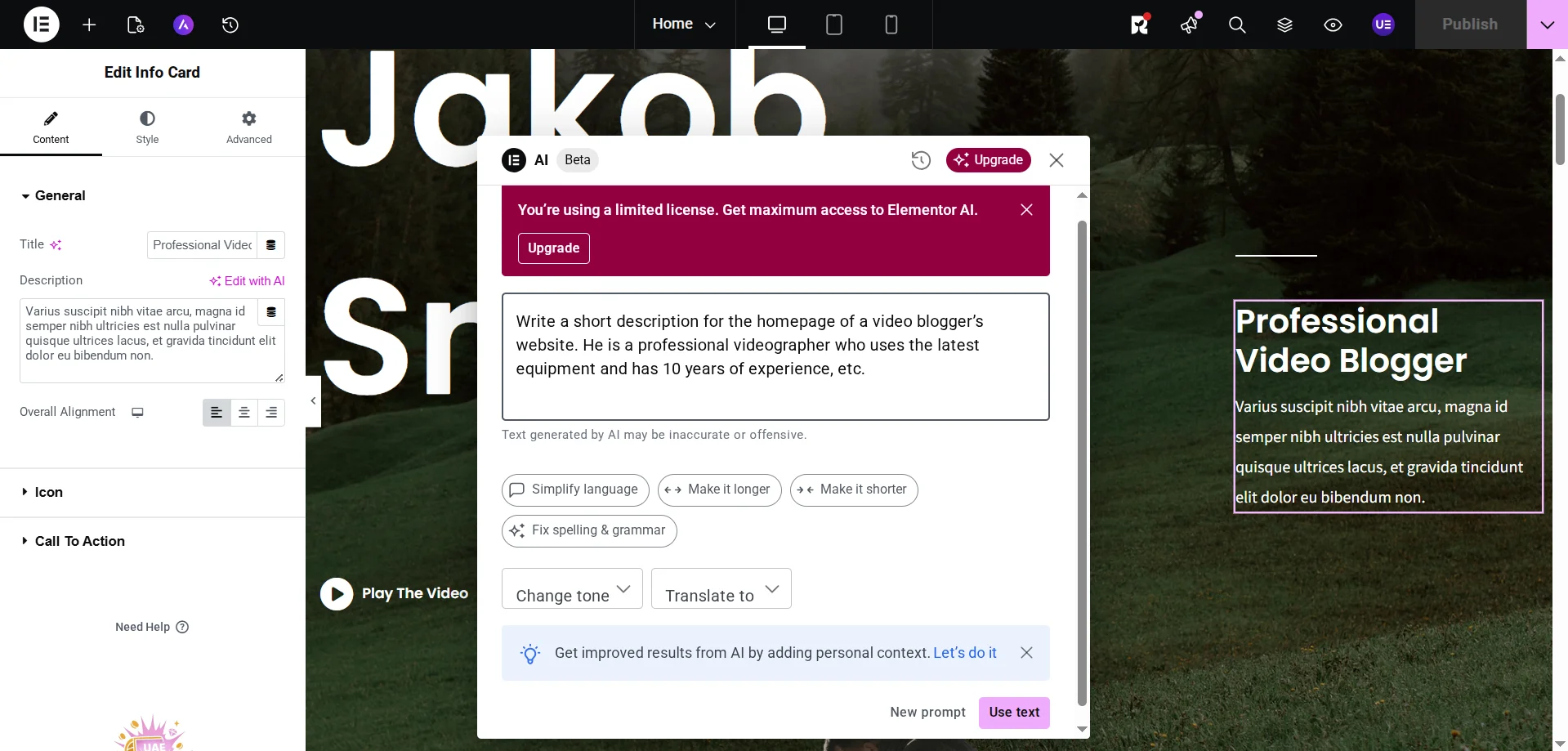
I wrote a short description for the first screen of the video blogger's site and asked AI to expand it.
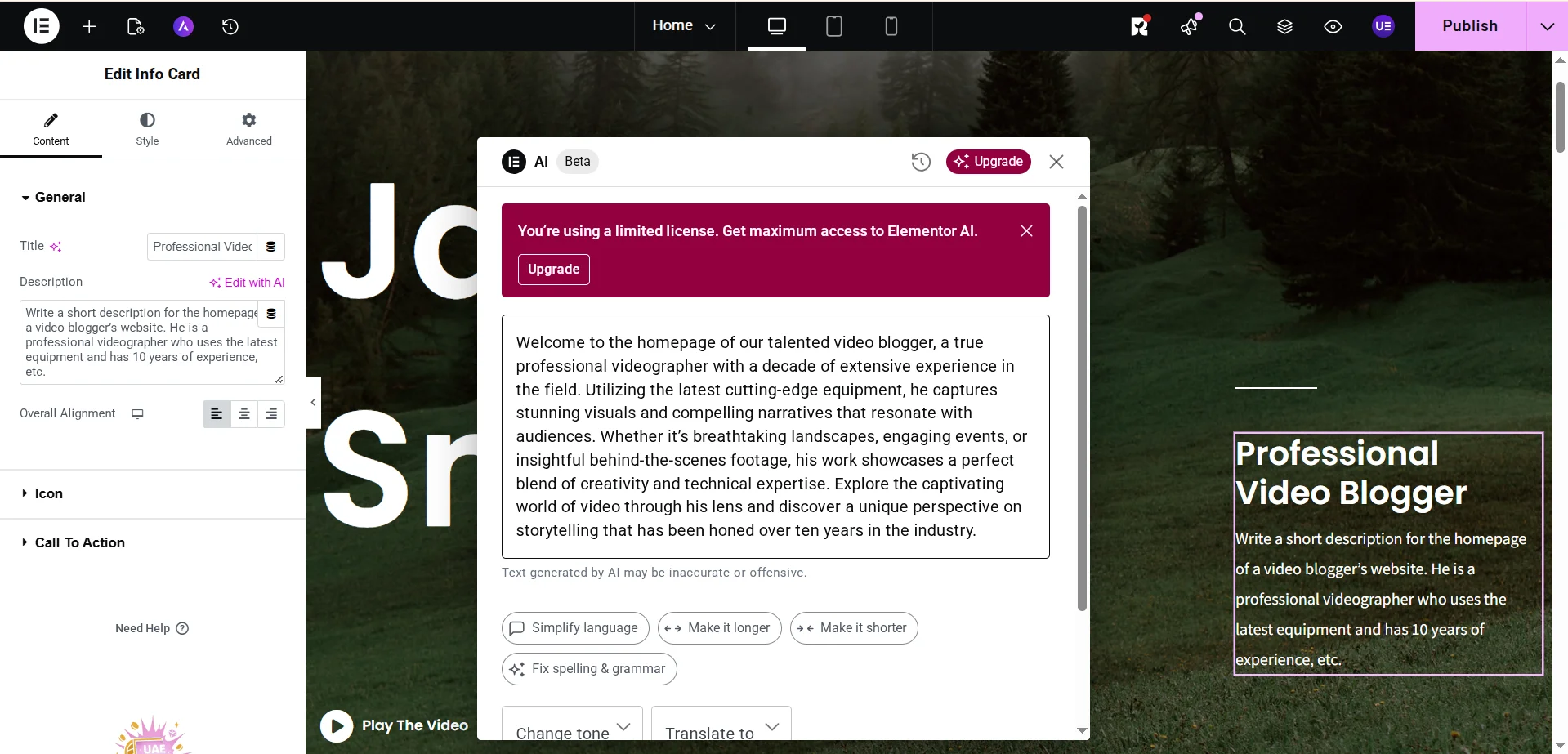
And I received a decent result considering that my own text was far from perfect. Additionally, I tried to change the tone of the text by clicking Change tone → Confidence.
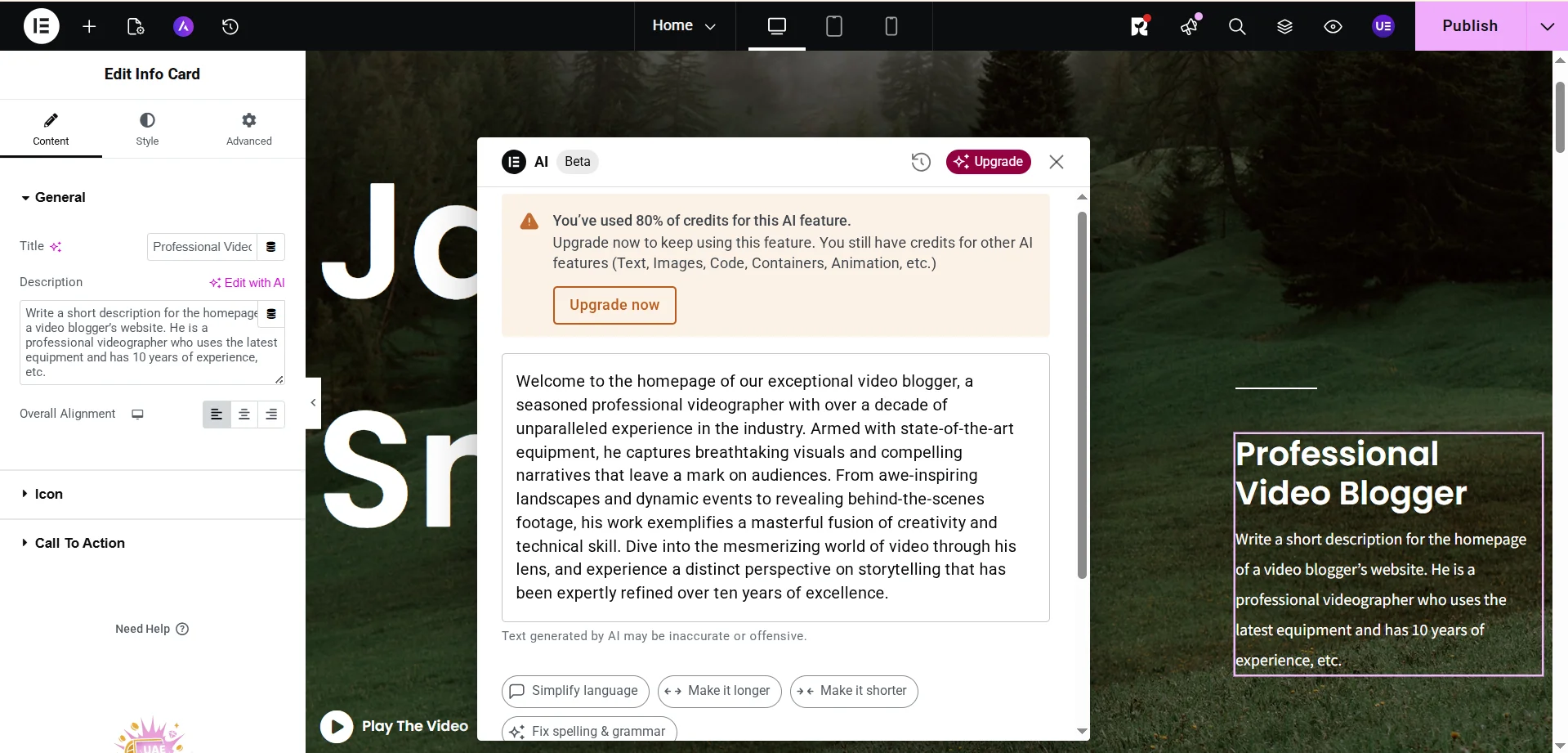
I received a good result in seconds. But what's more interesting: 5 messages for artificial intelligence — 80% of available credits used.
- Text translation. Elementor AI can translate text content, but among 25 languages, Ukrainian is not included. So I took our text, translated it from English to Ukrainian in DeepL, and then tried to translate it back into English using the Translate to function.
- Image processing. Elementor AI can work with images. To do this, you need to click on the image, after which in the left menu select the same stars (Edit with AI).
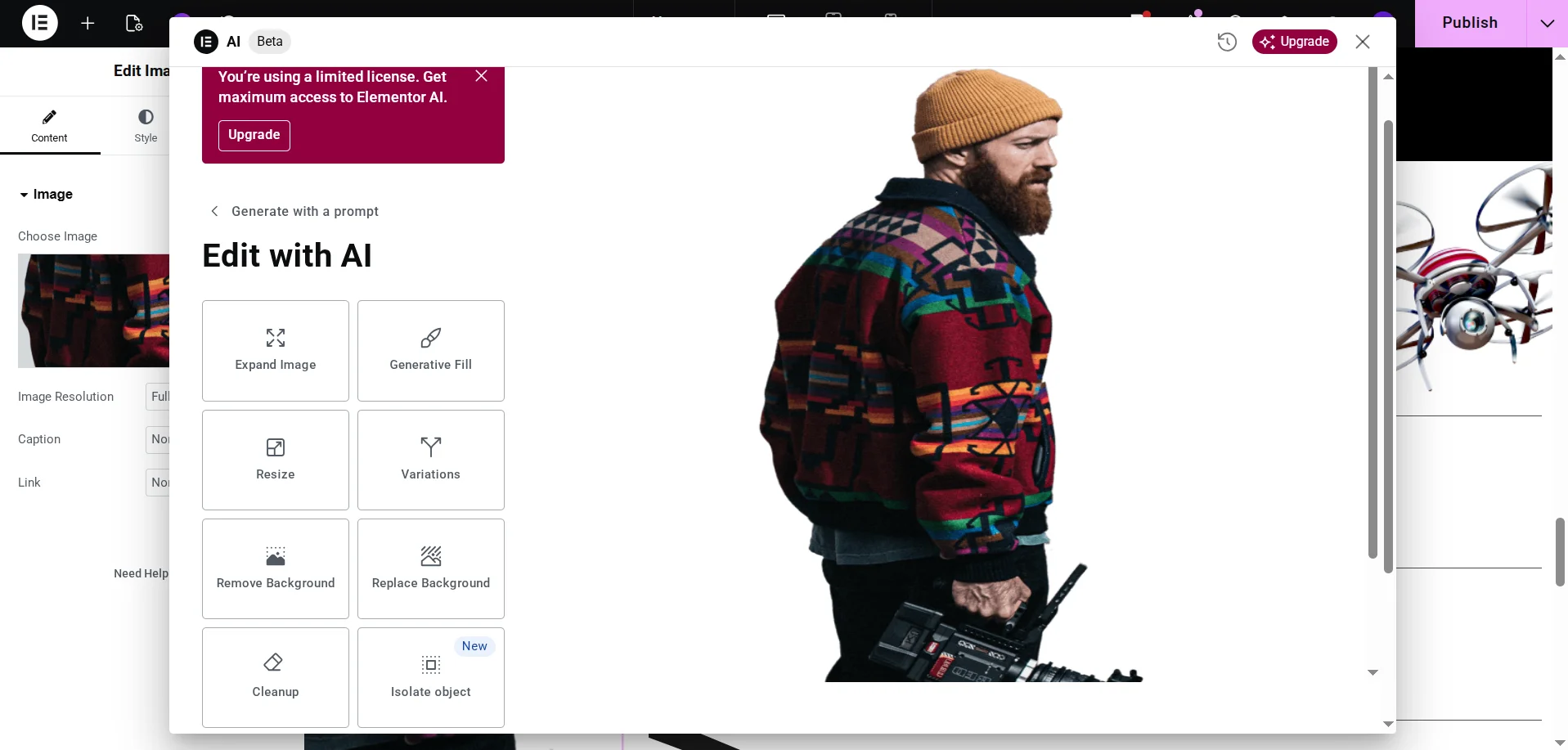
Here we can enlarge the image, change its size, remove or replace the background, and remove objects. I decided to remove the camera: I selected Cleanup, painted over the corresponding object, and clicked Generate.

The result, to put it mildly, is not what I expected.

- Section generation. Elementor AI can even generate entire sections on the page.
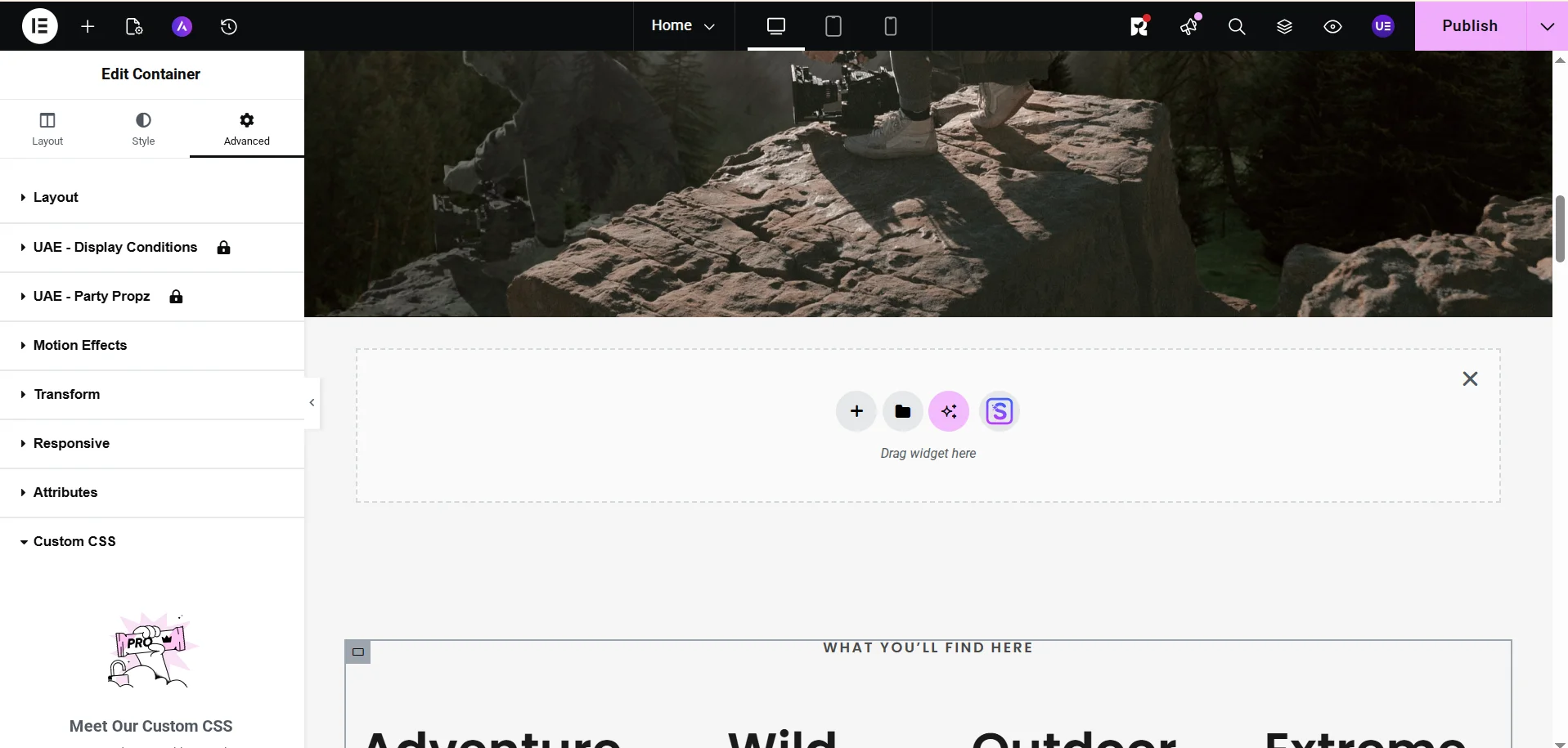
I said I needed a new section with 3 reviews (photo, name, and 2-3 sentences). The artificial intelligence quickly coped, with each block being fully editable.
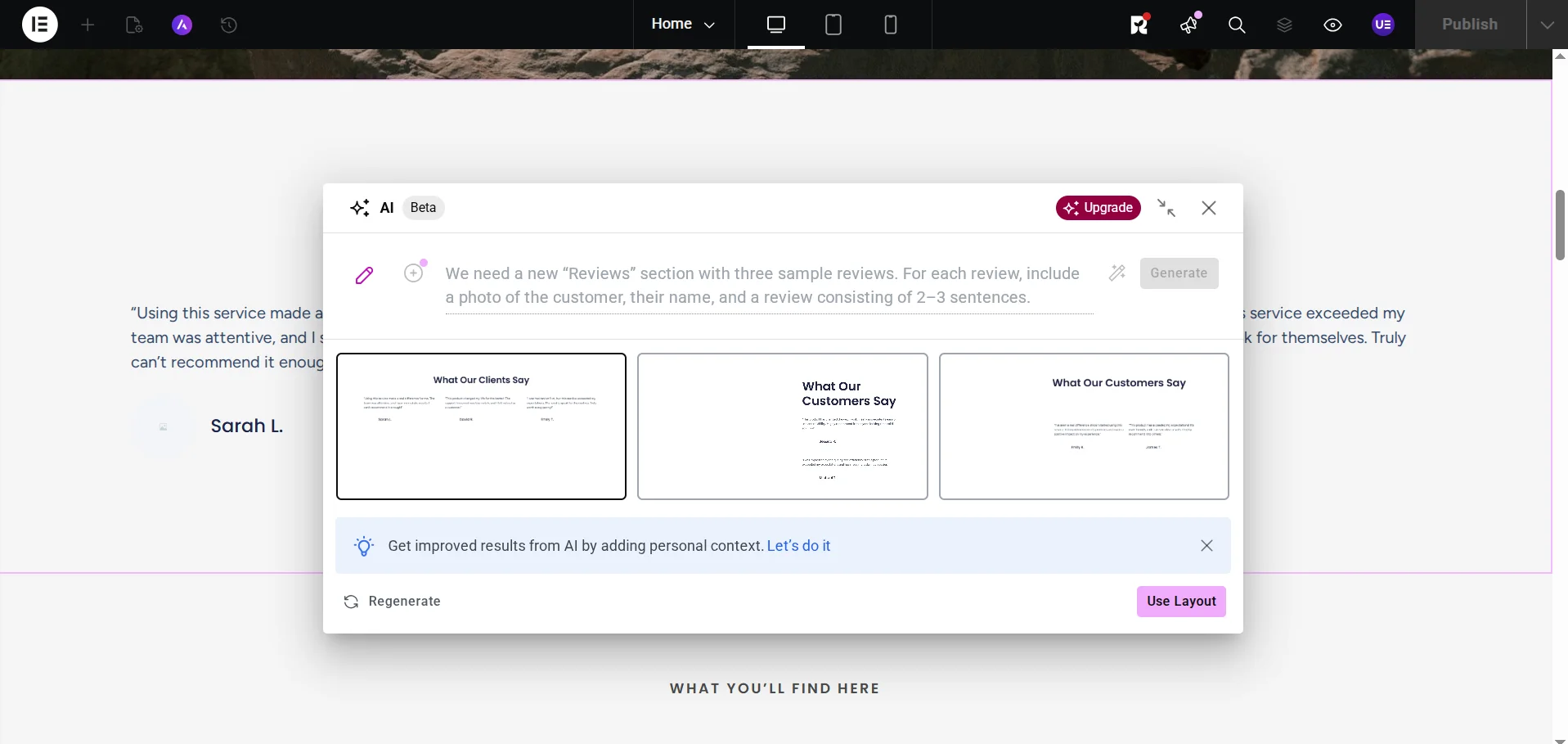
Although the result is not impressive, it should be noted that I did not specify the details, and my wishes were fulfilled 100%.
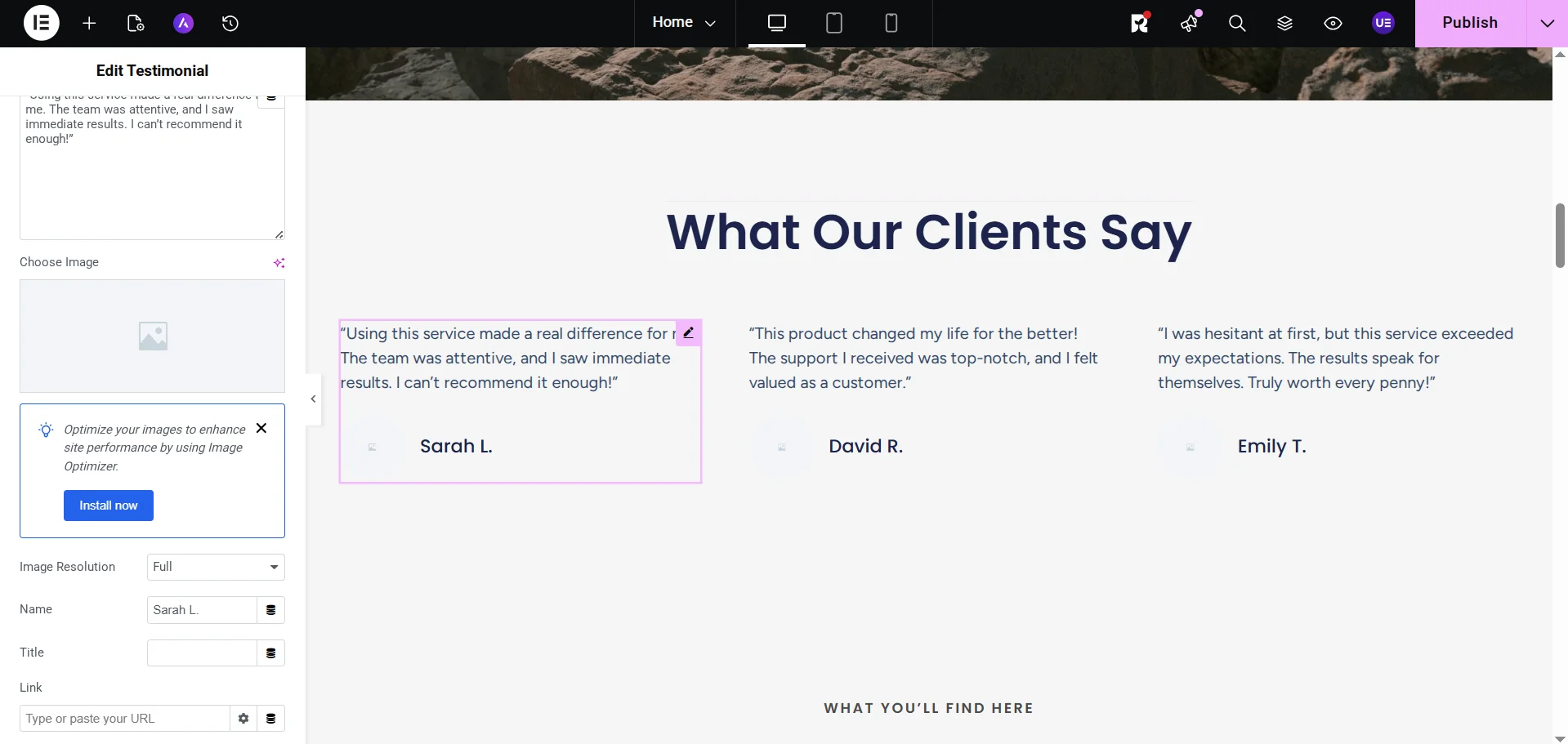
In 2026, the cost of Elementor AI starts at $4 per month or $49 per year. For this money, you receive up to 24,000 text requests, 24,000 code snippets, 725 image requests, and 600 requests for Container every month.
So Elementor AI is perfect for those who need to quickly create a "skeleton" of a site, fill it with basic text and photos. However, if you have a large content project, then the credit system will make this plugin too expensive for daily article publication or editing existing ones. For professional photo processing, the extension is also not advisable to use, as it does not replace a full-fledged photo editor but only helps to make quick edits (and not always of high quality).
Angie by Elementor — adding custom features without programming
Another plugin for Elementor site owners that not only helps work with content or minimally improve design but can fully manage the web resource. Angie understands your internet project, meaning active themes and plugins, allowing you to create custom widgets, register new taxonomies, add interactive elements, etc., without fear of breaking something. However, the situation with this WordPress extension is ambiguous: regular updates, developers are trying to improve the product, but with 10,000 installations, the average rating is 2.8, with some giving 5 stars and others 1-2.
Among the key features of Angie during testing, I highlighted the following:
- Ready prompts. Immediately after installation and authorization, you are redirected to a page of ready projects. You can choose widgets for Elementor, snippets for the WordPress control panel, snippets directly for display on the site, and visual elements.
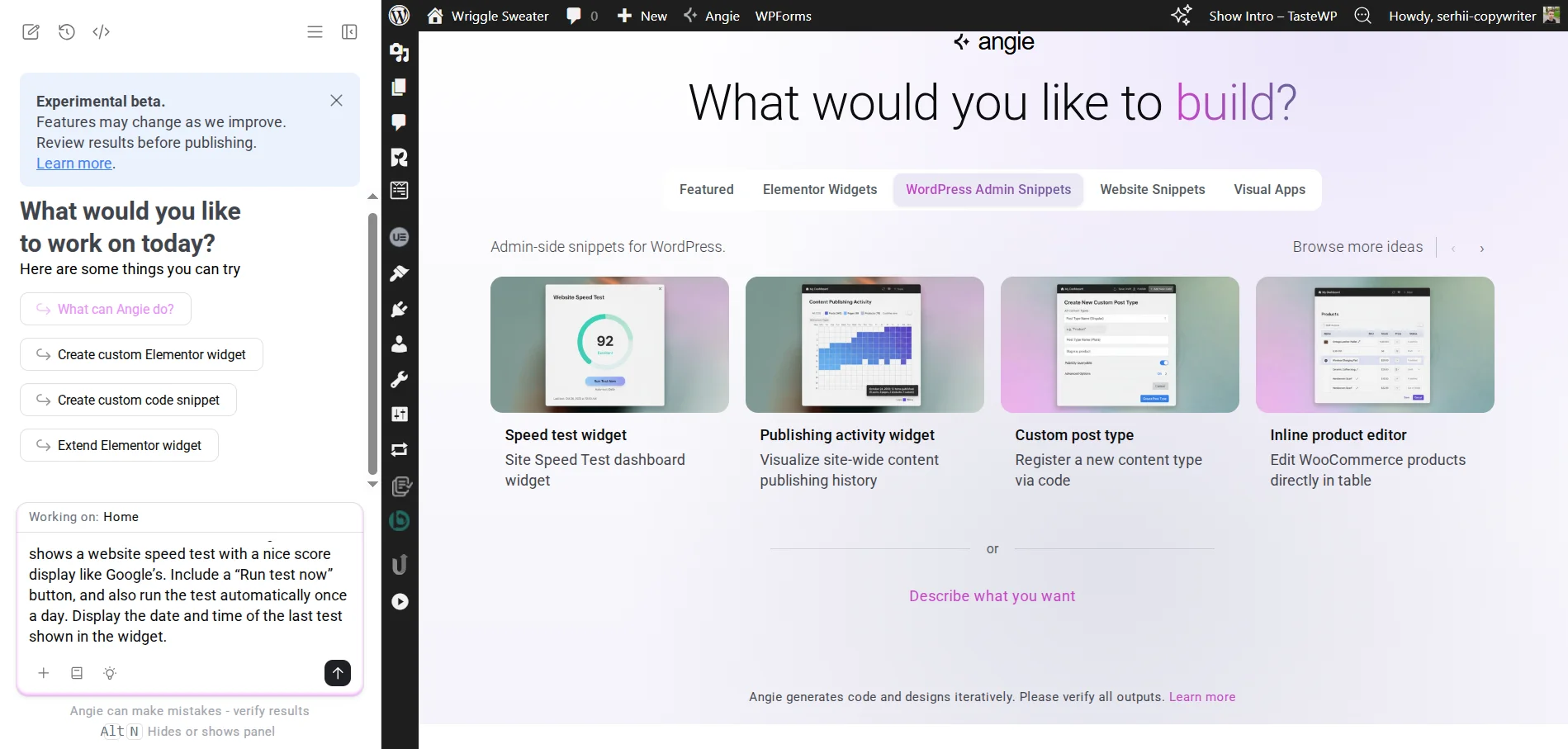
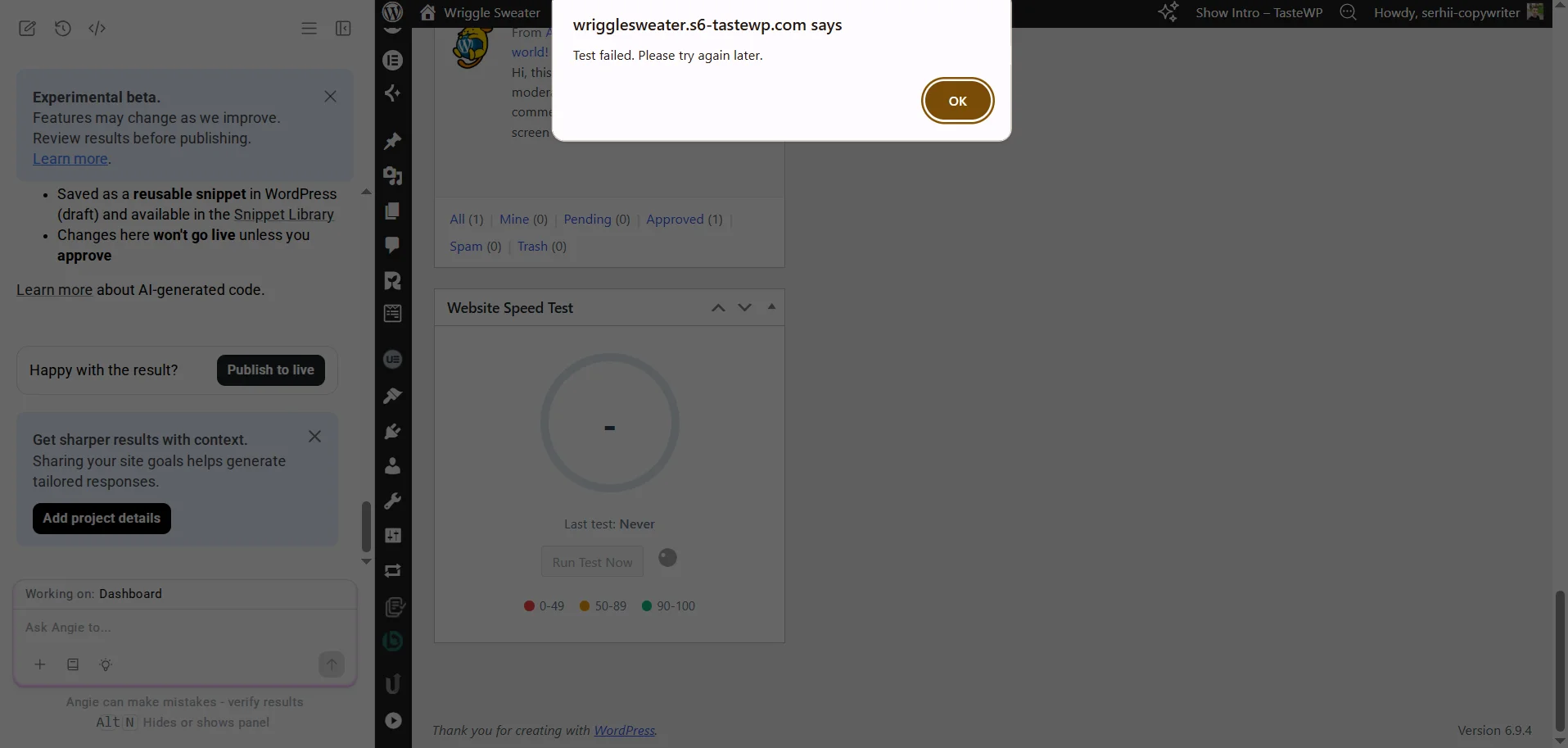
I decided to try the Speed test widget — displaying the loading speed of the web resource pages directly in the admin panel. After 1.5 minutes, the widget appeared, but it did not work, even after searching and fixing errors by Angie itself.
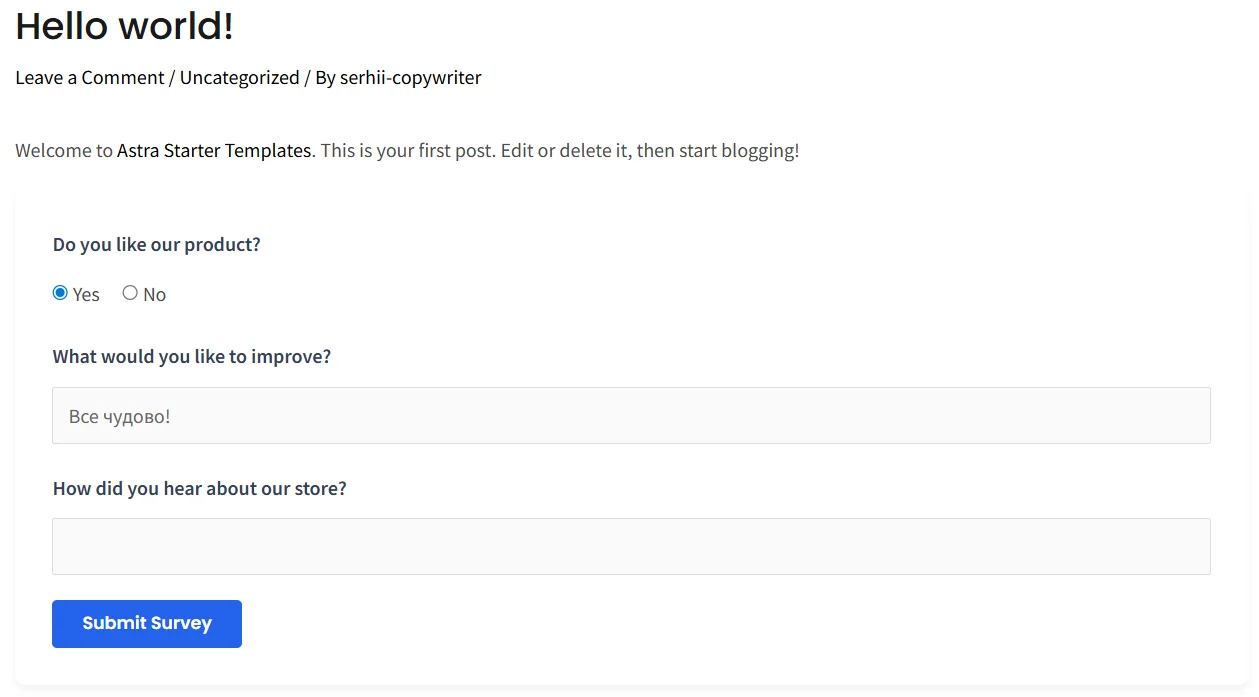
- Creating full functionality. In addition to simple widgets, this plugin can literally replace other complex extensions, for example, providing functionality for developing surveys. From the same ready prompts, I chose Survey from builder, meaning full creation and analysis of surveys on the site.
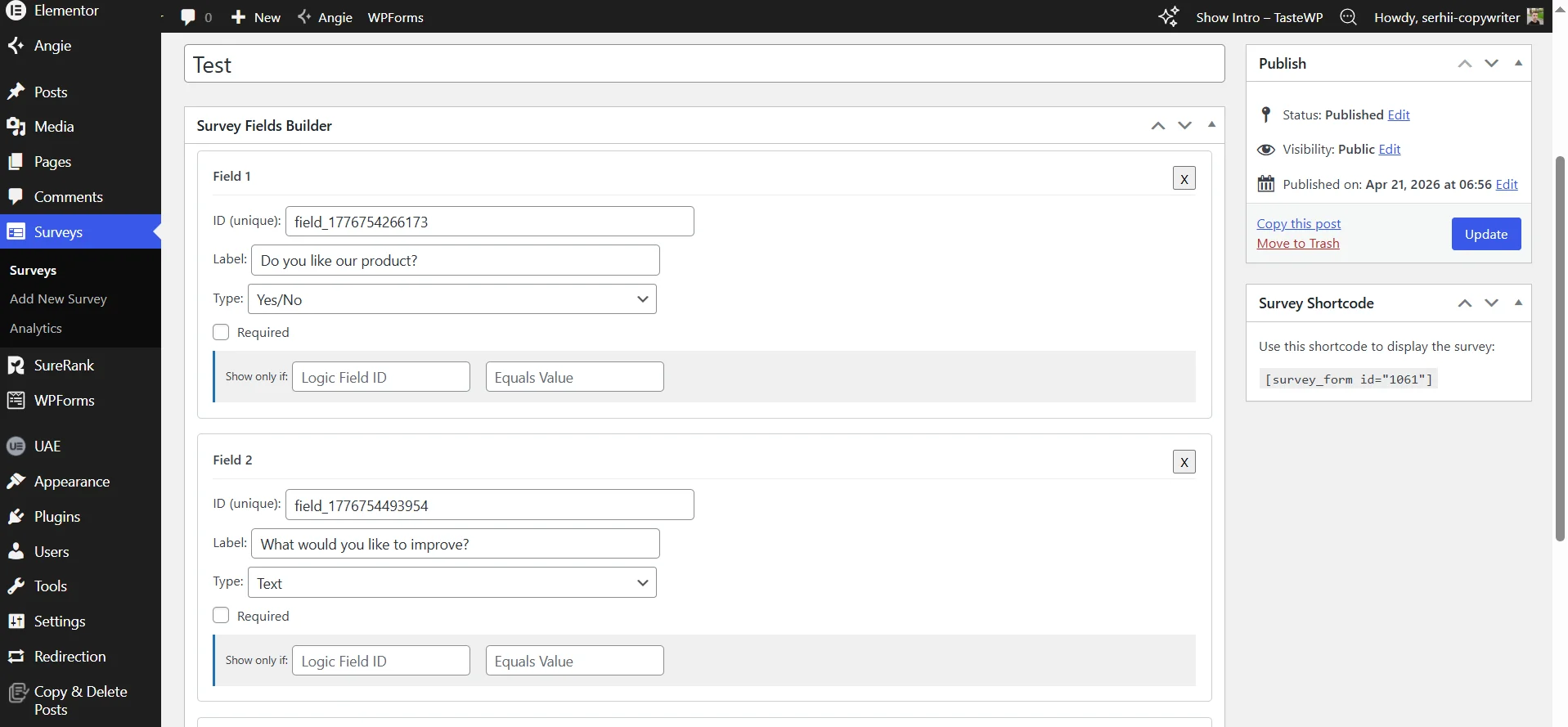
In 6 minutes, it created a separate section in the site control panel where I can create, edit, and analyze surveys. This time everything worked, no errors occurred.
- Creating pages from scratch. I asked Angie to create a page for the "Dedicated Server Rental" service with a calculator. It generated textual and visual content, made separate blocks, and even developed the calculator from scratch. The only thing is, I made a mistake when I forgot to switch from Gutenberg to Elementor, for which this plugin is designed, resulting in large indents and design issues with buttons. But all this can be fixed both independently and with the help of artificial intelligence.

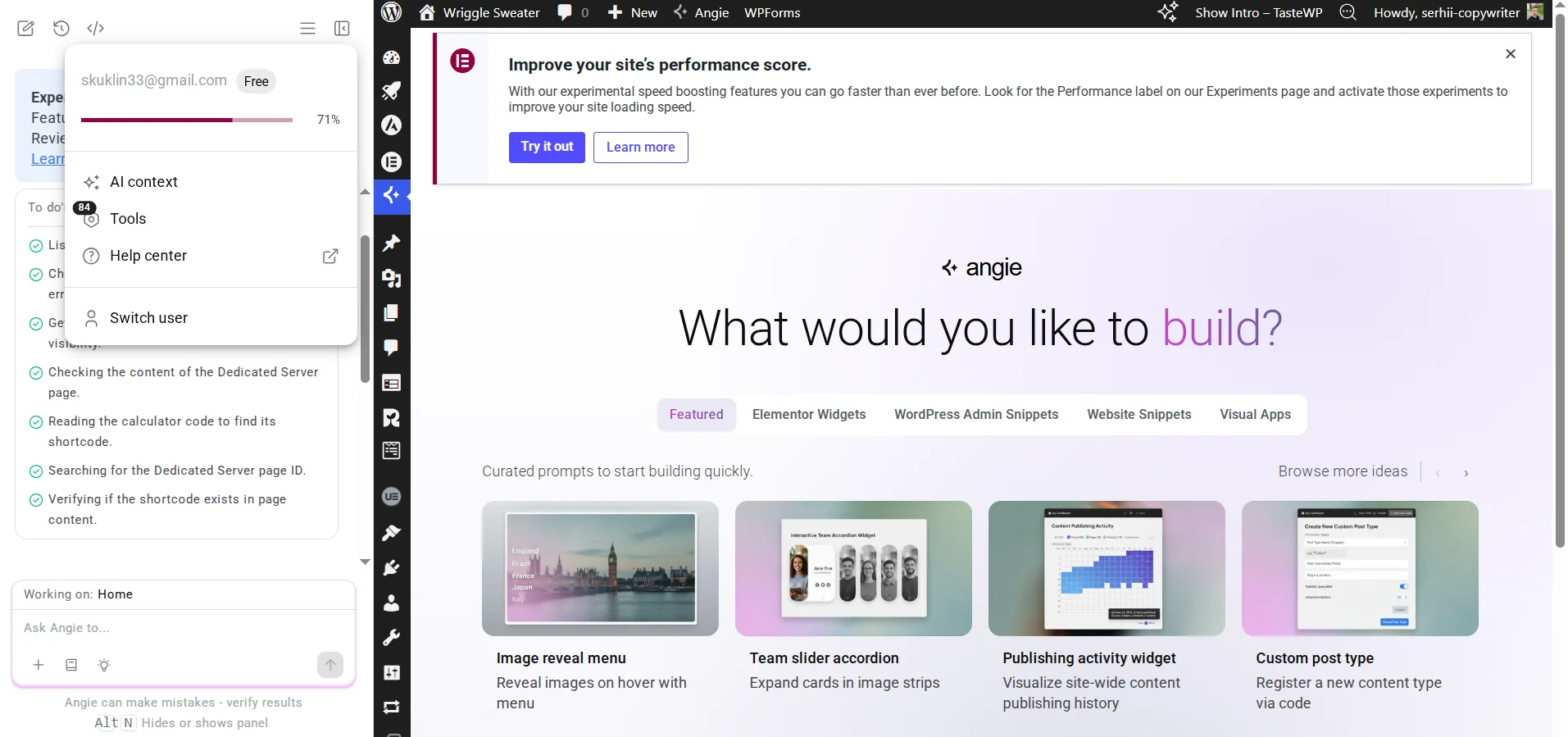
Throughout the testing period, there were no limitations of the free version, as with the AI Engine and Elementor AI plugins. However, if you click on the three lines in the Angie menu, you will see the percentage of free usage. On the official Angie by Elementor site, you can go to your account → Billing and see the limitations: 900 daily credits, basic content level for AI, uploading individual files limited to 4 MB, and total upload volume limited to 100 MB. Paid plans start at $19 per month for 18,000 credits per month, extended context, and priority support.
Angie by Elementor — this is truly one of the best AI plugins for WordPress. However, the extension is relatively new, so there may be certain errors as in my first case, and the result certainly depends on the quality of the prompt.
GetGenie — the best AI plugin for content generation and search engine optimization
GetGenie — this is a WordPress plugin with artificial intelligence that helps create and optimize content. With it, you can research keywords, analyze competitors, generate texts and images from scratch, and improve existing materials. It has over 80,000 installations with an average rating of 4.8. And most importantly — it is constantly evolving: at the time of writing, the last update was two days ago.
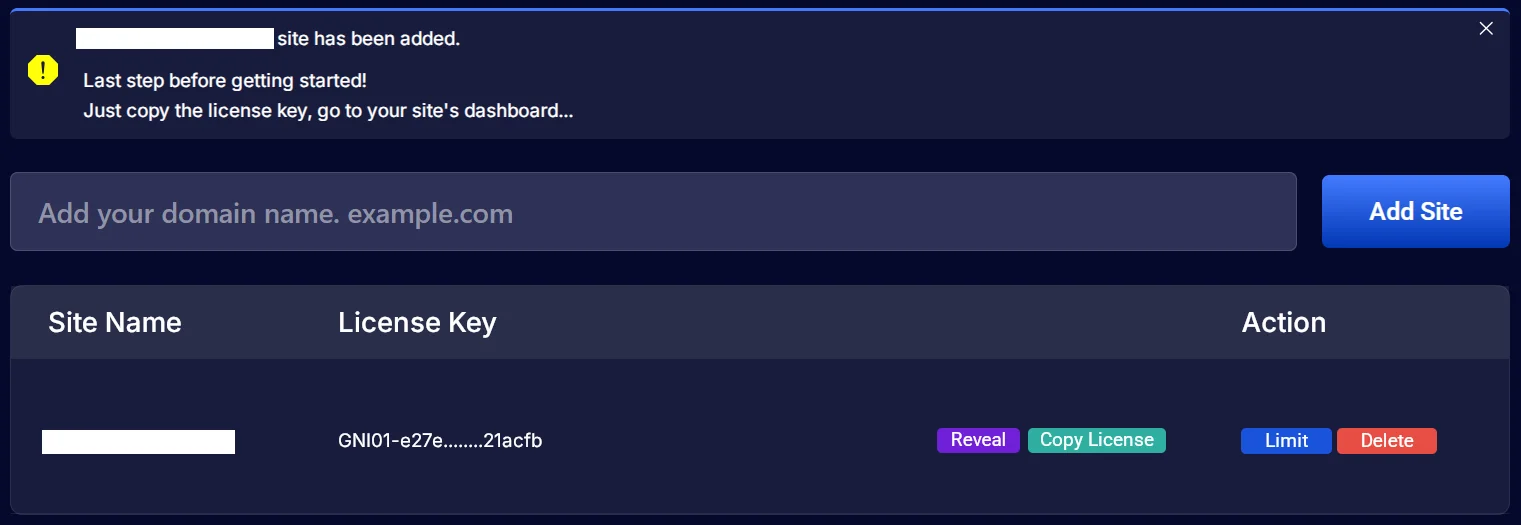
After installing and activating GetGenie, you need to obtain a license. You only need to register by providing your first name, last name, email, and country, and then a small survey. After that, go to Manage Sites, add the site, click Copy License, return to the admin panel, click Finish License Activation, and paste this key.
After testing, I highlighted the following useful features of GetGenie:
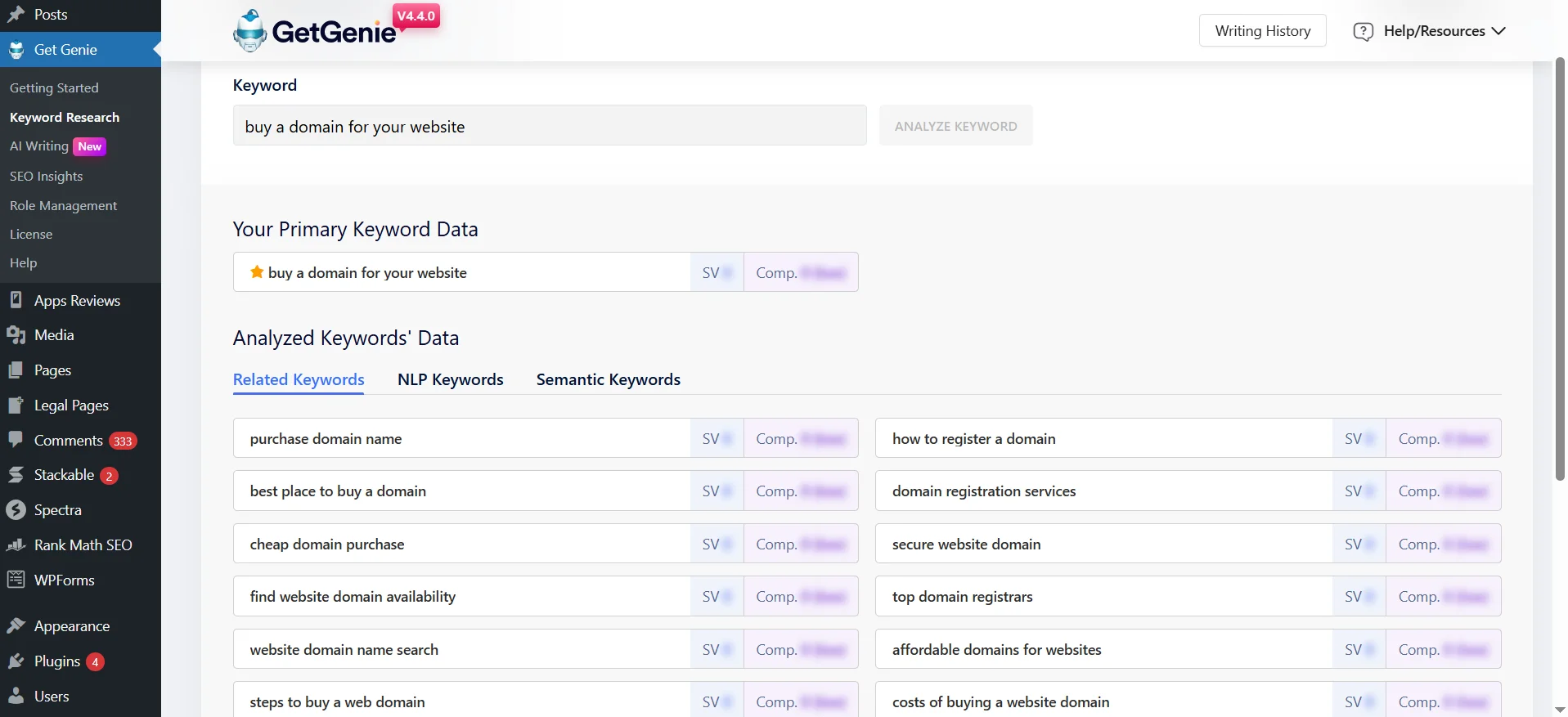
- Keyword search. In the Keyword Research tab, you can specify a query and instantly get similar keywords, important technical terms (NLP Keywords), and semantic concepts (Semantic Keywords). For example, I specified «buy a domain for a site» and found the very words and phrases, but details are only available in the paid version.
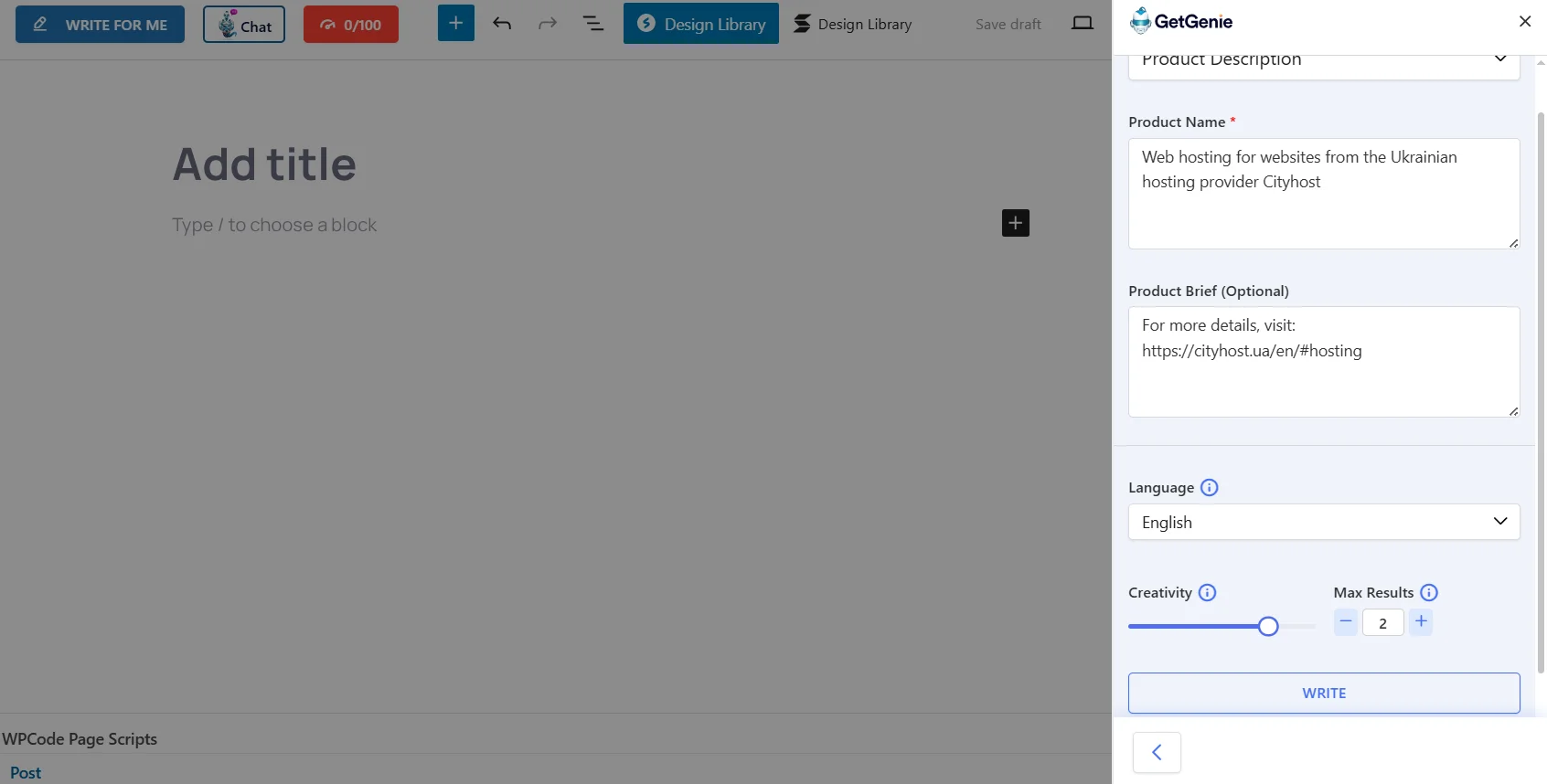
- Ready templates for content. Here GetGenie pleasantly surprised with the availability of 30+ ready templates for paragraphs, question lists, summaries, rewriting, writing full articles from scratch, product descriptions, etc. I decided to try Product Description, but complicating the task a bit — not to provide information myself but to provide a link where the artificial intelligence can find the data. Important: it is better to work not through the AI Writing tab but to go to the section with all your posts, create a new one, and then click Write for me.
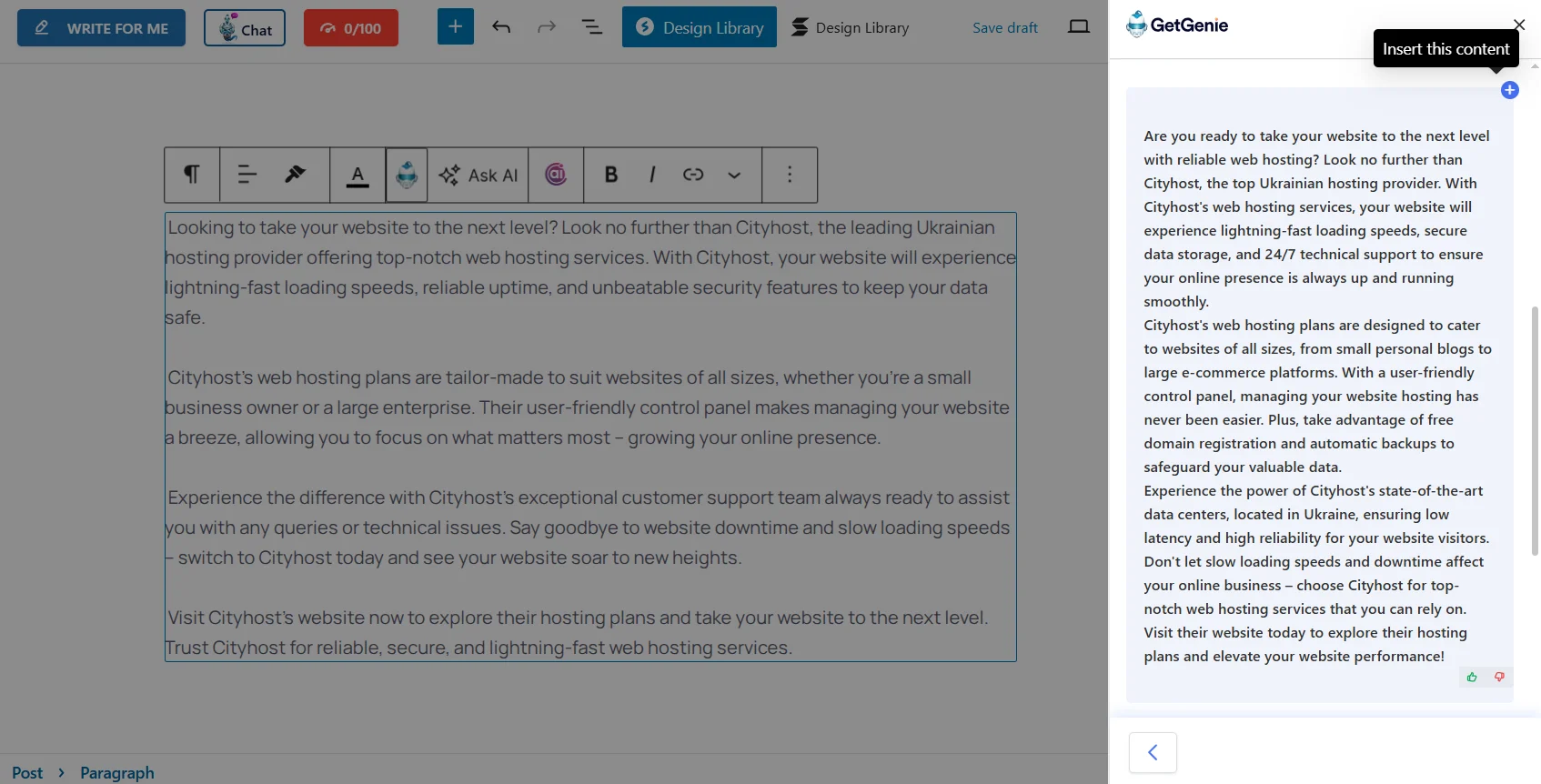
It instantly generated two options, as I indicated, and you can evaluate the result yourself. For further work with the content, you click the plus next to the option you like and work with it directly as with a classic post.
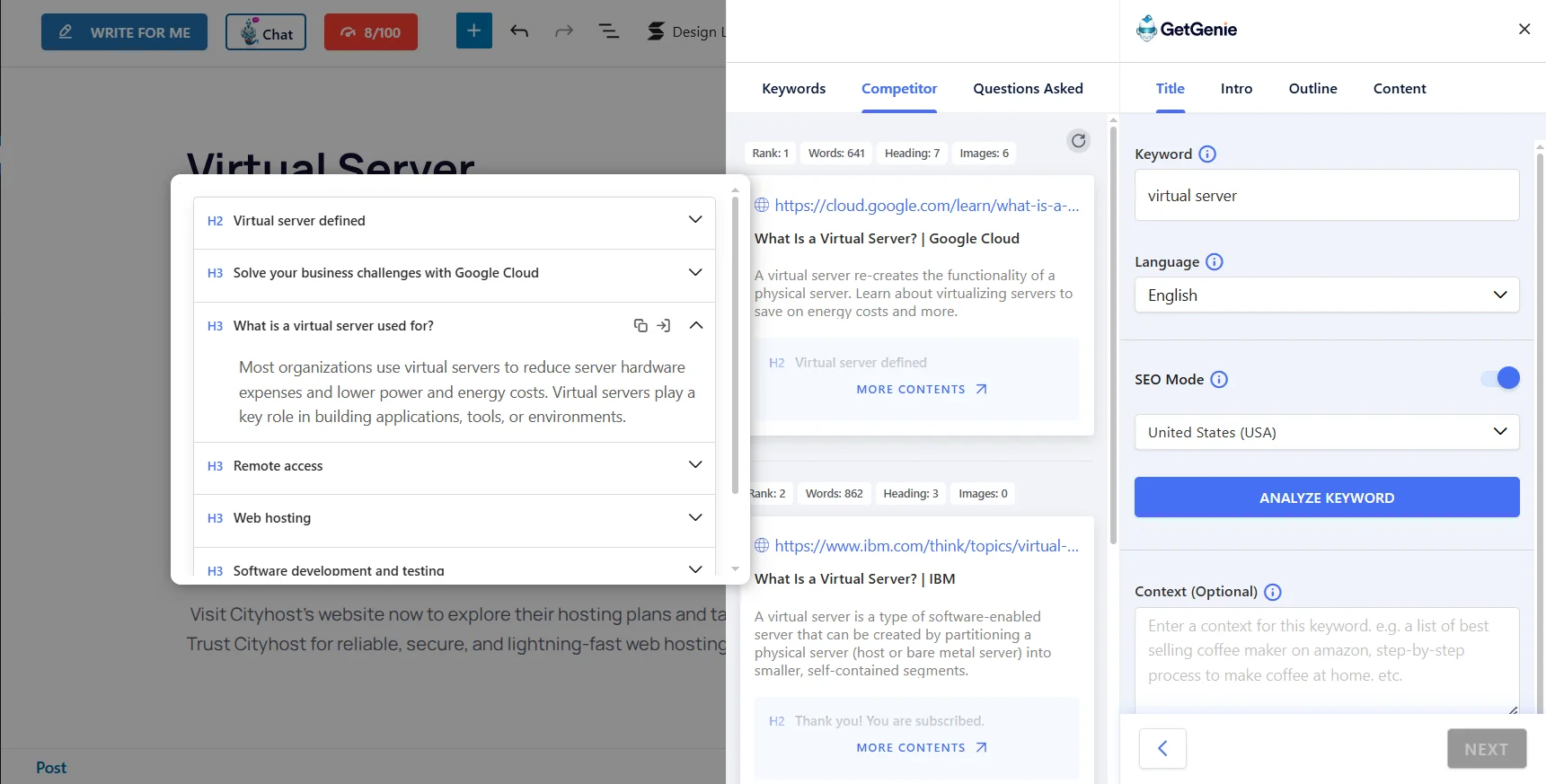
- SEO research. You can analyze the optimization of both already created materials and those created with GetGenie. For example, I clicked Write for me again but chose Blog Wizard. Here I specified the keyword, clicked Analyze Keyword, and received data on frequency, trend, useful questions for the Q&A block, and information about competitors even with the content of their pages.
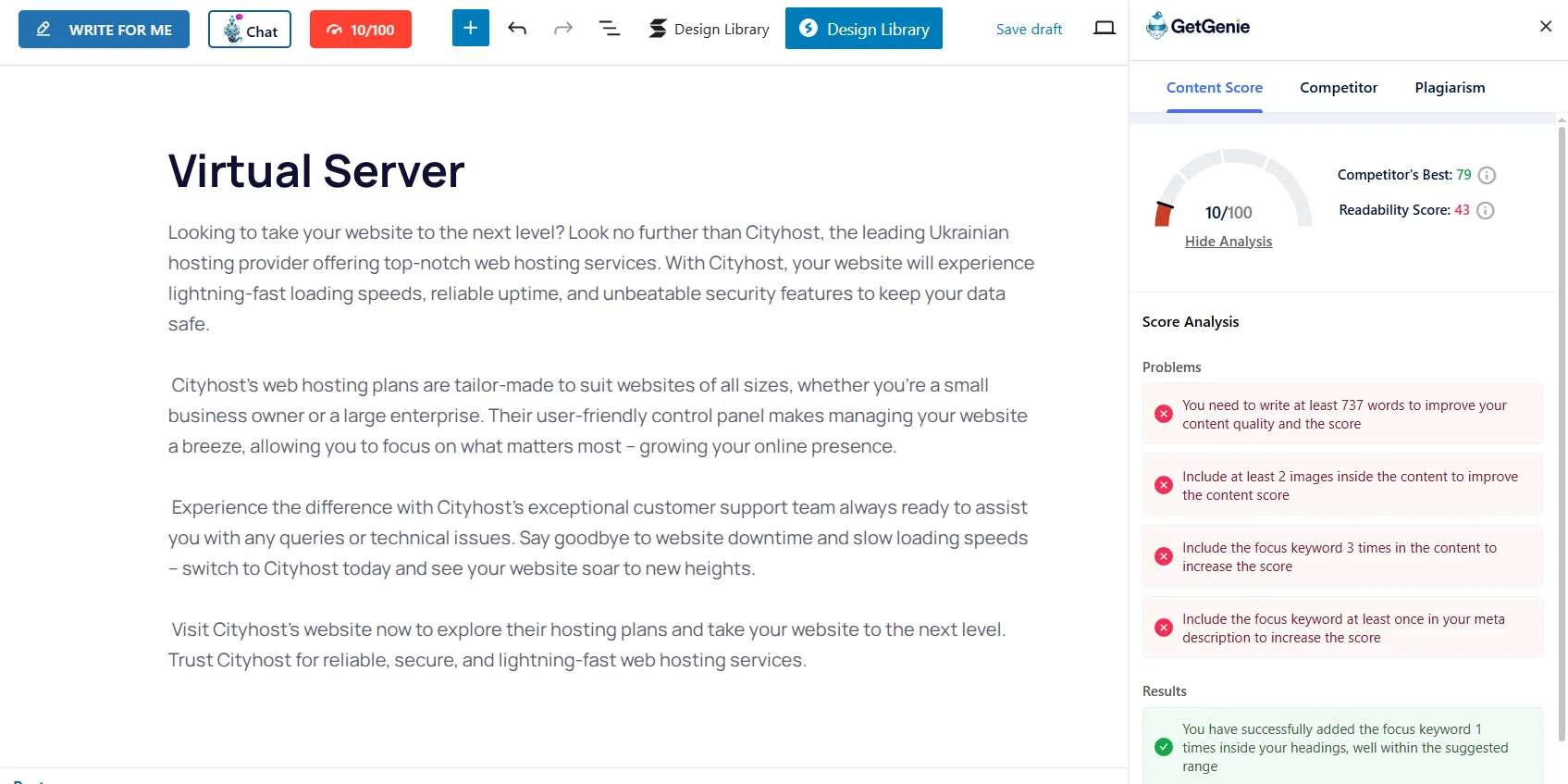
- SEO analysis of text. You see in the previous screenshot next to the chat the score highlighted in red — this is the analysis of your article. That is, you first use Write for me → Blog Wizard, specify the keyword, analyze the keys and competitors, and then the system automatically analyzes the number of occurrences of the key in your article and overall optimization. There is even a plagiarism check.
Note that I only used the free version, and there were no problems during this time. However, there are still limitations (displayed on the same page where the Key License is located): working with texts — 2500 words, keyword search — 10, NLP analysis, related and semantic keywords — 5 for each type, tracking search queries — 3. The limit is updated monthly. If you want more, then you need to pay from $9.99 (20,000 words for text work) to $99 (1 million) per month. In each tariff, in addition to increasing limits, new features are added, such as FAQ generator, quick Google responses, etc.
Overall, the AI plugin GetGenie is suitable for those looking for a balance between text generation and search engine optimization using artificial intelligence directly in the WordPress CMS admin panel. But you will need to monitor the limits, and owners of medium and large projects will have to pay $50-100 per month for extended tariffs.
Tidio — the best AI plugin for comprehensive customer support
Tidio — this is a plugin for WordPress sites designed to automate customer support. Artificial intelligence analyzes your site and then responds to customer inquiries based on the information received. While in AI Engine chatbots are only a minor part of the functionality, here you get a comprehensive mechanism for working with potential customers. And this is appreciated by business owners: over 80,000 installations with an average rating of 4.7. Updates are not very active: the last one was 2 months ago. The chat itself supports Ukrainian, but it is not available in the platform interface.

As soon as I activated the plugin, I was immediately offered to create a free account, after which I was sent to the Tidio site to complete a survey. After I completed it, I received a 7-day trial period, and payment details were not required. So I immediately started testing and noted the following capabilities of Tidio for WordPress:
- Full chat customization. After registration, you need to step by step set up the chat on the site. Here you can add your logo (only in the paid version), change colors, starting messages and questions, create or prohibit visitors from using the chat if you are offline, customize surveys to collect contact information, etc.

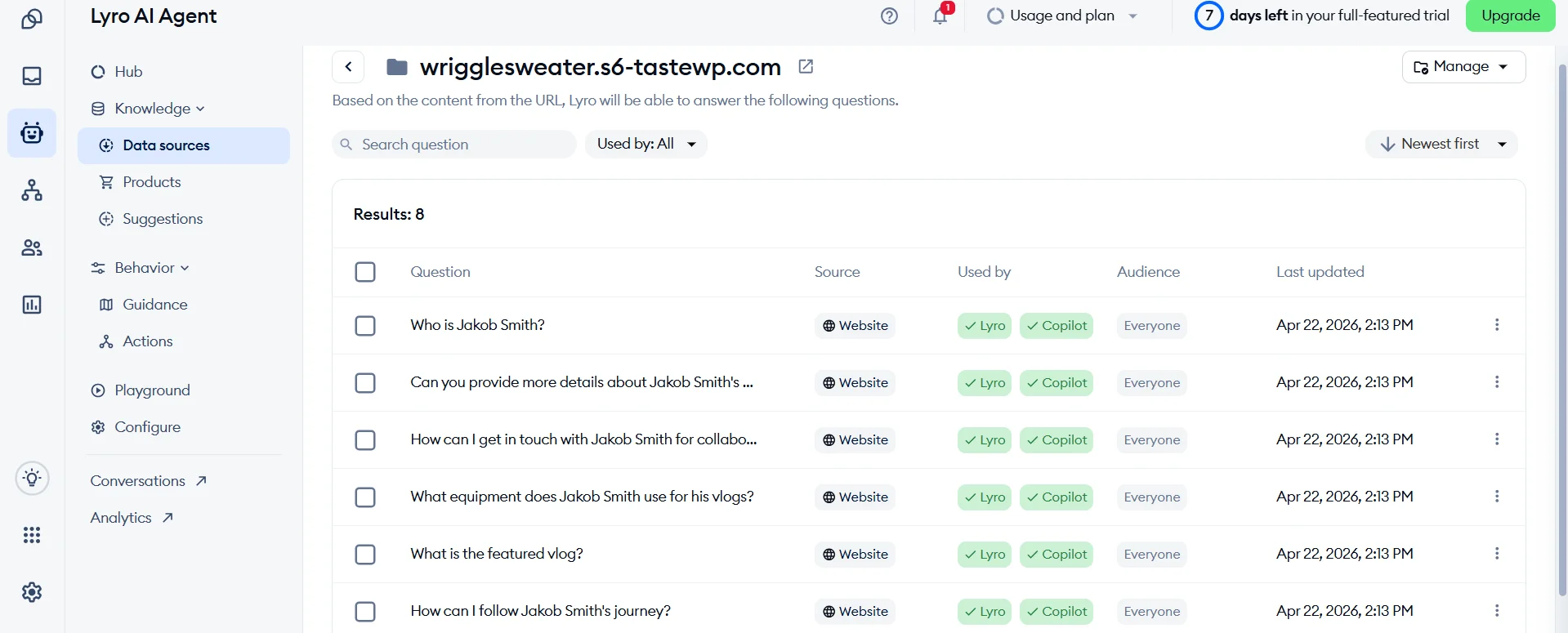
- AI training. Lyro AI learns from the resources you provide. In the Knowledge → Data sources section, your site will already be there, and you will see what questions the artificial intelligence will be able to answer based on the data from the online project. But this is not a limitation: you can add information from other sites, CSV, PDF, materials in Zendesk, synchronize with products, or even manually create questions and answers.
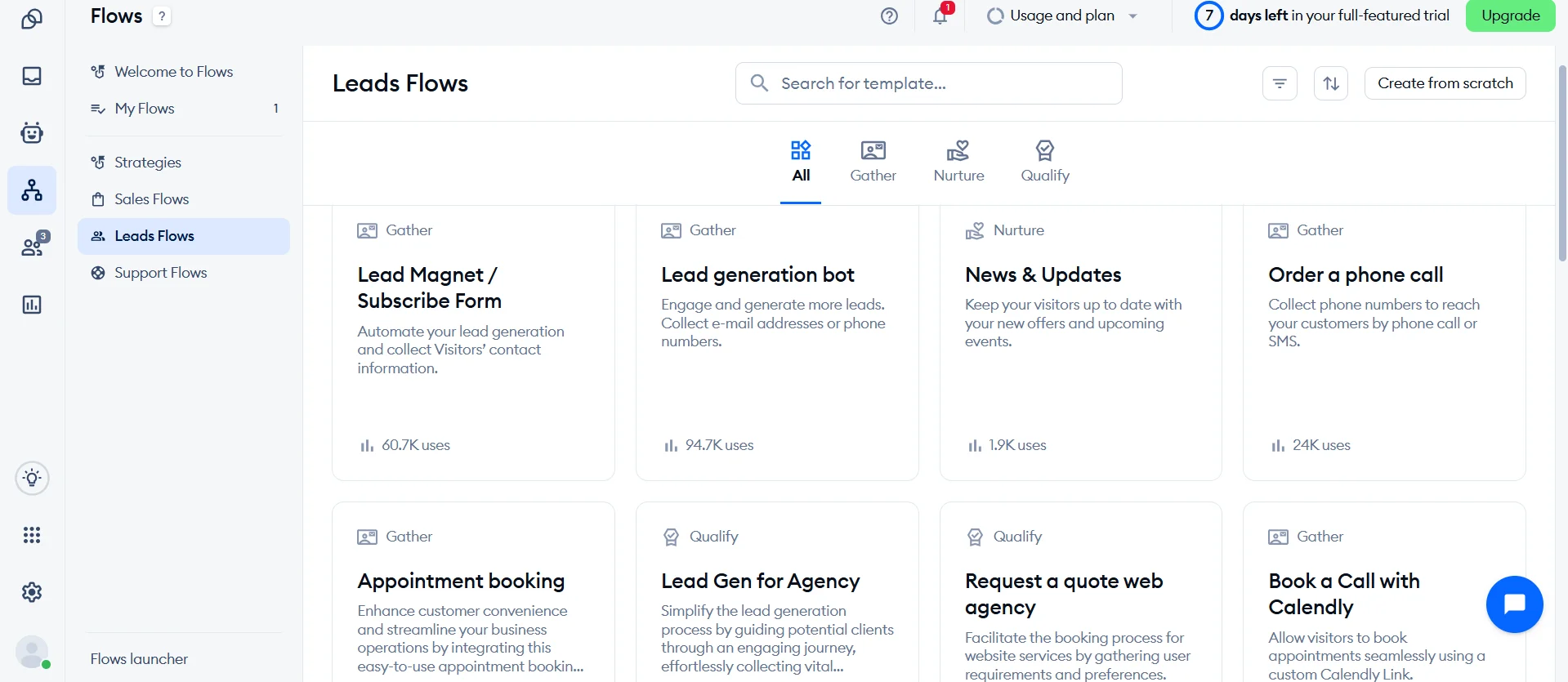
- Setting up flows. Tidio offers dozens of templates for AI interactions with visitors to achieve your goals.
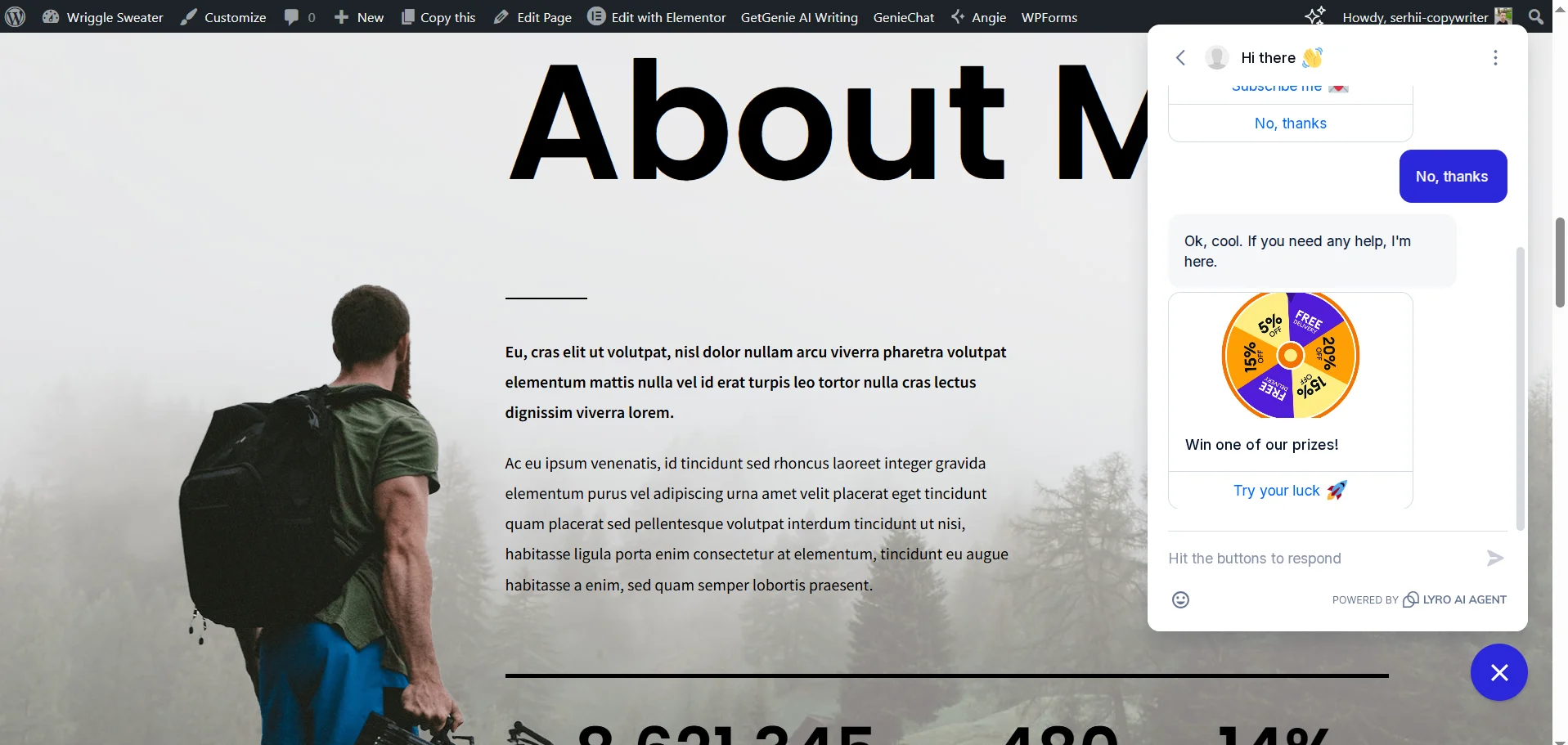
For example, if a person visits your site for the first time, AI will offer them to subscribe to updates or receive a discount on products, and when returning to the web resource — they will see a discount wheel, and if they want to buy a product, they can do so directly in the chat.
With Tidio, you get the opportunity to fully automate the customer support process, using artificial intelligence based on specific knowledge about your brand and products. However, you have to pay for this: the cost of Tidio with classic support starts at $24.17 per month, the Lyro AI agent — from $32.50, and flows — from $24.17.
Considering the capabilities and price, Tidio with Lyro AI is well suited for small and medium business owners who want to reduce the load on the support service, ensure quality first-stage interaction with the customer in 24/7 mode, and increase conversions. However, the cost varies depending on the number of messages, so using this plugin can become a significant part of expenses for site owners with a large number of visitors who may not necessarily become buyers.
Which AI plugin to choose for your WordPress site
If you need the best universal AI plugin for WordPress, then the strongest option seems to be AI Engine with chatbot, text and visual content generation, knowledge base, and automated scenarios. For search engine optimization combined with content creation from scratch — GetGenie. If you want to simplify the work on the site design and additionally generate content — Elementor AI, and for adding interactivity and expanding functionality — Angie from Elementor. Automating customer support and increasing conversions will be helped by Tidio with Lyro AI.