- What You Need to Know Before Searching for Backlinks
- What Are the Best Tools for Finding Backlinks to Your Website
- Collaborator Free Backlink Checker — Free Search, No Registration
- Google Search Console — Accurate Data, But Only for Your Own Site
- Bing Webmaster Tools — Free Backlink Analysis for Your Site and Competitor
- Ahrefs Free — Full Data on Your Own Site, But No Free Competitor Analysis
- Semrush — Free Daily Reports That Run Out Fast
- SE Ranking — Same Database, Less Free Data
- Why Every Tool Shows a Different Number of Backlinks
- What to Do with the Backlinks You've Found
In 2026, backlinks still matter — not just for search engines, but for AI systems too. And you can track them down without spending a dime, using a handful of reliable tools. I tested my own English-language website across six of them at once: Collaborator, Google Search Console, Bing Webmaster Tools, Ahrefs, Semrush, and SE Ranking. The results caught me off guard. The gap was massive: anywhere from 1 to 424 referring domains for the exact same website. So let's walk through how to find backlinks for free, using my own project as the example — and more importantly, what to actually do with the data once you have it.

What You Need to Know Before Searching for Backlinks
A backlink is a hyperlink from another website pointing to yours. Search engines still treat backlinks as one of the top three ranking factors, and AI systems weigh them as a meaningful signal of E-E-A-T, confirming a source's authority. Knowing how to find backlinks properly lets you see who's already linking to you and on which pages, catch a spam attack early, or find sites linking to your competitors.
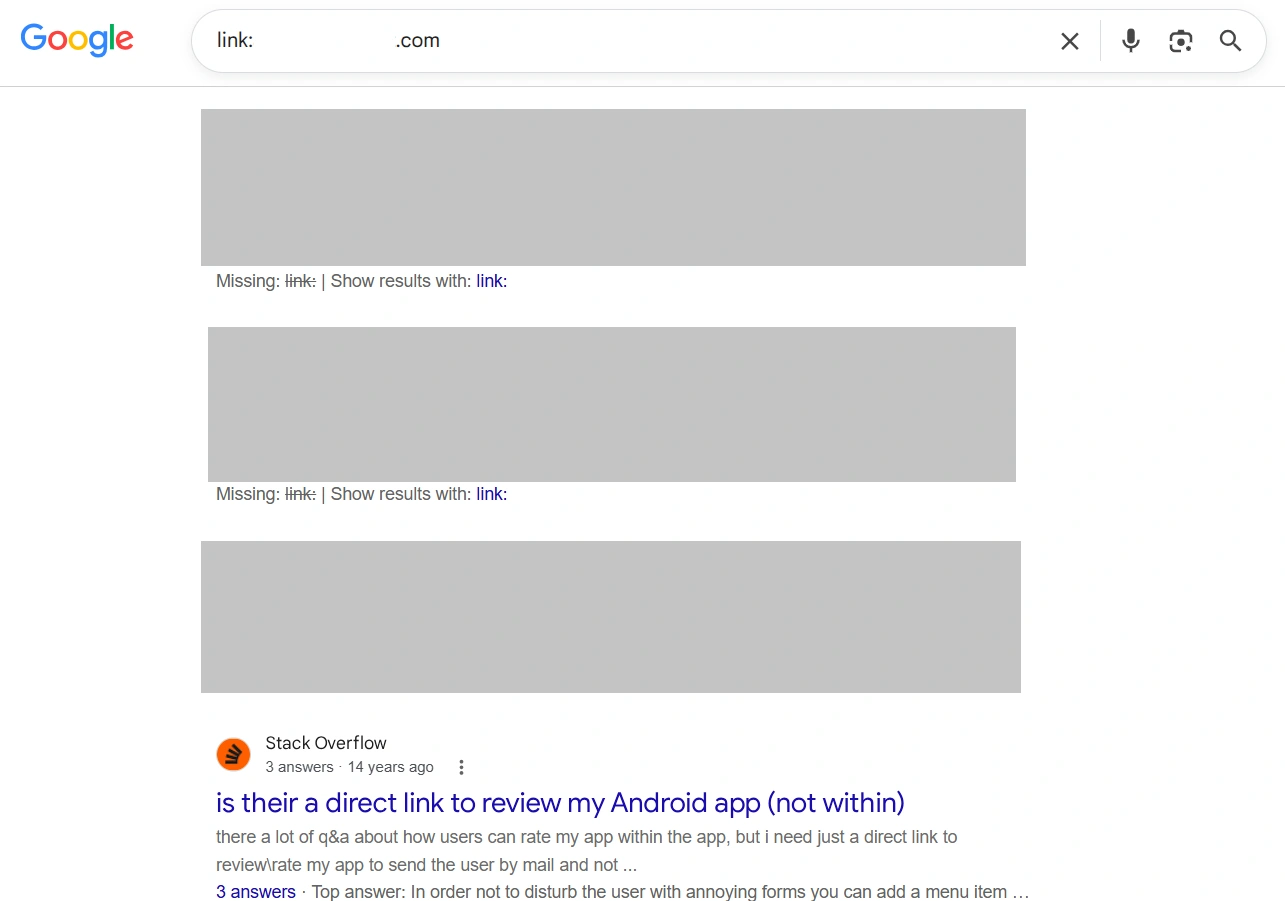
You won't find these links through a regular Google search. Older guides recommend the link:domain.com operator, but Google has officially confirmed to Search Engine Land that the command no longer works. I tested this on my own domain: the results showed pages from my own site and random unrelated pages that just happened to contain the word "link" — nothing close to actual referring sites.
That's why you need dedicated tools instead — everything from Google Search Console, which shows data selectively to the site's own owner, to specialized platforms like Collaborator, Ahrefs, Semrush, and SE Ranking. The latter crawl the web with their own bots and build their own databases, which is exactly why results for the same website can vary so widely between them.
Each of these tools offers a free plan, and that's what I tested for this article. One thing worth saying upfront: the free tier shows you enough, but not everything. The pattern is roughly the same across all of them — a handful of checks per day, only part of the found links shown (anywhere from 10 to 100 rows), and no way to export the data, check the history of changes, or get a deeper analysis.
And here's the part worth planning for before you even start: where you'll store your data. On the free plan, most of these tools — including Collaborator, Ahrefs, and Semrush — don't let you export anything. And even when export is available, you'll still need to save it somewhere and consolidate everything into one table for analysis later.
So I'd recommend setting up a simple Google Sheet with two tabs:
- Summary. Columns: tool, check date, number of backlinks and referring domains, dofollow/nofollow split. Log the result of each check as a single row here — over time, this is what shows you how your link profile is actually trending.
- The links themselves. Columns: referring domain, referring page URL, your target page, anchor text, type (dofollow/nofollow), referring domain authority, date found, notes. Only log what actually matters here — fresh links, topically relevant referrers, suspicious domains.
This gives you a clean, centralized view of the data you're collecting right now, and it lets you track changes going forward. Some of these tools also cap how many checks you get per day, so it helps to search and log backlinks in batches — especially when you're digging into a competitor's profile.
Related reading: SEO on a shoestring – what a website owner can do on their own for site promotion without hiring specialists
What Are the Best Tools for Finding Backlinks to Your Website
The best tool for finding backlinks is, without question, Ahrefs — it has a massive database and an impressive set of features. If you're not ready to pay hundreds of dollars a month, though, Collaborator is worth a look: it offers a free tool with no registration required. I also tested the free tiers of Google Search Console, Bing Webmaster Tools, Semrush, and SE Ranking.
Collaborator Free Backlink Checker — Free Search, No Registration
Let's start with the tool that requires zero setup: Collaborator Free Backlink Checker runs right in your browser, pulling from SE Ranking's database. Without registering, you get 5 checks a day — once you hit the limit, a message pops up saying "You've used 5/5 free checks," with an offer to sign up for four times as many: 20 checks a day.
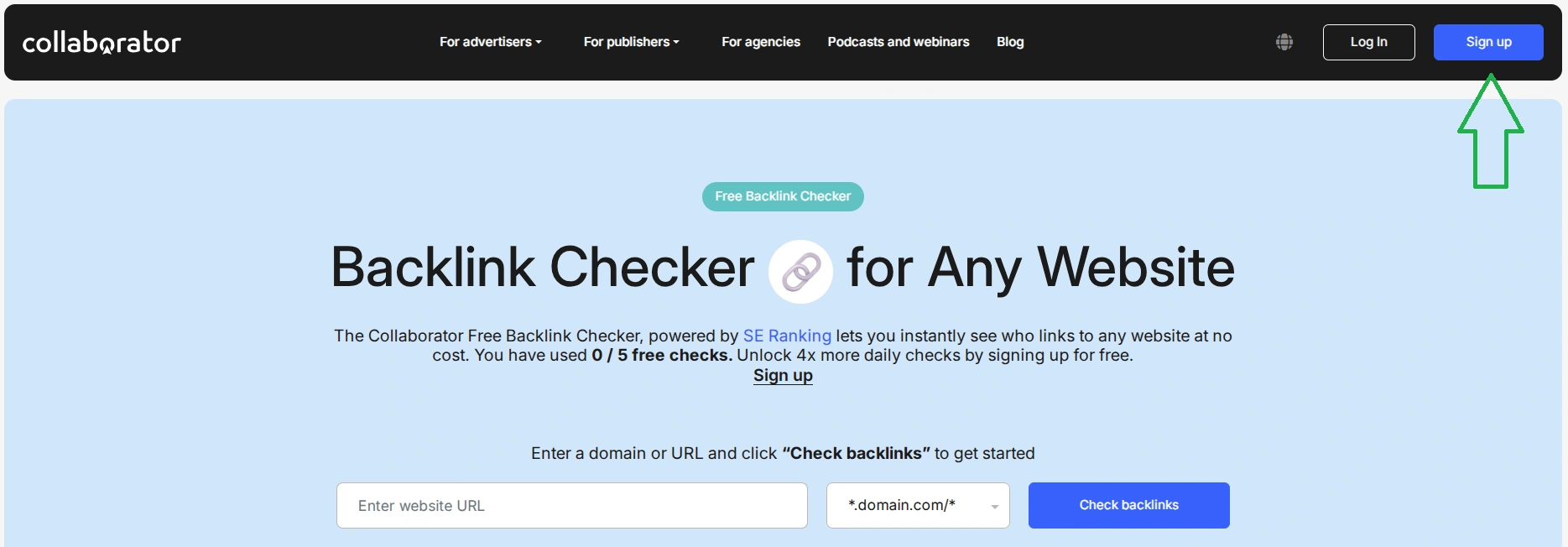
To find backlinks with Collaborator, head to the Free Backlink Checker page, enter your site's address, and click "Check Backlinks." Before running the check, you can also choose the analysis level: the whole domain, a subdomain, or a specific URL.
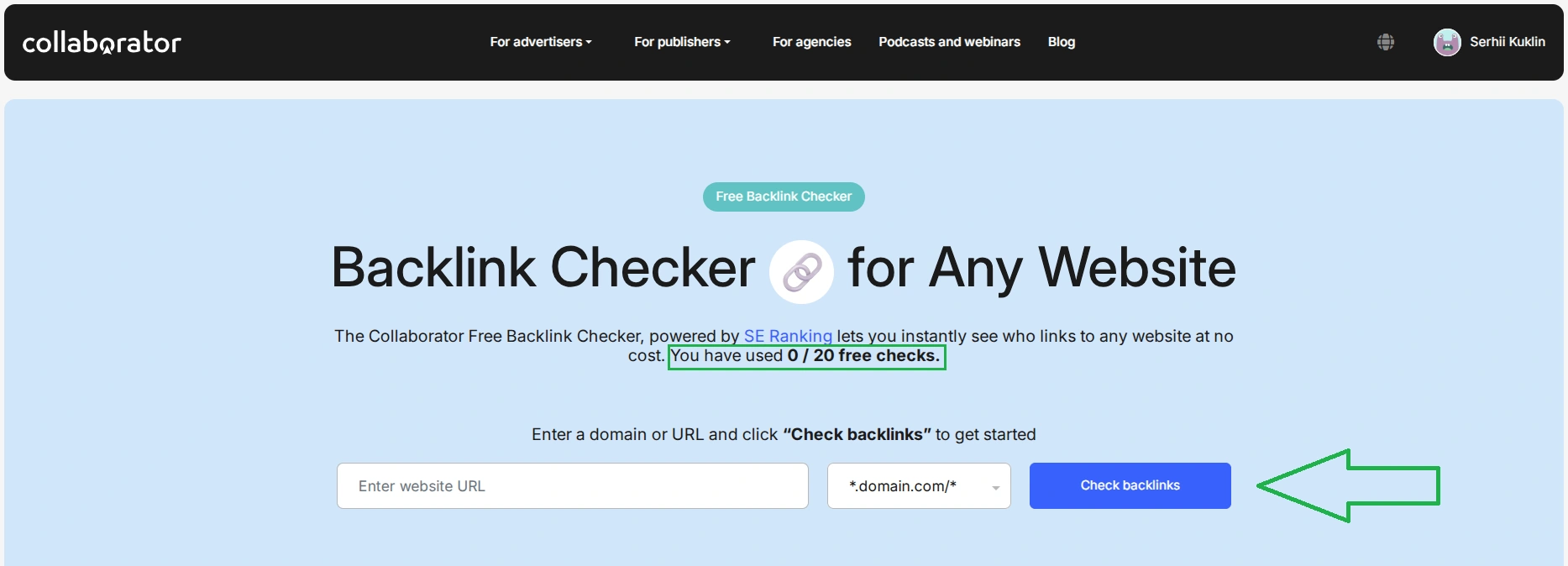
I decided to create an account right away to unlock the 20 free daily checks: just click "Sign Up," fill in your first and last name, email, currency, phone number, role (are you buying or selling backlinks), and a password. For a faster signup, you can also use a Google account. After registering, the tool redirects you to your dashboard instead of the checker itself, so I had to navigate back to the Free Backlink Checker page manually.
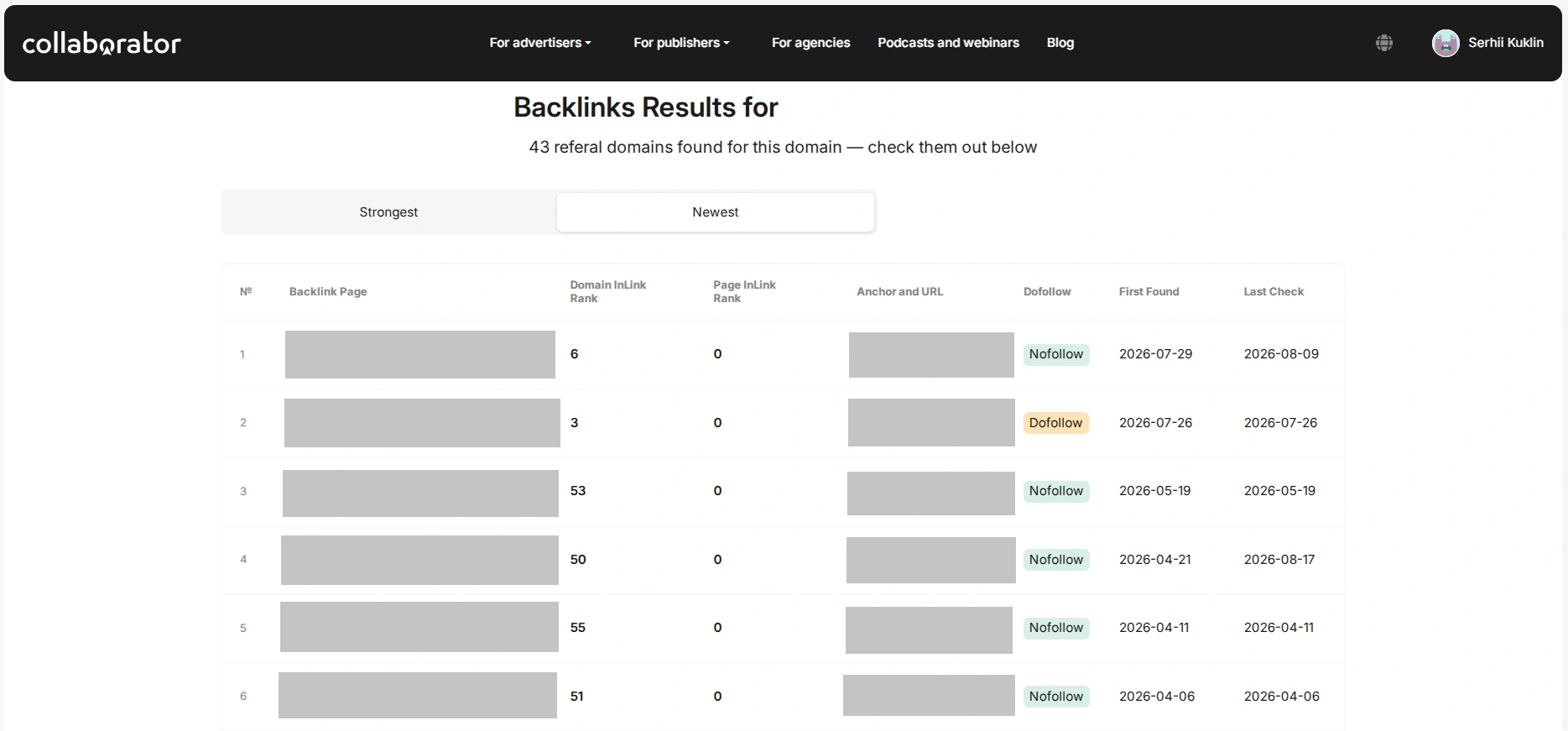
Whether you register or not, you get the same data — a table with the following columns
- Backlink page — the referring URL
- InLink Rank for both the referring domain and the referring page (on a 0–100 scale) — a concept originally introduced by SEO PowerSuite as its own take on PageRank
- Anchor text and target URL
- Link type — dofollow or nofollow
You can sort the data by rating or by recency — these are two toggles above the table, not two separate sets of results. For a small site with fewer than 50 backlinks, both toggles will show you the exact same list, just in a different order. Medium and large sites, on the other hand, can view up to 100 backlinks for free.
One thing to note: there's no export button on the free plan, so you'll need to work with the data directly on the page.
On my own site, Collaborator found 43 referring domains — a reasonable number for a 30-page website that's a little over a year old. The mix includes some natural backlinks I picked up without any outreach, alongside the usual links from automated directories: high domain rating, but a generated anchor and a nofollow tag, meaning they don't carry much real SEO value.
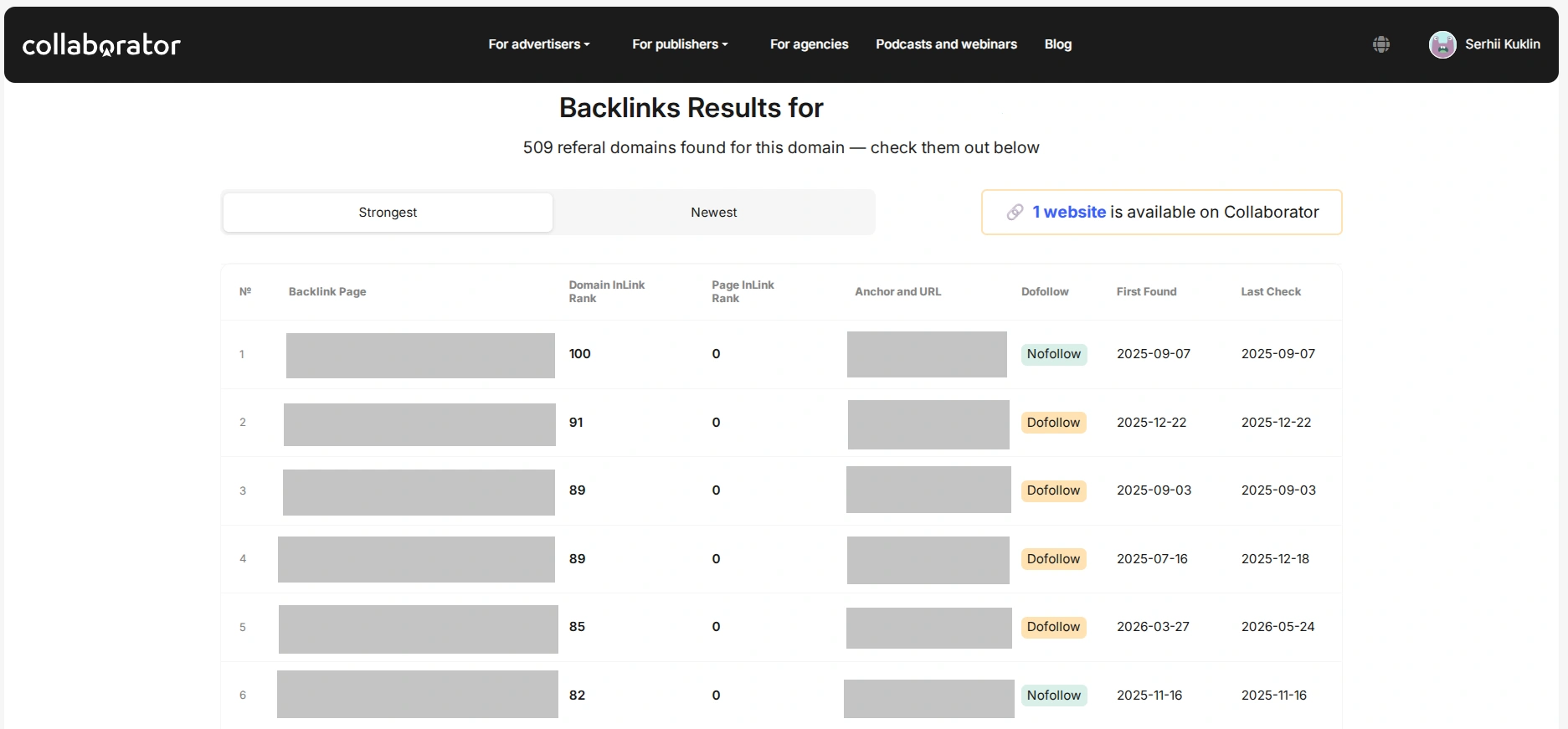
The same tool works just as well for checking a competitor's domain. I ran it on one of my competitors in the app-review niche: Collaborator found 509 referring domains, though the free version only shows the first 50 for each sorting option. What's more interesting, though, is a tag that appeared next to the results: "1 site available on Collaborator" — meaning one of the competitor's referring domains is also listed on Collaborator's own marketplace.
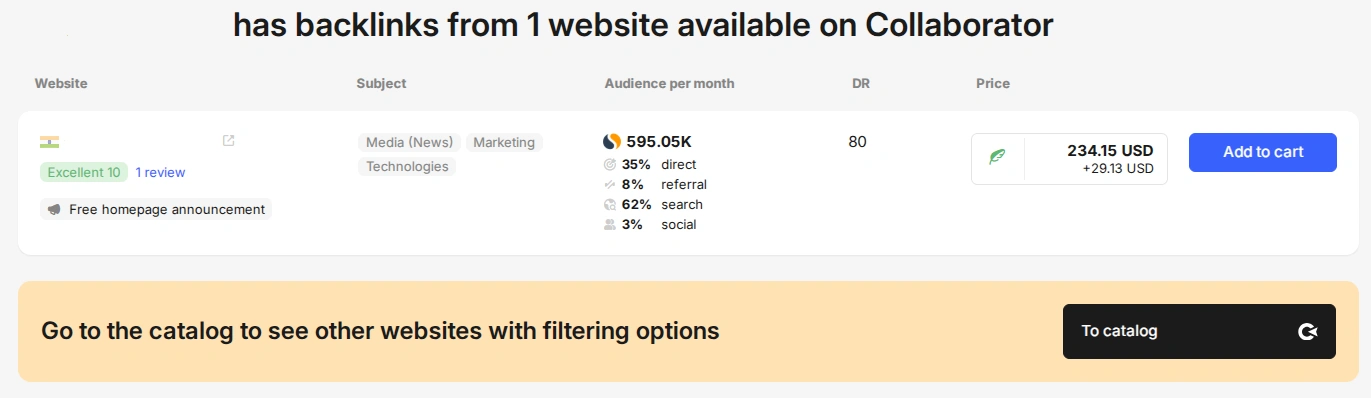
You can order a link from that domain right from the same page. Before you do, you can check useful details about the referrer — country, service rating, topic, monthly audience with a breakdown by traffic source, DR, and placement price. That means you can start building out your own list of potential link prospects in the same tracking table as you go.
Google Search Console — Accurate Data, But Only for Your Own Site
After Collaborator, it makes sense to check Google Search Console next, where the data comes straight from Google's index, with no third-party crawler involved. That said, it's worth saying upfront: for a smaller site like mine, what you get here is more of a minor supplement to Collaborator than a real replacement for it.
To find backlinks to your site in Google Search Console, log in and go to the "Links" section. If you haven't verified your site in Google Search Console yet, do that first — without verification, the "Links" section simply isn't available.
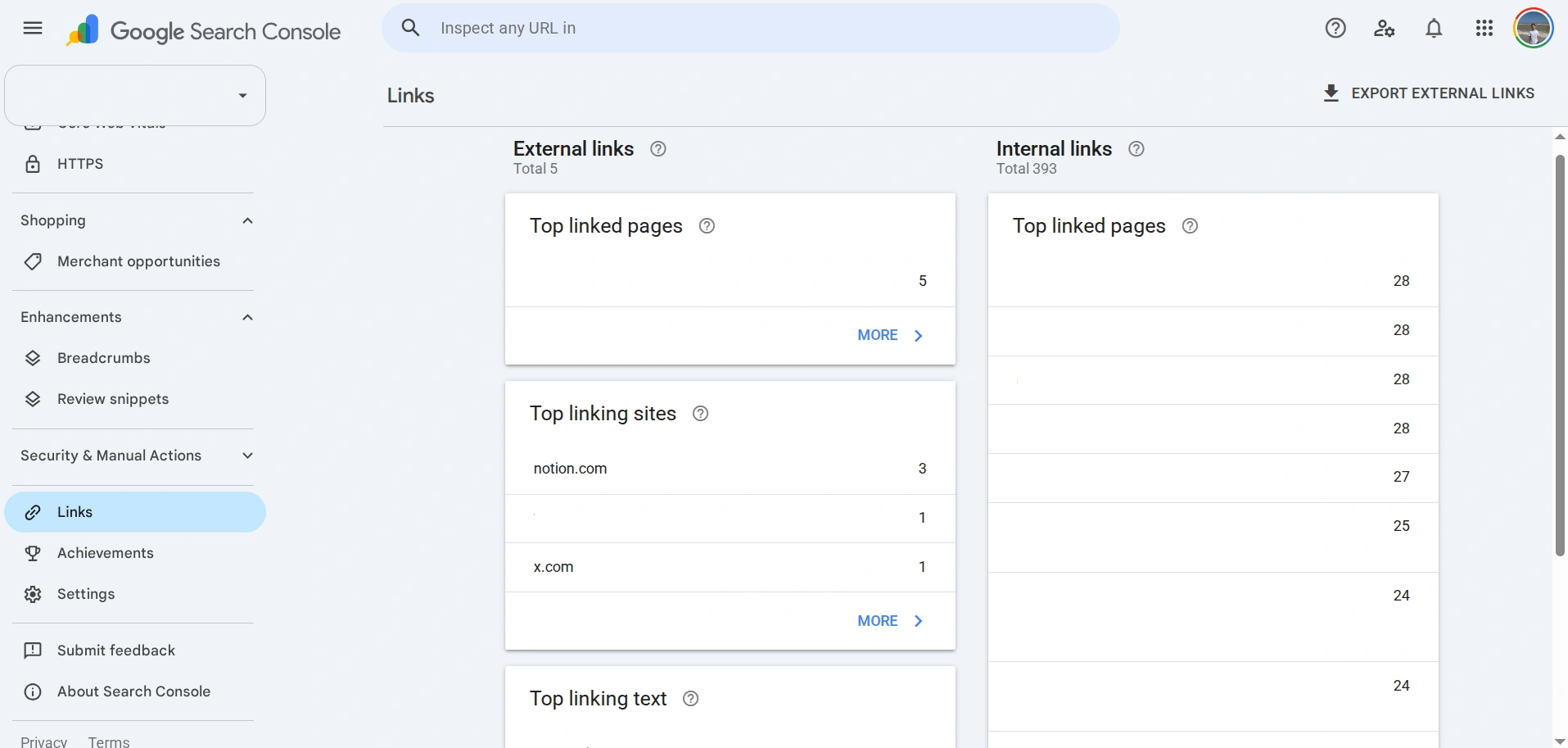
You'll see two groups: "External links" and "Internal links," where the second one is about internal linking within your own site, not backlinks. So let's focus on the external links block, which has three reports:
- Top linked pages
- Top linking sites
- Top linking text
On my site, the report showed 5 external links from 3 referring domains — significantly fewer than the 43 domains Collaborator found. This isn't a flaw in the tool. It's how the report is designed to work: Google's official documentation states directly that these tables are capped at 1,000 rows, and the report itself is a sample meant to give you a general picture of your link profile, not a complete one.
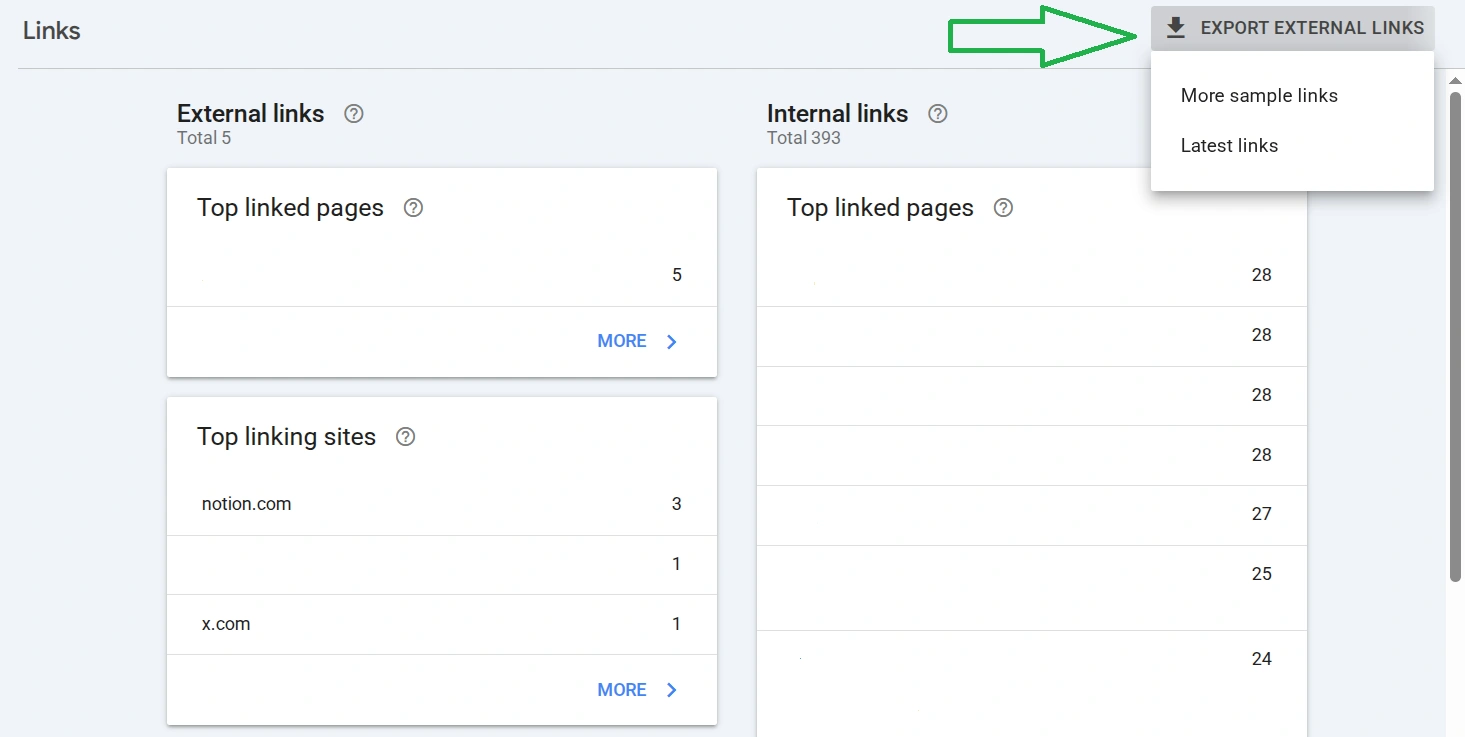
You can export the data using the "Export external links" button, in two variants — "More sample links" (a broader sample) or "Latest links" (what the crawler found and indexed most recently). You can save the data as a Google Sheet, Excel file, or CSV — then just add it to the tracking table you set up earlier.
Bing Webmaster Tools — Free Backlink Analysis for Your Site and Competitors
Bing often gets underestimated, even though a new site can sometimes pull its first visitors from Bing more easily than from Google. To use the backlink analysis tool directly on Bing Webmaster Tools, go to the service's homepage and sign in with Microsoft, Google, or Facebook.
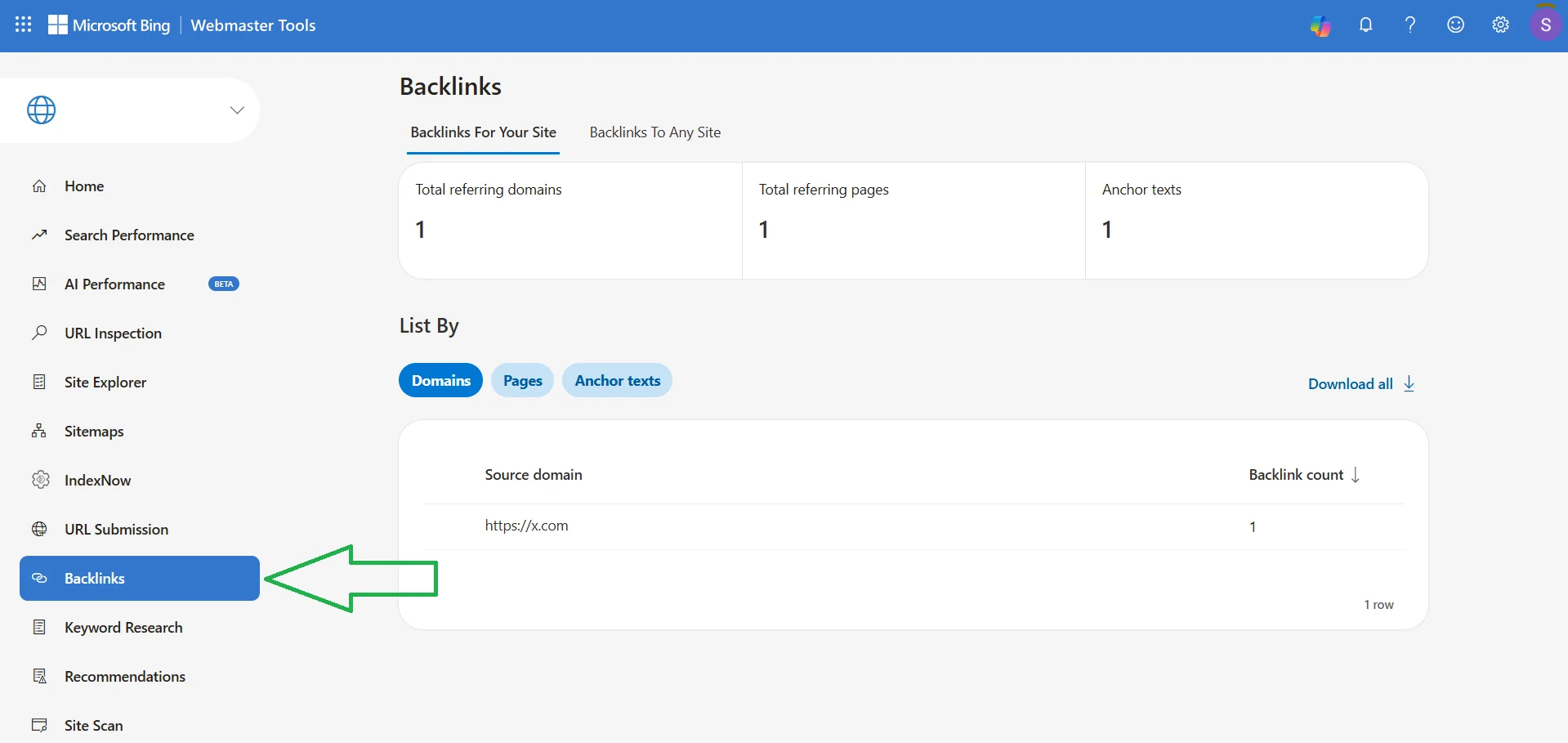
Then head to the "Backlinks" section, where you'll find three reports:
- Domains — the referring domain names and the number of backlinks from each
- Pages — the specific referring pages, anchor text, URL
- Anchor texts — a list of anchor texts and how many links point through each one
Just like with Google Search Console, you can download the data from Bing Webmaster Tools, but only one way — CSV. Click "Download all" and you'll get the full analysis in CSV instantly.
On my own site, though, the data turned out to be pretty thin. Bing found just one referring domain — X (formerly Twitter) — the smallest result out of all six tools tested. But keep in mind my site is relatively new and small, so don't write this tool off — in your case, it might turn up a lot more.
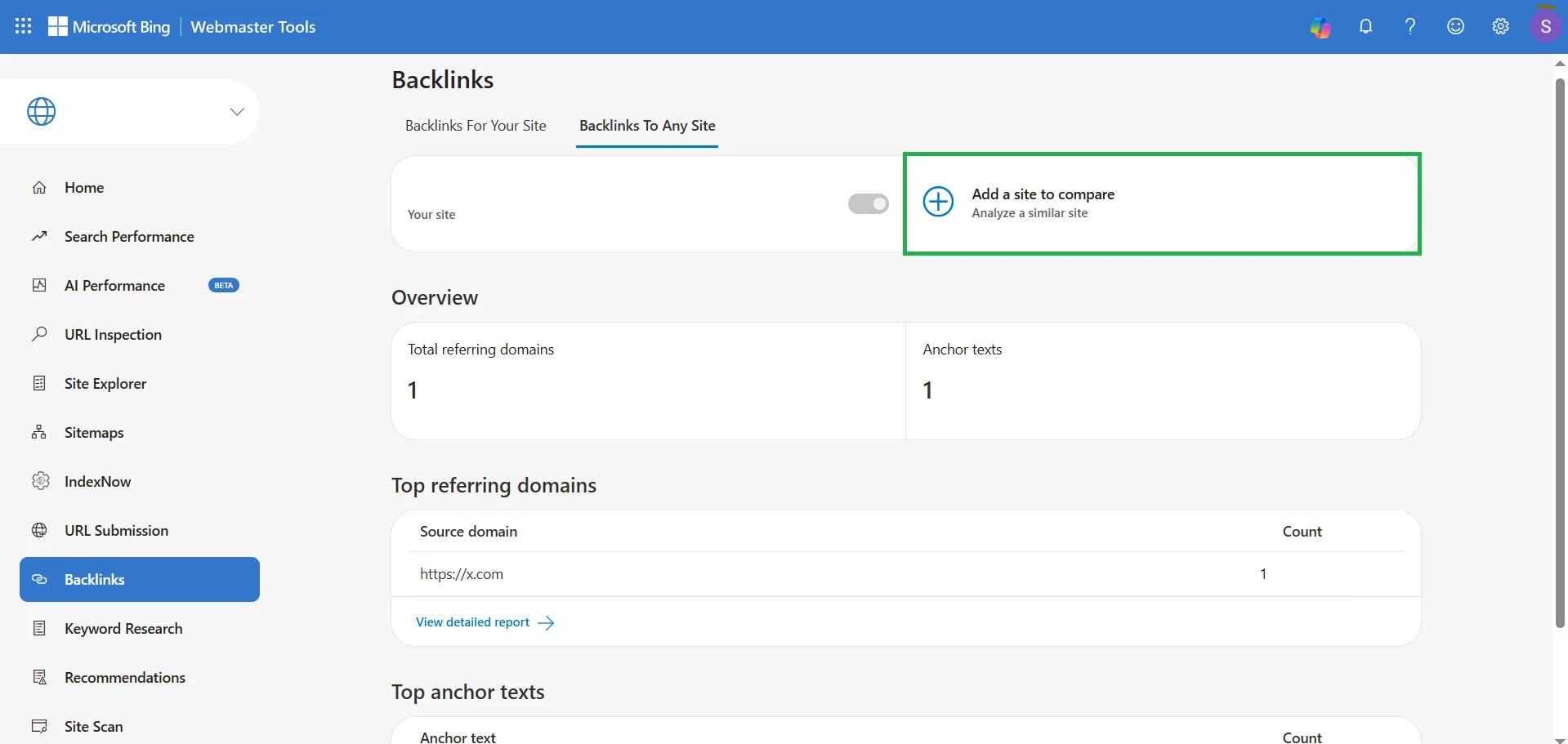
That said, the most useful feature Bing offers for competitive analysis is the "Backlinks to any site" tab, which lets you check other domains without verifying them. Just click "Add a site to compare," enter your competitor's domain, and hit "Add" — the tool will then pull up their data right alongside yours.
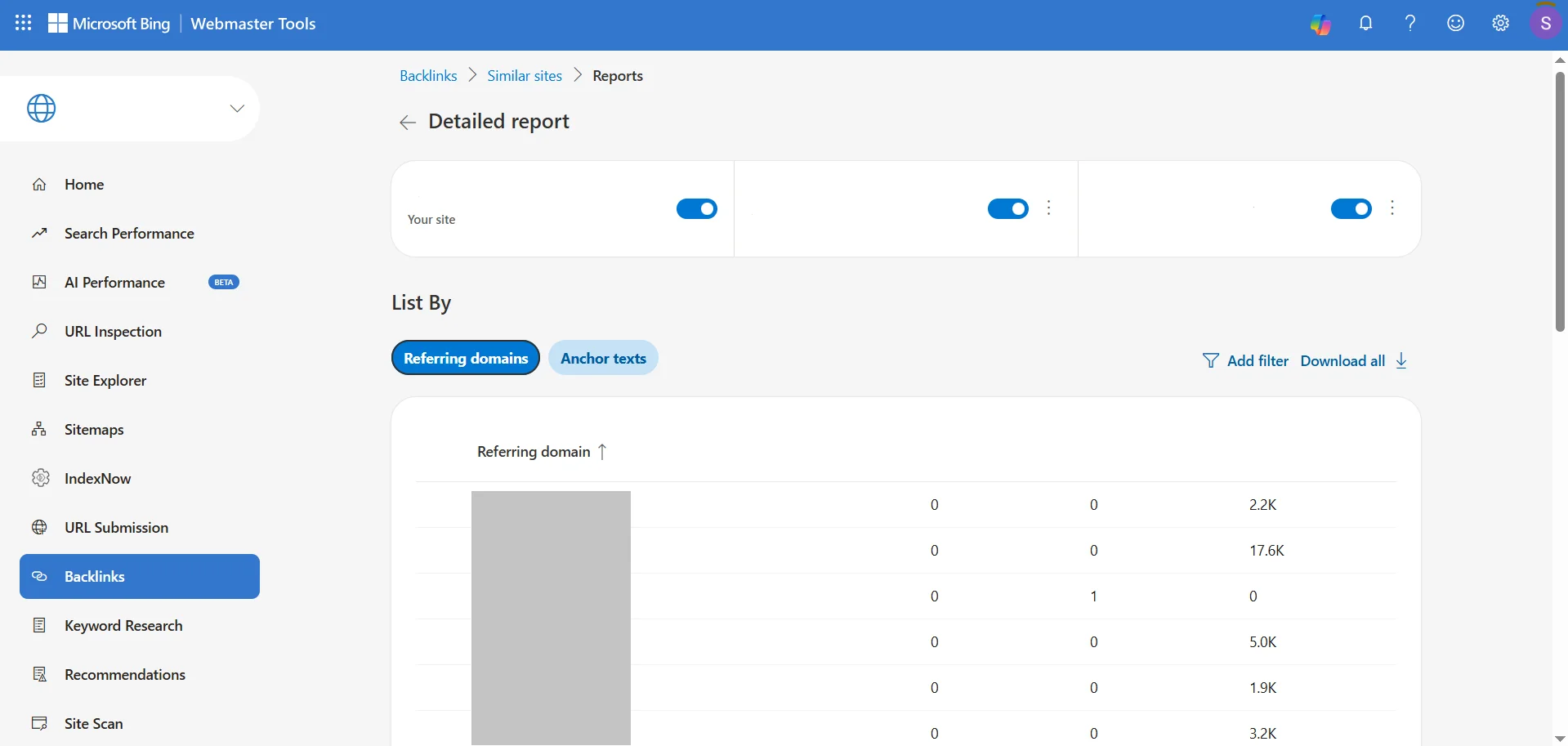
I checked the same competitor I'd checked in Collaborator: Bing found 113 referring domains, compared to 509 in Collaborator. In the "Top linked domains" and "Top anchor texts" reports, there's a "View detailed report" button that opens up a full comparison of domains and anchors between your site and your competitor's. In the anchor reports, for example, you'll find filters like "Show all," "Show shared anchors only," and "Show anchors not linking to my site." You can compare up to two competitors at once — the button to add a third site disappears once you've added two.
Related reading: How to Build a Strong Link Profile for Your Website in 2024
Ahrefs Free — Full Data on Your Own Site, But No Free Competitor Analysis
Ahrefs remains one of the largest backlink indexes in the industry. For free analysis of your own site, it requires site verification. Once you add your domain name and confirm ownership through Google Search Console, an HTML file, a meta tag, or a DNS record, the full feature set opens up at no extra cost.
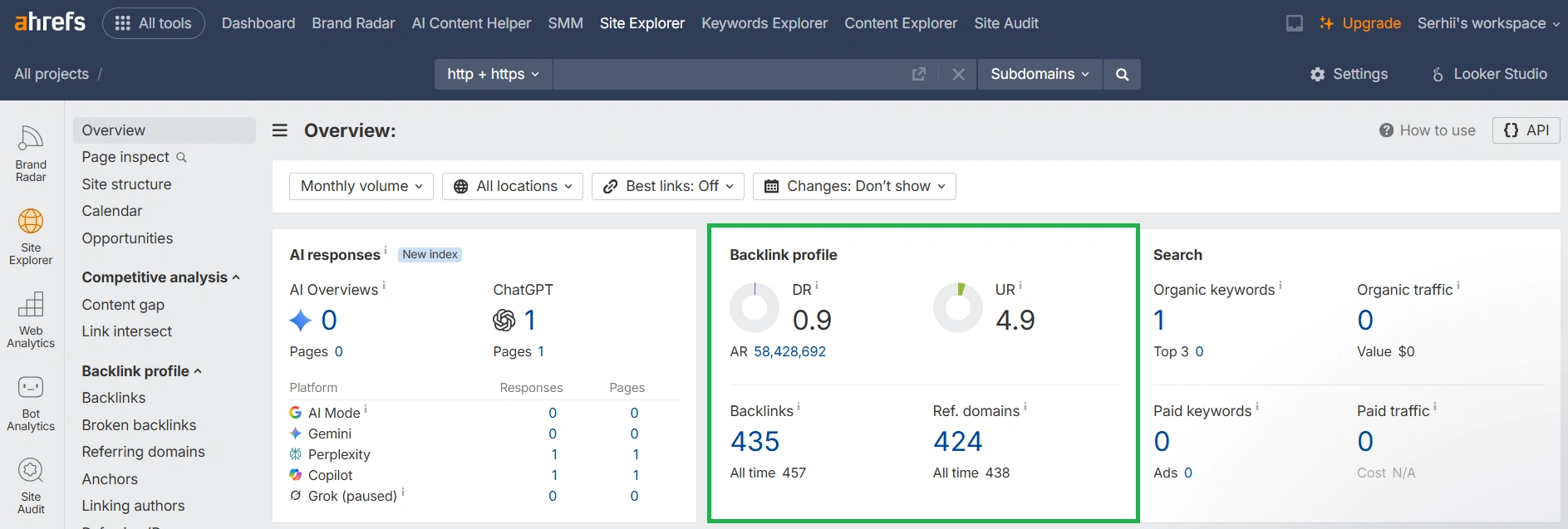
I'd already added and verified my site a while back, so let's walk through the features using my own example. Head to the "Overview" dashboard, where you'll immediately see the "Backlink profile" block with DR (the whole domain's rating), UR (the specific page's rating), and the total number of backlinks and referring domains. But it's more interesting to dig into the individual sections:
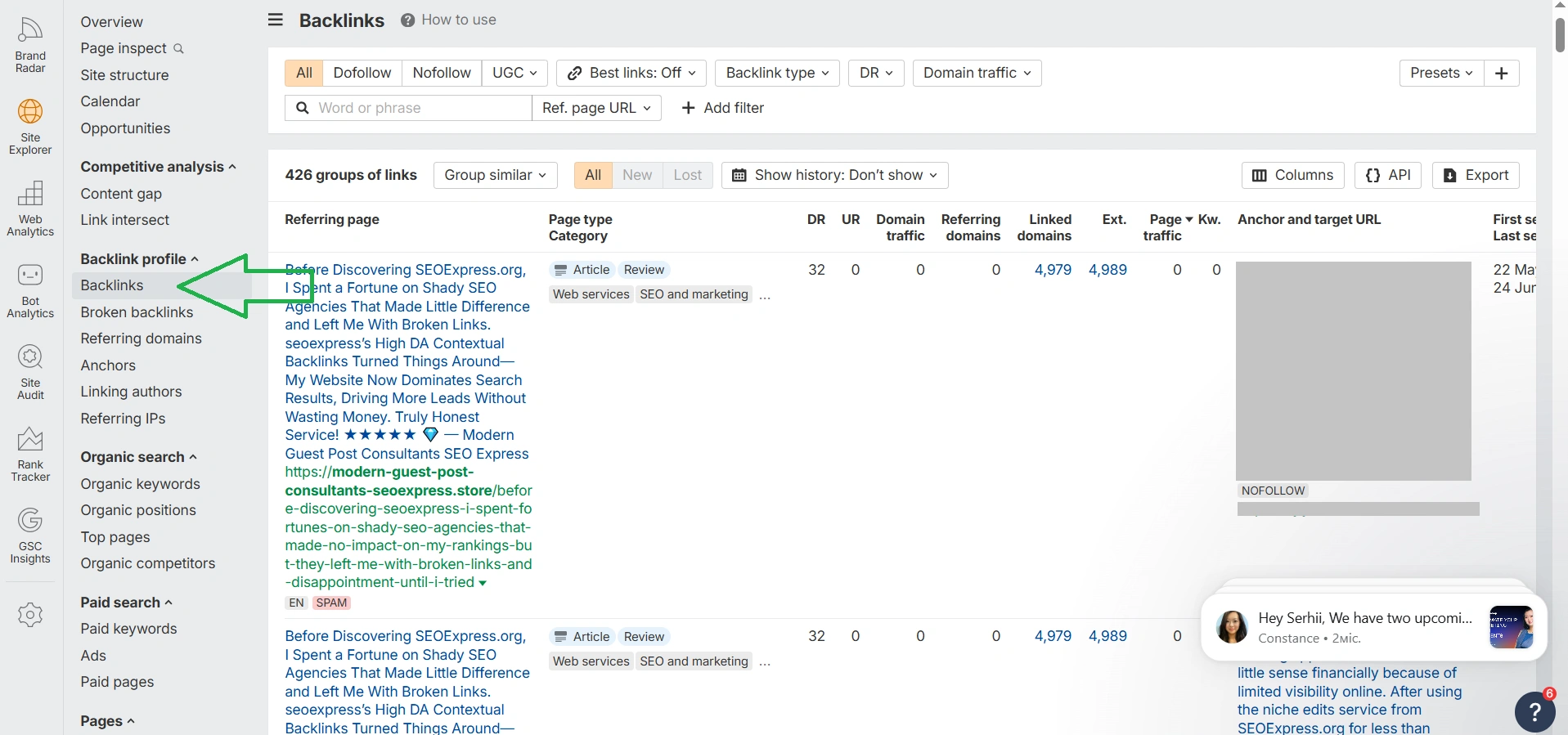
- Backlinks — a full list of referring pages with dozens of parameters: page type, DR, UR, the referrer's traffic and keyword count, anchor text and target URL with its tag (dofollow, nofollow, UGC, sponsored), first and last seen dates. You can filter the data by link type, content type, DR, and traffic.
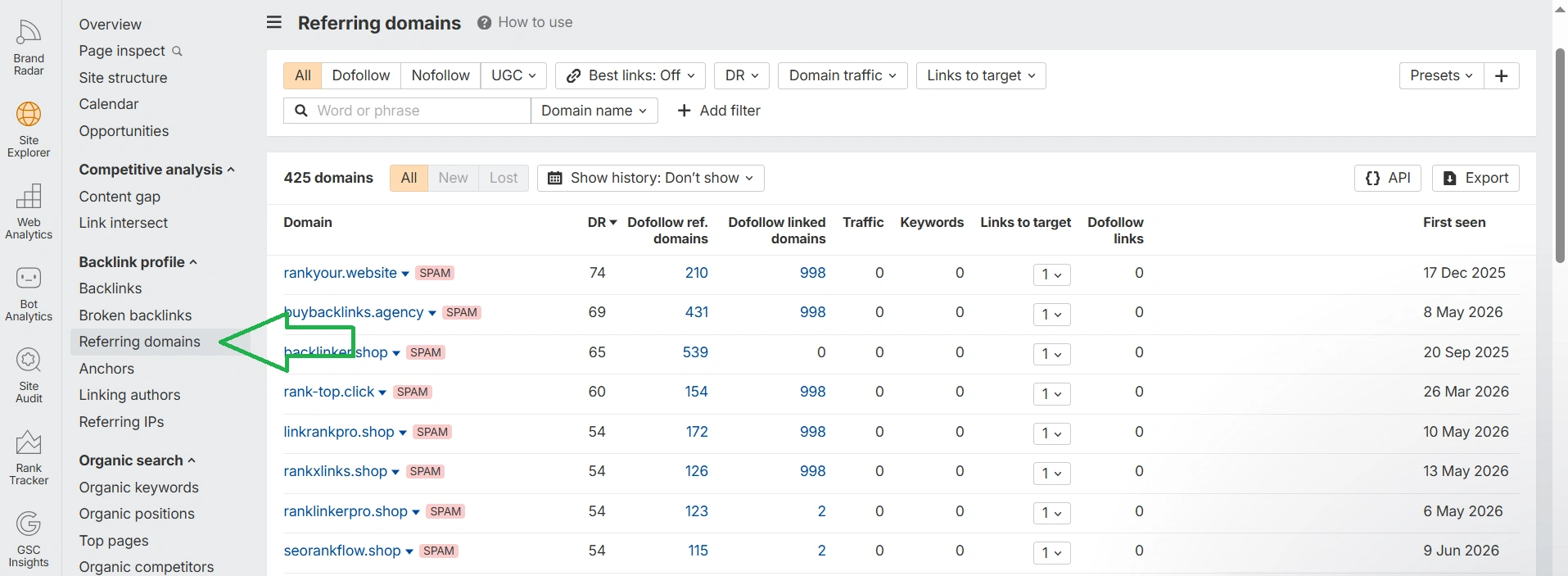
- Referring domains — the same list, but deduplicated down to domains only, with no repeated pages. For each one, the tool shows the number of dofollow referring domains, traffic, keywords, and the date Ahrefs first detected the link.
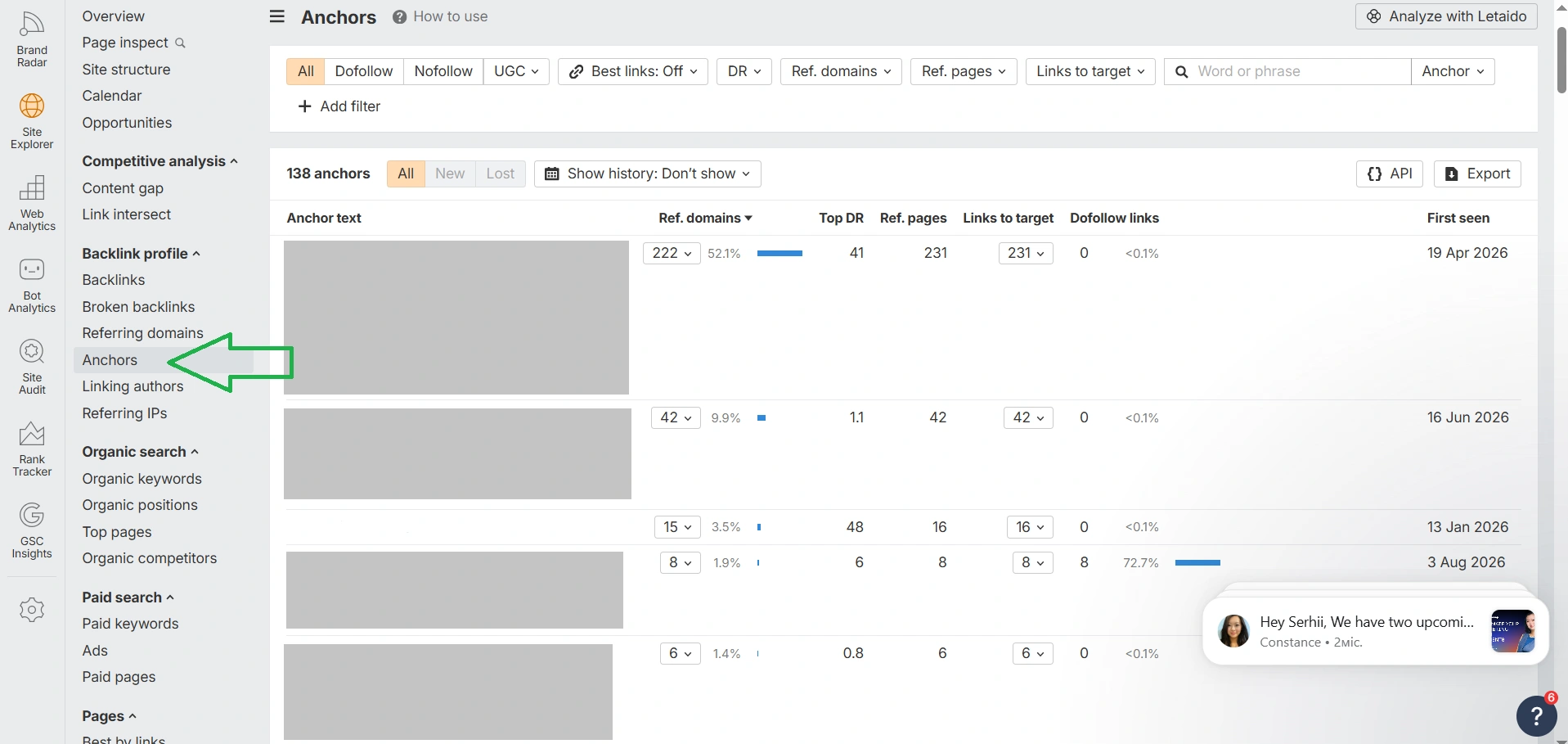
- Anchors — a breakdown of anchor text distribution. For my site, the tool counted 138 unique anchors.
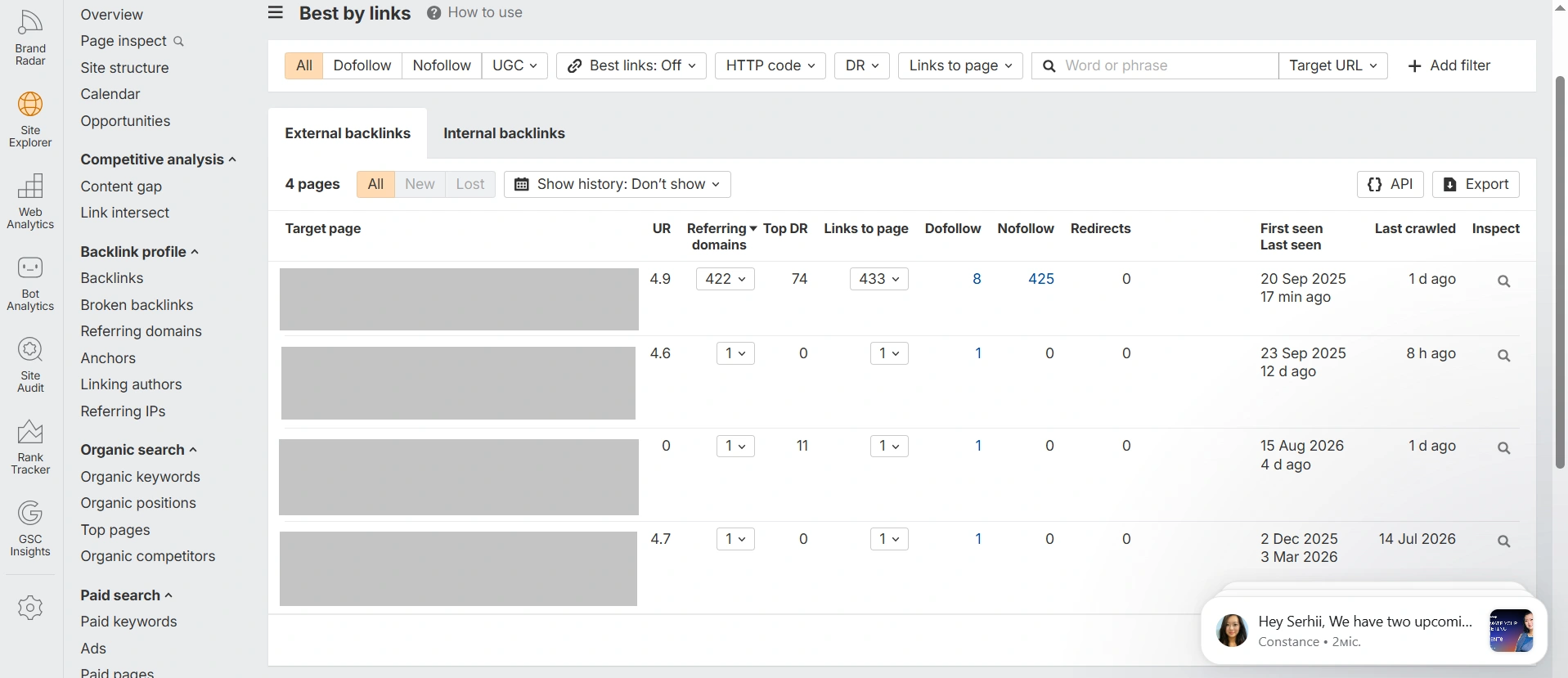
- Pages → Best by links — the pages on your site that have picked up the most external links.
In total, Ahrefs found 424 referring domains for my site — the highest number out of all six tools. But this dataset also turned up the most important finding of the entire test: 222 of those 424 domains were all linked to the exact same anchor text, promoting a "niche edits" service from a site called SEOExpress.org. And Ahrefs itself flags most of these referring domains with a SPAM label right in the interface. In other words, this is a textbook private blog network (PBN) — one I never ordered or paid for. It most likely showed up on its own, probably as a test target the spammer used to demonstrate their own services.
You can't export this data on the free plan — there's an "Export" button in the interface, but it just leads to a payment page. And checking someone else's unverified domain on Ahrefs Free isn't possible at all: instead of data, the system shows a "Domain not verified" message, prompting you to either confirm ownership or upgrade to a paid plan.
Semrush — Free Daily Reports That Run Out Fast
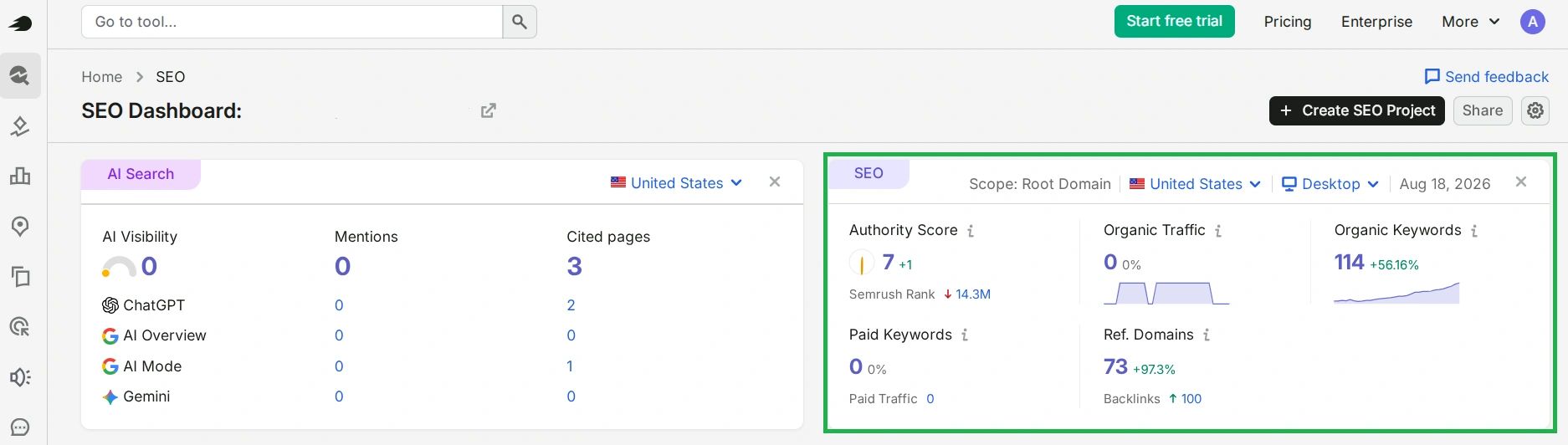 Semrush offers a full free account with registration, giving you access to detailed backlink analytics. Once you've verified your project, a Backlinks block appears near the bottom of the dashboard, showing a 12-month referring domains trend chart along with a breakdown of referrers by authority level.
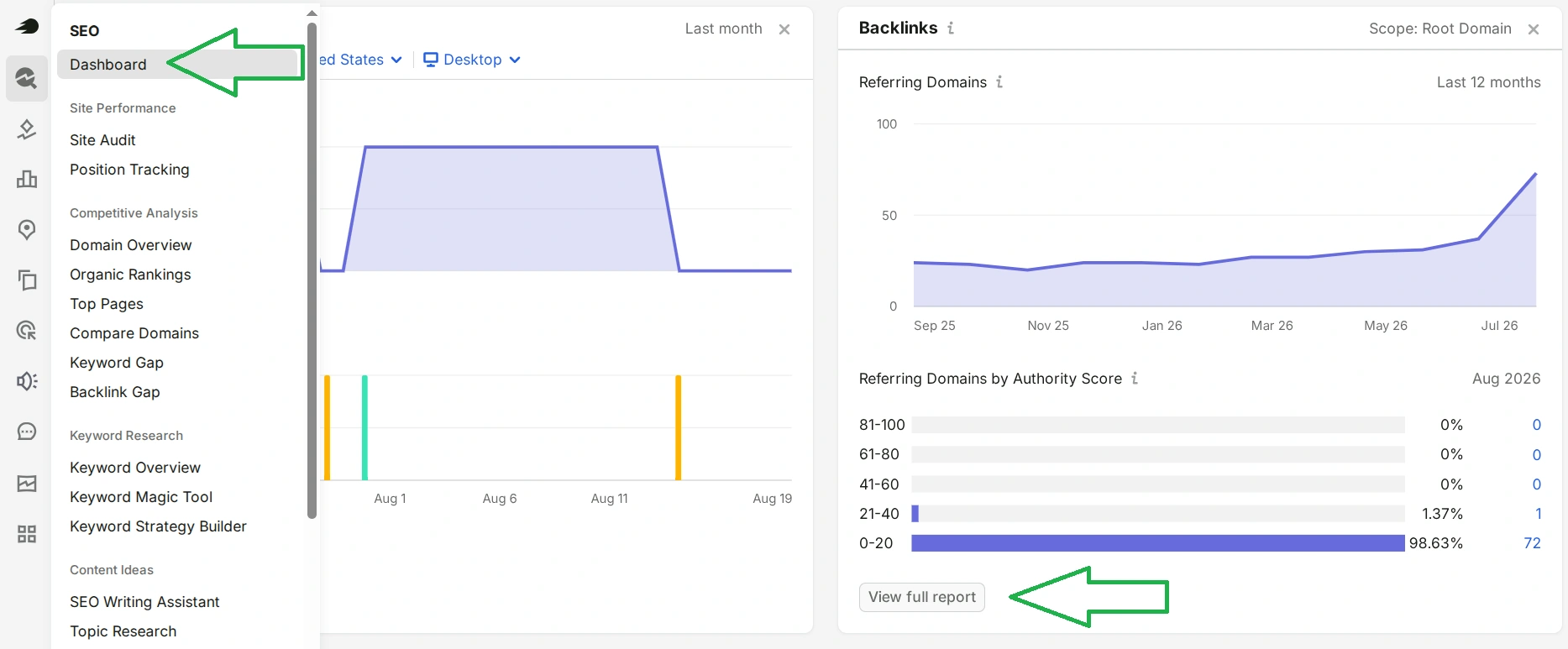
In the full report (via the "View full report" button), you'll find tabs like Overview, Backlinks, Anchors, and more — and this is exactly where the free account's main limitation shows up: 10 analytical reports per day, shared across your entire account, not allocated per feature. Every tab you click burns one request from that shared limit, so it runs out a lot faster than it seems at first.
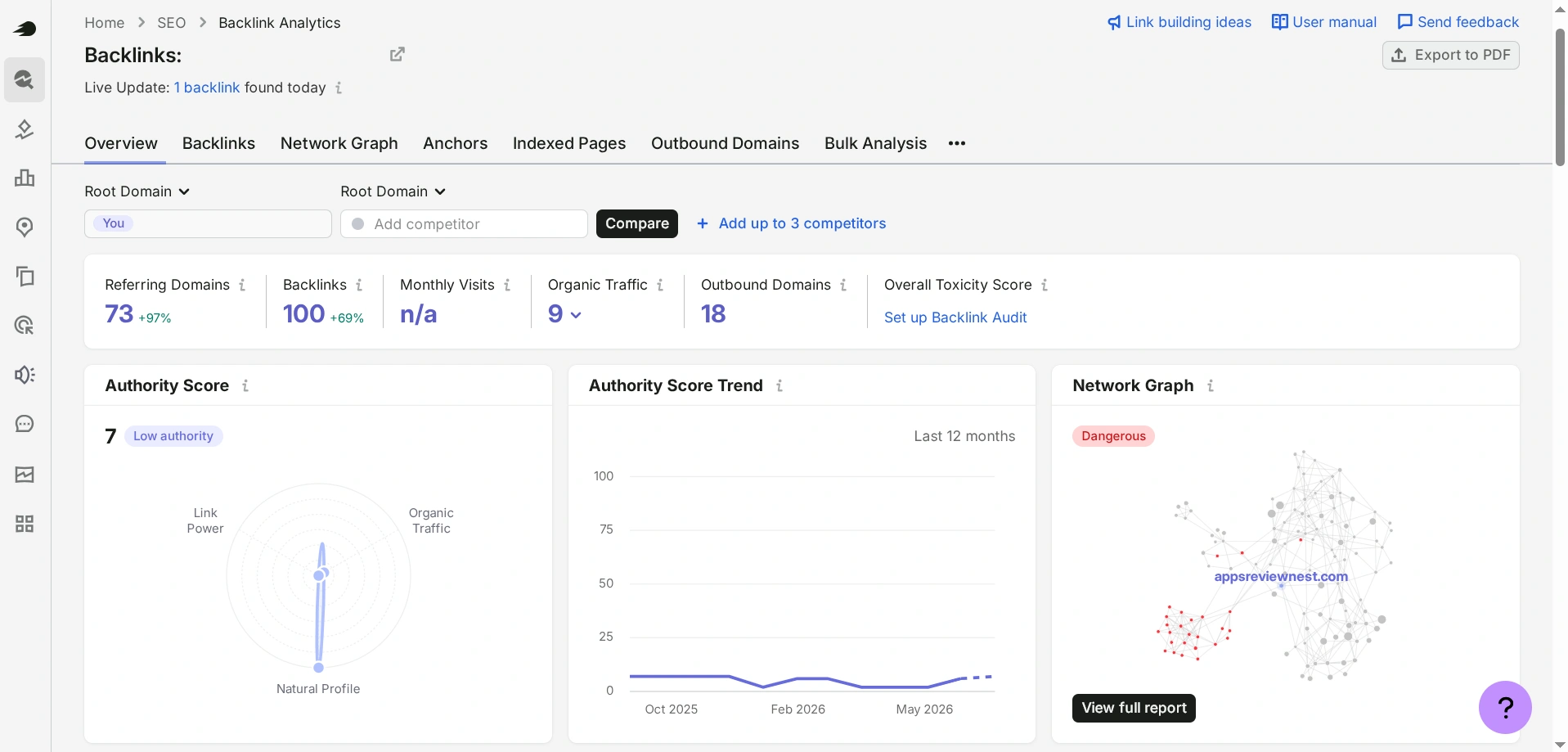
On my site, Semrush found 100 backlinks and 73 referring domains, broken down by Referring Domains by Authority Score. Of those 100 backlinks, the free plan only shows the first 10 — to see the rest, it offers a 7-day trial. There's an export button in the table, but downloading also requires a paid plan.
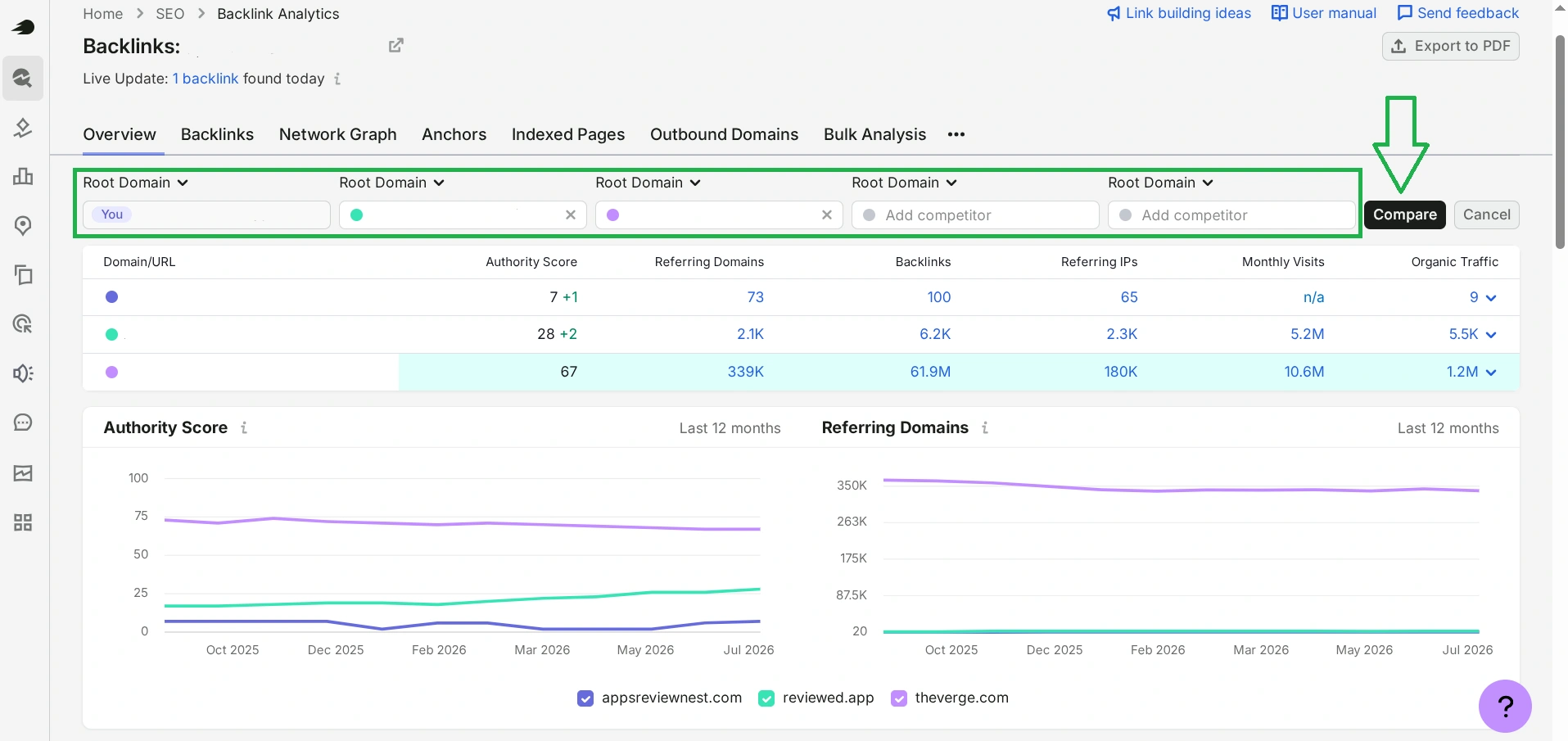
You can check competitors' backlinks too: add up to three domains and click "Compare." But this is exactly where it's easiest to blow through your entire daily quota — if you've already clicked through a few tabs of your own profile before this, comparing even one competitor can burn through all your remaining free requests in one go. I had just enough quota left for one comparison: Semrush showed 2,100 referring domains for my competitor, against my own 73.
SE Ranking — Same Database, Less Free Data
SE Ranking's paid platform (Projects, at online.seranking.com) requires a subscription or an active 14-day trial. If you've had an account there before and your trial has already expired, logging in will immediately prompt you to pay for the Core plan (starting at $103.20/month) or Growth (starting at $223.20/month), and you won't be able to add a new project. But that's not the tool we need — we're after the SE Ranking Backlink Checker, a separate public page that isn't tied to Projects and doesn't require logging in.
One thing to watch for: make sure you're not logged into SE Ranking when you visit this page — otherwise, the tool will automatically redirect you to the paid dashboard.
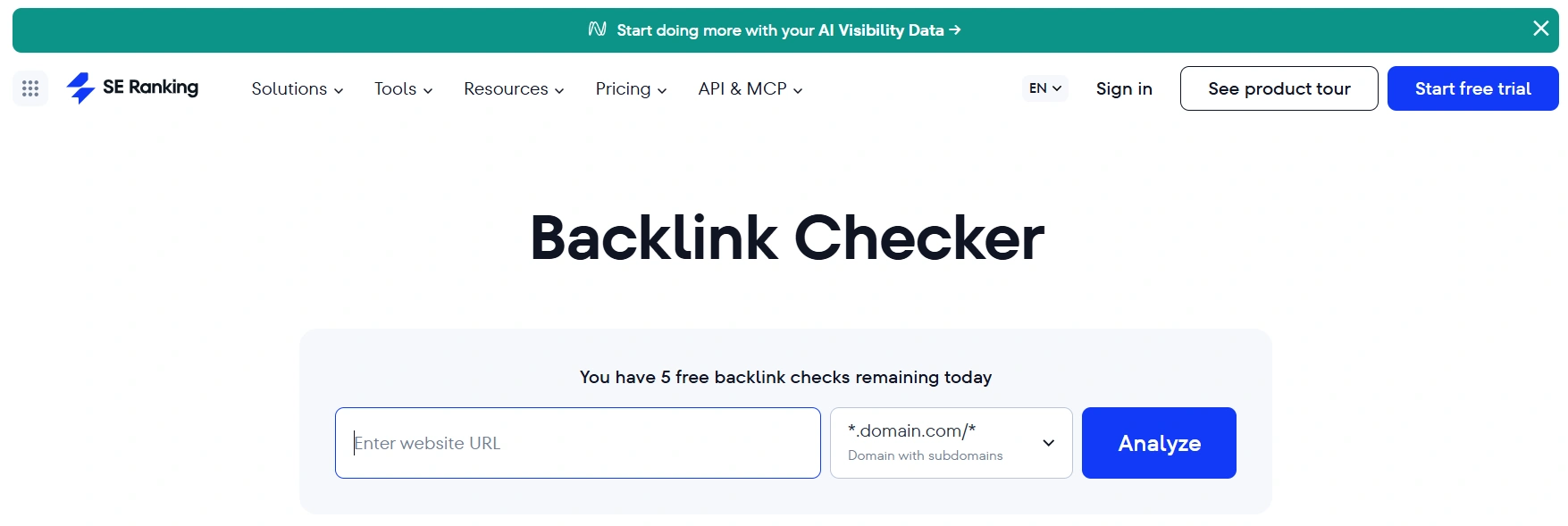
Unregistered users get 5 free checks a day. Enter a domain, click "Analyze," and you'll get a basic data block:
- Number of backlinks
- Referring domains
- Domain authority
- Page authority
- Dofollow/nofollow ratio
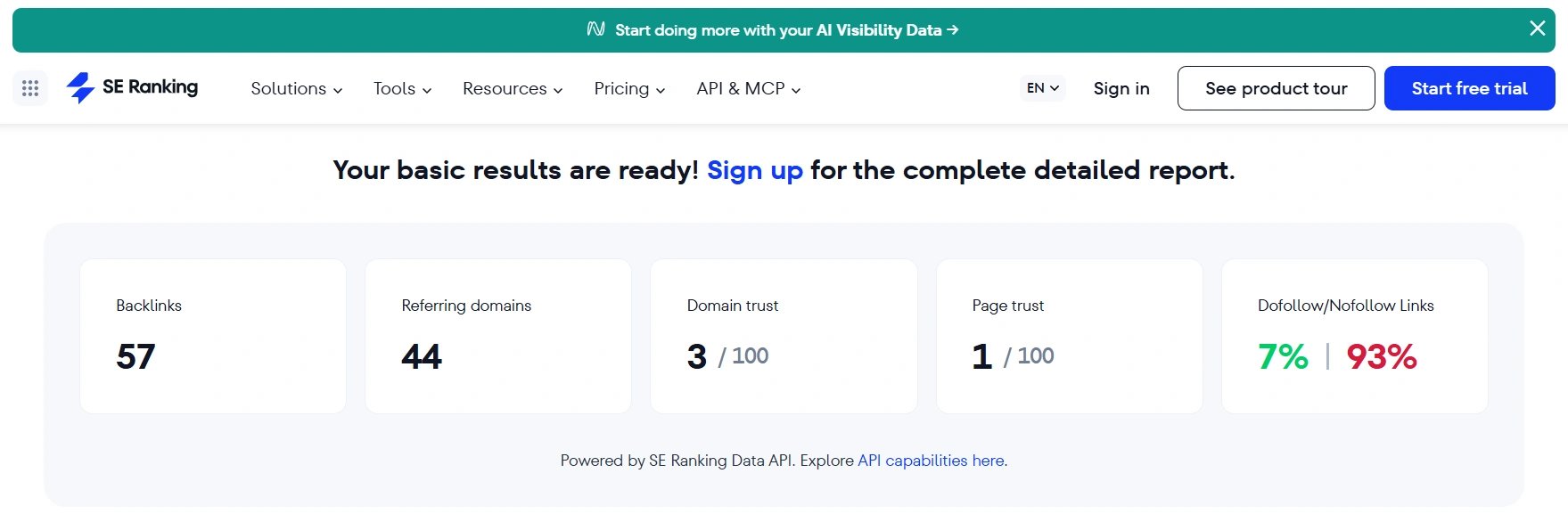
Example of a backlink analysis for my site via SE Ranking.
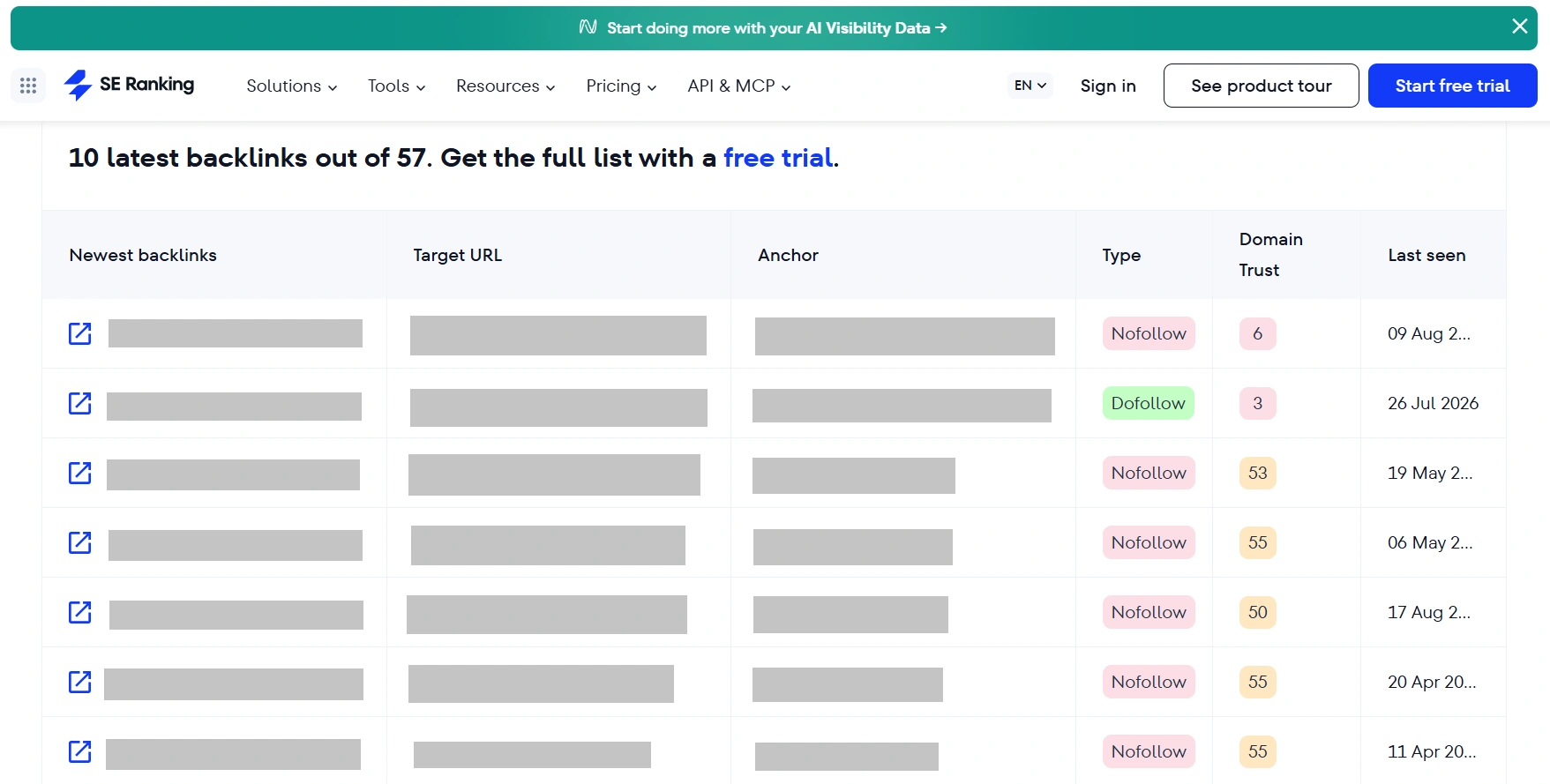
Below the overview stats is a table showing the 10 most recent backlinks, with the referring page, target URL, anchor text, type, domain authority, and date. On my site, SE Ranking found 57 backlinks from 44 referring domains. The remaining 47 out of 57 links found are only available after signing up for the trial. And once again, there's no export button on the free version.
But here's the more interesting part — the comparison with Collaborator's results. SE Ranking's own official free tool showed less data than Collaborator, even though both pull from the exact same SE Ranking database. Collaborator, with no registration required, gives you up to 100 backlinks (50 by rating + 50 by recency) across two sorting tabs, while SE Ranking's own tool shows only the 10 most recent, with no sorting options at all. In this particular case, the "wrapper" built on top of someone else's database turned out to be more generous than the original.
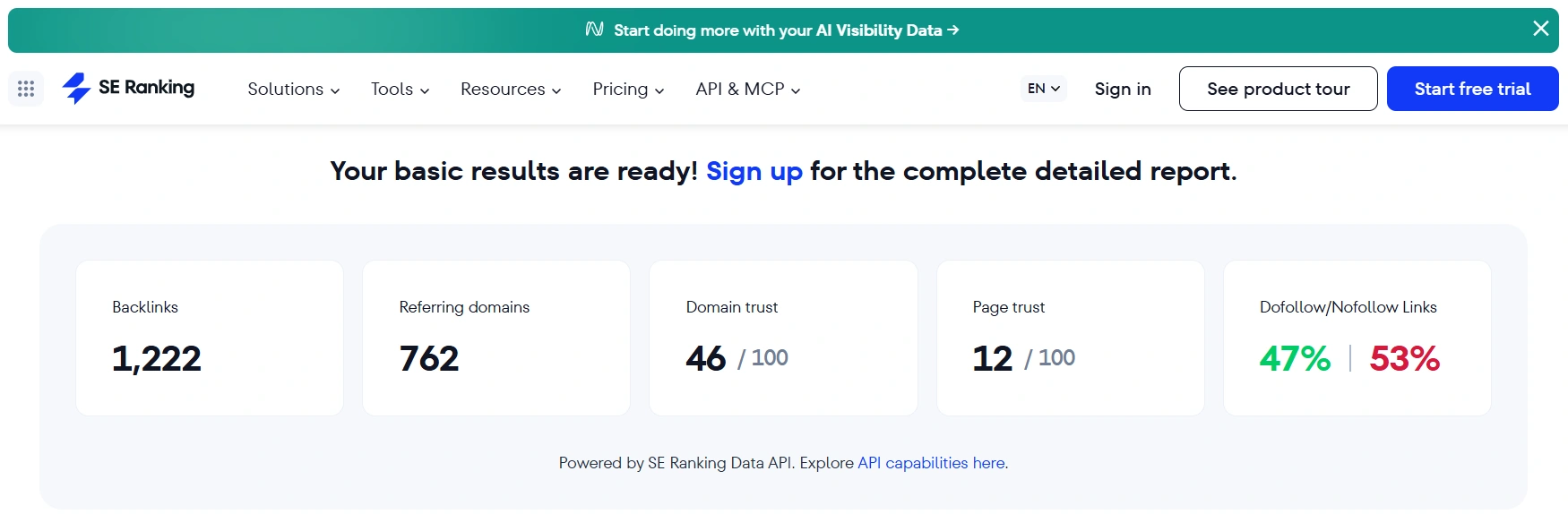
You can analyze competitor backlinks the same way: just scroll back to the top of the page, swap the URL in the search field for your competitor's domain, and click "Analyze." You'll get the exact same table, just with different data. I ran it on the same competitor I'd checked before, and SE Ranking showed 762 referring domains — the highest number of all the tools I tested for the same site. But once again, you still only get to see 10 domains.
Related reading: Useful Tools for Competitor Analysis
Why Every Tool Shows a Different Number of Backlinks
The differing numbers aren't an error on any tool's part. Two things overlap here: each tool has its own database, built by its own crawler, and on top of that, the free tier trims what you actually get to see. That's why Ahrefs, which crawls the web the most aggressively, picks up even minor spam domains and shows 424 links, while Google Search Console only surfaces a sample from its own index and shows 3. Both numbers are accurate. They simply answer different questions.
Here's a table showing how the numbers compared across the whole test:
| Tool | Referring domains (my site) | Referring domains (competitor) |
|---|---|---|
| Bing Webmaster Tools | 1 | 113 |
| Google Search Console | 3 | — (own site only) |
| Collaborator | 43 | 509 |
| SE Ranking | 44 | 762 |
| Semrush | 73 | 2,100 |
| Ahrefs | 424 | — (paid plan only) |
The spread runs from 1 to 2,100 domains for the same competitor site, and from 1 to 424 for my own. None of these tools is "wrong." Each one runs on its own crawler and its own database, and none of these databases covers the entire internet:
- GSC only sees what Google itself has managed to index and chooses to show in its sample
- Ahrefs and SE Ranking crawl the web with their own bots, at different depths and frequencies
- Collaborator and Bing additionally cap what you see based on free-tier limits, on top of whatever their underlying database already contains
The practical takeaway here is simple: if you need a truly complete picture of a link profile, no single free tool will give you that. Check at least two or three services side by side and cross-reference the results. But if your goal is narrower — finding a couple of recent natural links, gauging the rough scale of a competitor's profile, or checking for a toxic link attack — a single tool from the list above is enough.
What to Do with the Backlinks You've Found
By now you've got a table full of domains — and there are five specific things to do with it:
- Flag the quality backlinks. These are the ones where four things line up at once: dofollow type, a meaningful anchor instead of a bare URL, referrer authority above 20-30 on any of the scales (InLink Rank, Domain Trust, DR), and real traffic on the referring site. In my own profile, only two out of 43 domains met all four — and those are exactly the sites worth staying in touch with: thank them for the mention, pitch a new piece of content, or discuss further collaboration.
- Don't waste time on directories. Automated directories with anchors like "yoursite.com," a nofollow tag, and zero traffic make up the bulk of any young site's link profile. You don't need to remove them, and you don't need to reach out to anyone about them — just leave them out of your table so they don't clutter the real picture.
- Check whether your important links are still live. Open the referring page from your table, use the page's search function to find the link pointing to you, and check the element's code to see the rel attribute. If the link is gone from a page that still exists, that's the easiest opening to reach out to the author and ask them to restore the mention. Both Ahrefs and Semrush have built-in "Lost" and "Broken" filters for your own site that surface exactly these cases.
- Decide what to do about spam. If you're seeing dozens of domains with the same anchor text and a SPAM label, like I was, check the "Security & Manual Actions" section in Google Search Console. If it's empty, do nothing. Google's John Mueller pointed out in March 2026 that most sites don't need a disavow file at all, and Gary Illyes has gone as far as saying he'd remove the tool entirely, since it causes more harm than good in most cases. My own site backs this up: half my link profile is someone else's spam network, and it hasn't hurt my rankings at all. Disavow is really only worth using if you're dealing with a manual action or a history of buying bad links yourself.
- Build a list of competitor referrers you don't have yet. Pull the comparison from Bing Webmaster Tools using the "Show anchors not linking to my site" filter, or check your competitor's profile in Collaborator and look for the marketplace availability tag. This is your practical outreach list: these sites are already writing about your topic, so it's worth reaching out about getting a link of your own.
After that, it's just a matter of staying consistent. Once a month, check Google Search Console and look at your domain in Collaborator sorted "by recency" to spot new links right away. Once a quarter, open the Anchors report in Ahrefs — a sudden spike in one anchor's share is the fastest sign of a spam attack — and refresh your list of competitor referrers. All told, this takes about an hour a month, and in exchange you'll always know who's linking to you, what to do about it, and whether anything's shown up in your profile that you didn't put there yourself.