

- What is Google Search Console
- How to add a site to Google Search Console
- Overview — main section of Google Search Console
- Search results — main analytical report
- Statistics — quick overview without digging into tables
- Main update of 2026 — platform resources for social networks
- Site performance reports in AI Overviews and AI Mode
- What is indexing in Google Search Console
- Links: who links to your site
- Site security: manual actions and security issues
- How often to check Google Search Console
In 2026, Google Search Console became a platform not only for checking the indexing and ranking of a site in search results but also for monitoring social networks and artificial intelligence. Now anyone can see how their YouTube, Instagram, TikTok, and X (Twitter) are displayed in the main search engine, and even analyze the project with the help of AI. I decided to check this personally and went through all the steps — from registration to report analysis — on my main site and a separate test account for social networks. So, I suggest figuring out how to use Google Search Console in 2026 — and what new features actually work for the average site owner and what does not yet.

What is Google Search Console
Google Search Console (GSC) — is a free Google service that shows how your site is represented in search: what queries it appears for, how many impressions and clicks it receives, whether the pages are indexed, and if there are any technical issues. Since 2026, GSC allows you to track how content from your YouTube, Instagram, TikTok, and X accounts appears in search results.
Despite the expanded functionality, it is important to understand how GSC differs from Google Analytics. Search Console shows what happens before a person clicks on your site — impressions, positions, queries. Google Analytics 4 shows what happens after — how much time a person spent on the web resource, what pages they viewed, whether they made a purchase. These two tools complement each other rather than duplicate.
How to add a site to Google Search Console
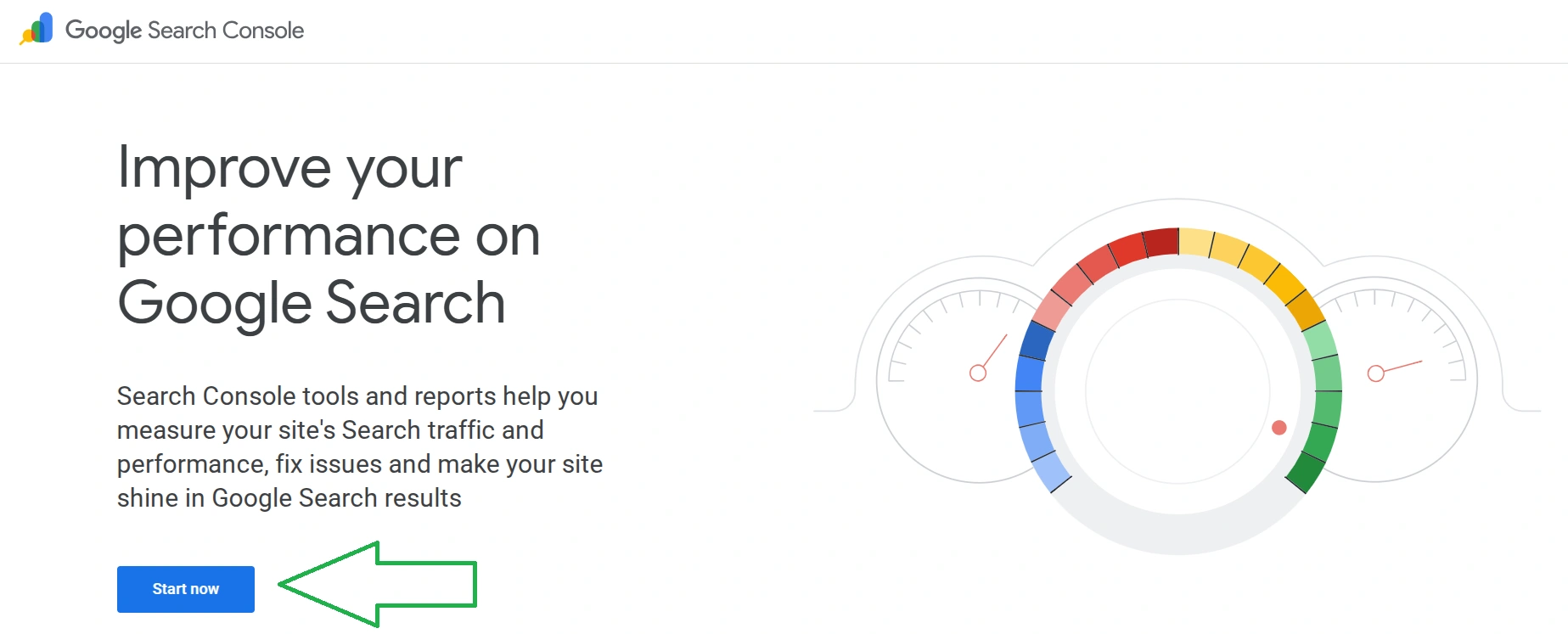
To add a site, go to search.google.com/search-console and log in to your Google account. Then click "Add a website", select the type of resource, and confirm ownership using one of the suggested methods.
Resource-domain or URL-prefix — what to choose
Choose "Domain" if you want to track the entire site at once, including all subdomains, http and https versions, with and without www. Choose "URL-prefix" if you do not have access to DNS or need one specific version of the web resource separately.
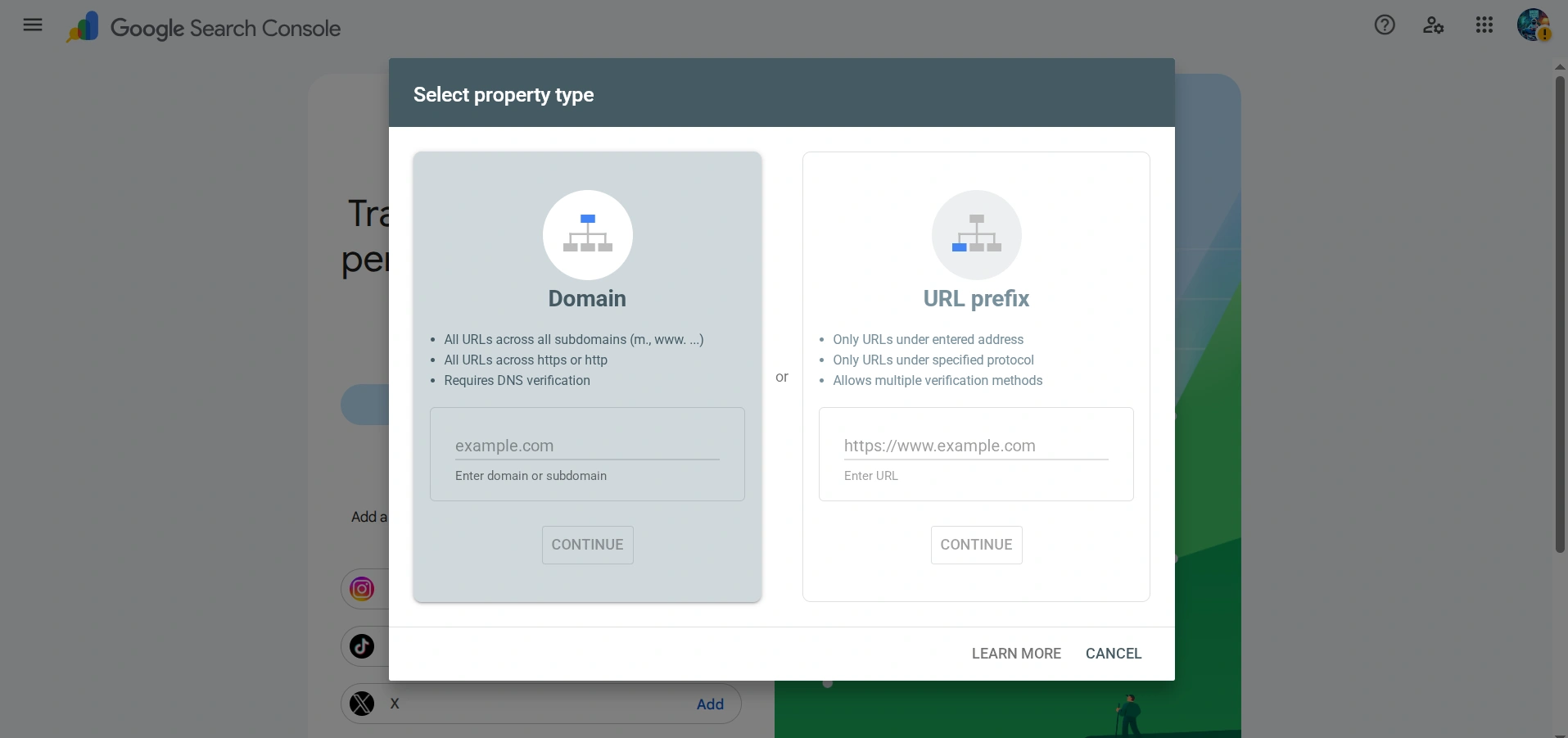
The key difference — methods of confirmation:
- resource-domain is confirmed only in one way — by a DNS TXT record, but covers the entire site at once;
- resource with URL-prefix can be confirmed by any of five methods, but only tracks the exact specified address. For example, if you choose https://site.com/, data for http://site.com/ or https://www.site.com/ will be considered a separate, unconnected resource.
For most sites, it is more convenient to choose resource-domain: it covers all protocols, subdomains, and options with and without www. To confirm, you need to add a TXT record in the domain's DNS zone. This may be available in the registrar's cabinet or the company where you purchased hosting for the site, depending on where the DNS records are managed. If there is no access to DNS or you need to track only a specific version of the site, URL-prefix will suffice.
How to confirm ownership in GSC
Google offers five confirmation methods: DNS TXT record, HTML file, HTML tag, Google Analytics, and Google Tag Manager. For resource-domain, only the first method is available, for URL-prefix — any of the five.
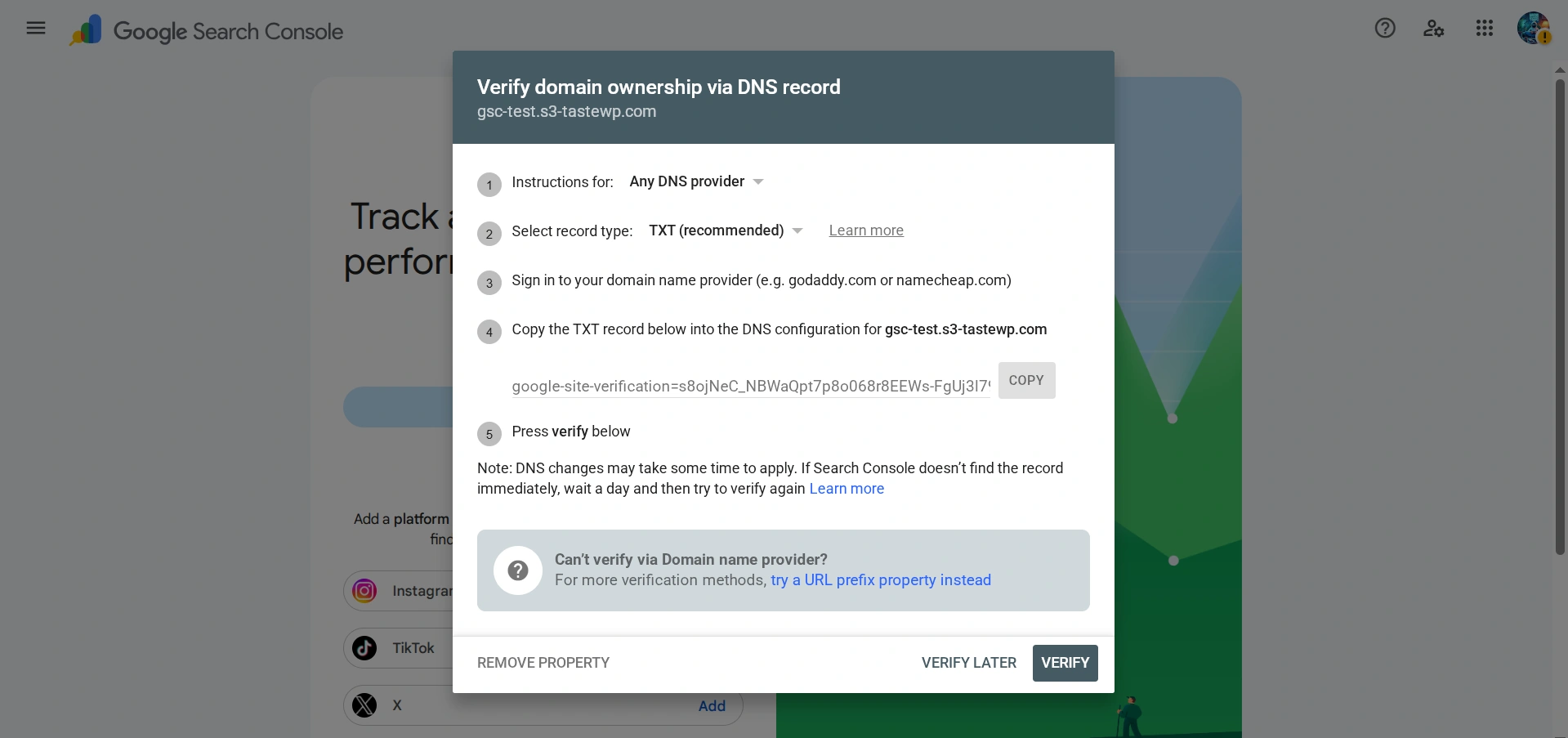
The most convenient method for the domain — DNS TXT record: Google issues a unique string of code that needs to be added to the DNS management panel of your hosting provider or domain registrar, after which you return to GSC and click "Verify". DNS record verification can take from a few minutes to 48 hours. On my test site for this article, verification took 2 hours.
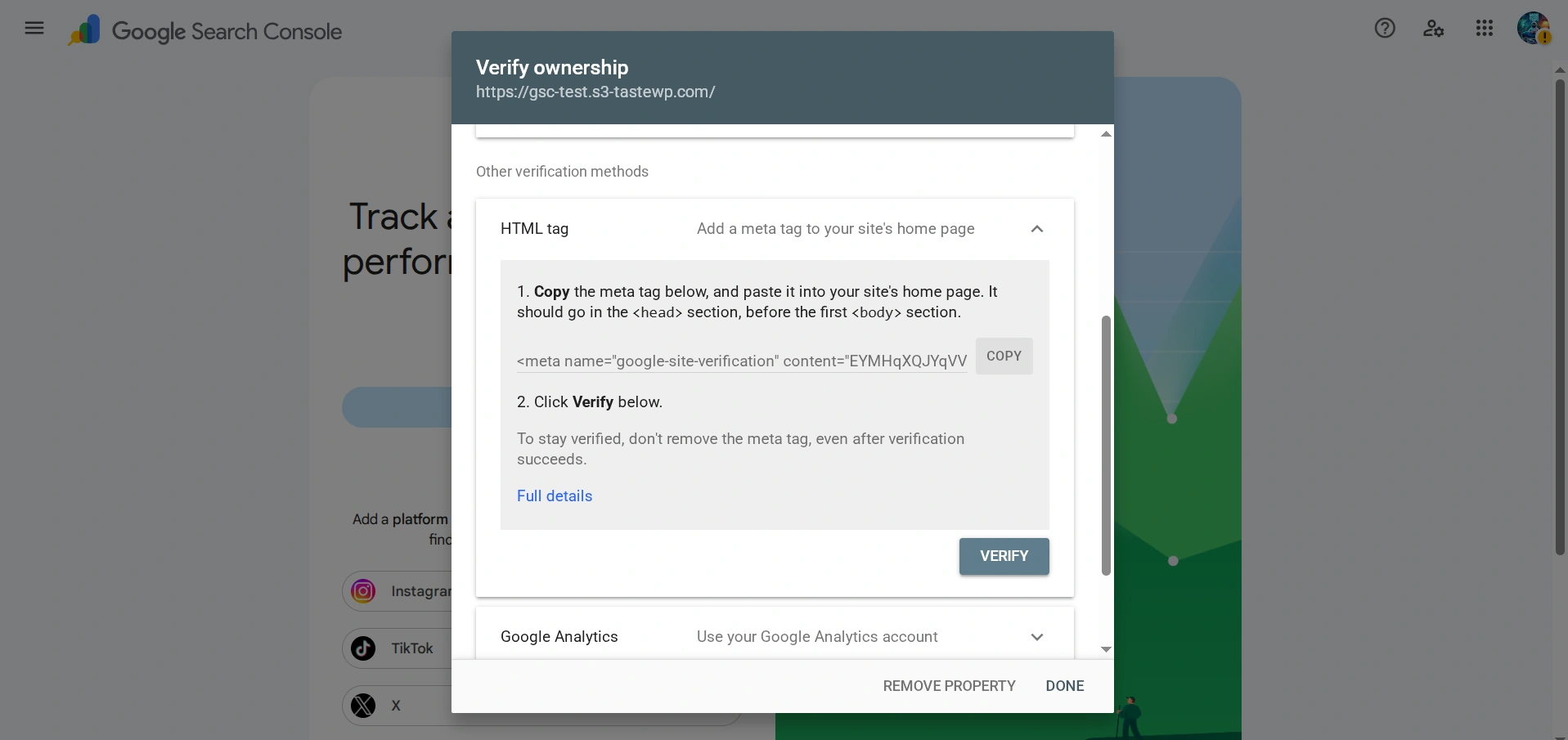
If there is no DNS access, the simplest method — HTML tag: copy the code string from Google and add it to the <head> section of the site template.
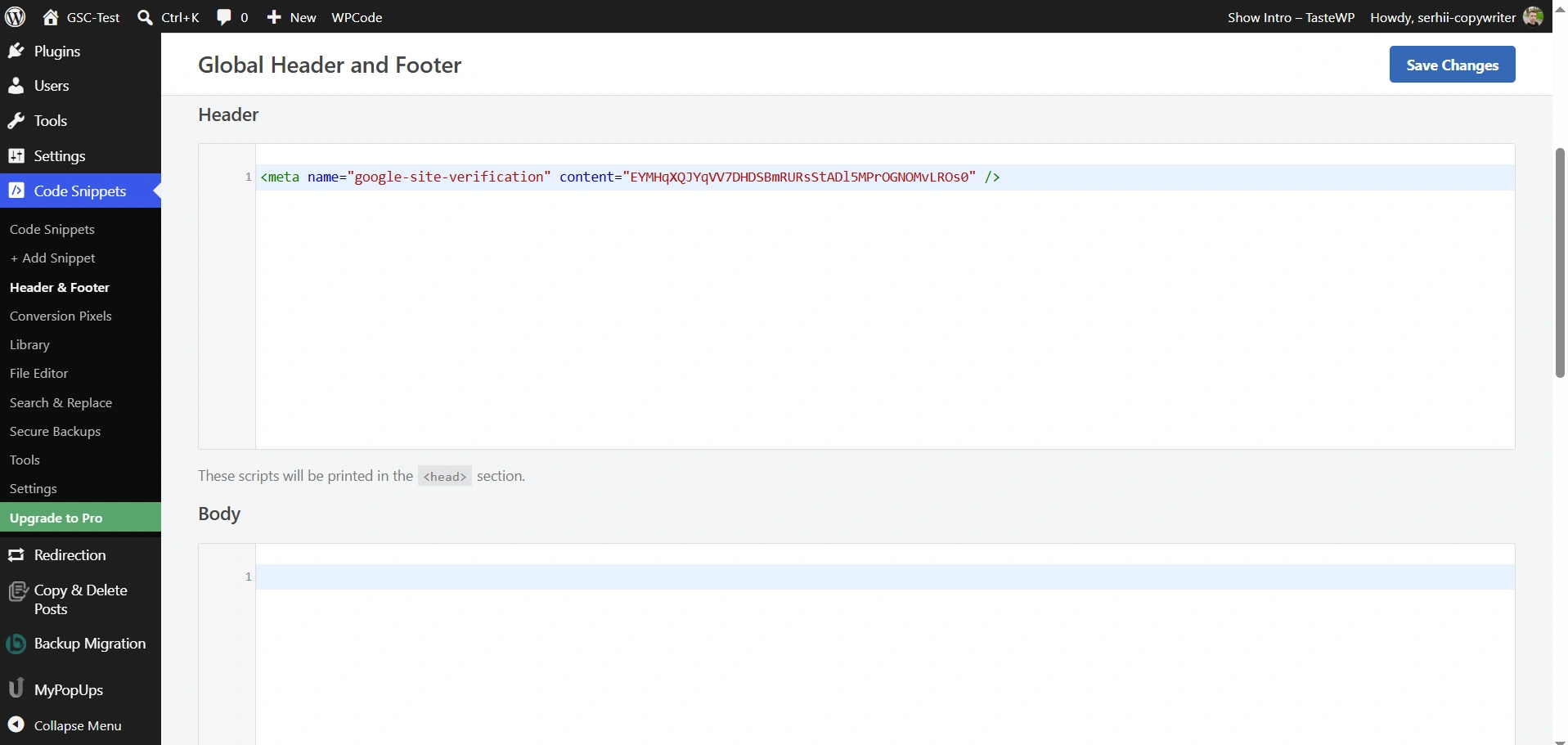
If your internet project is on WordPress and you do not want to edit the theme code directly, use the WPCode plugin. After installing and activating the plugin, go to Code Snippets → Header & Footer, paste the code into the Header field, and save the changes.
Overview — main section of Google Search Console
After confirming the site, you immediately land on the "Overview" page — this is the main dashboard to check regularly. Unlike Google Analytics 4, you cannot change the order of modules or add your own here.
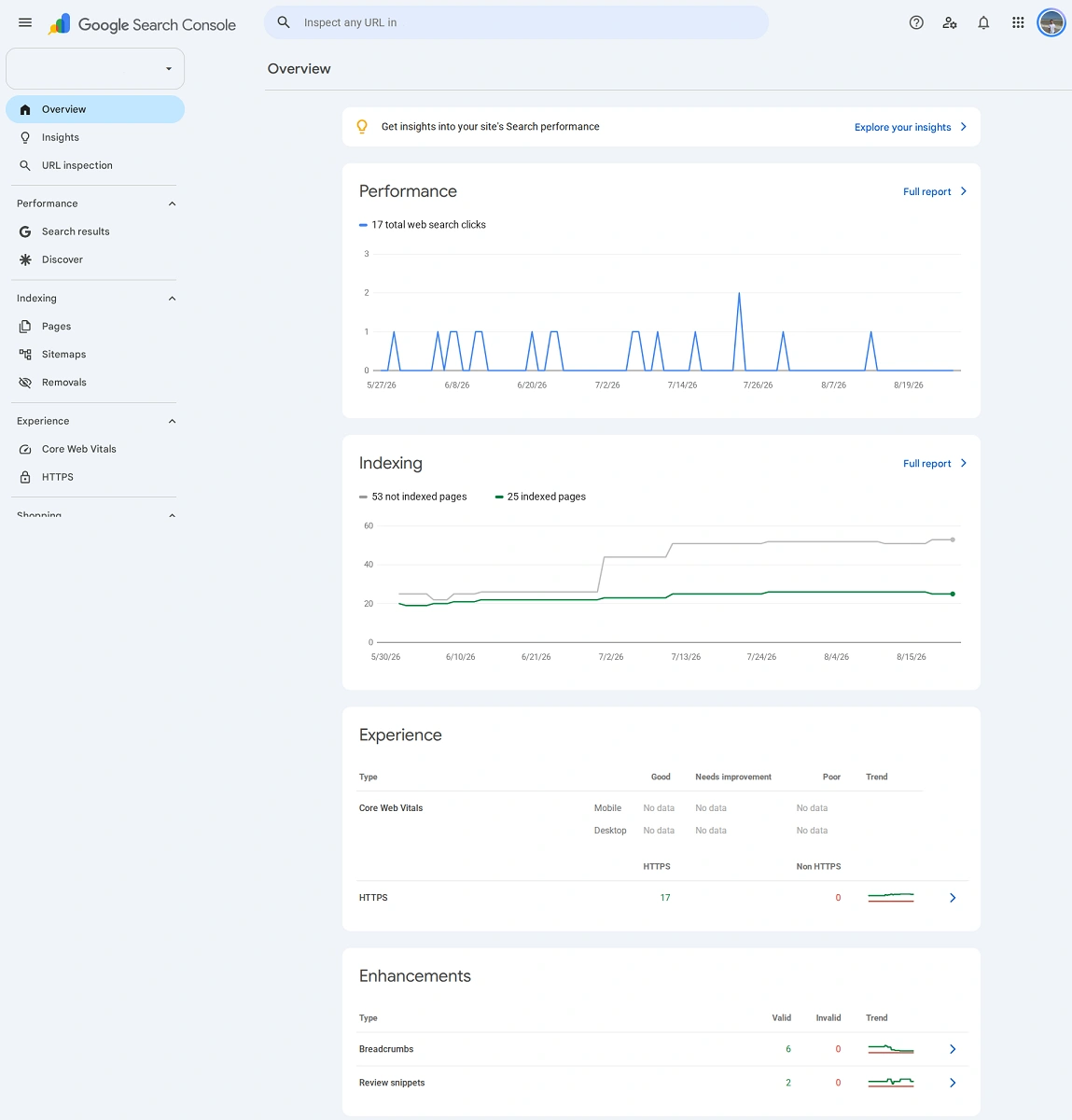
But this is not necessary, as all key information is already collected in four blocks:
- "Performance" shows a brief overview of clicks over the last three months with a total count.
- "Indexing" allows you to quickly view the total number of indexed and not indexed pages.
- "Quality" displays speed metrics separately for mobile and desktop devices, as well as HTTPS status.
- "Enhancements" briefly summarizes the state of navigation chains (breadcrumbs) and review snippets.
Search results — main analytical report
"Search results" (Performance → Search results) — is the report you will visit most often: here you can see what queries the site appears for in Google, how many impressions and clicks it receives, and what position it is in on average.
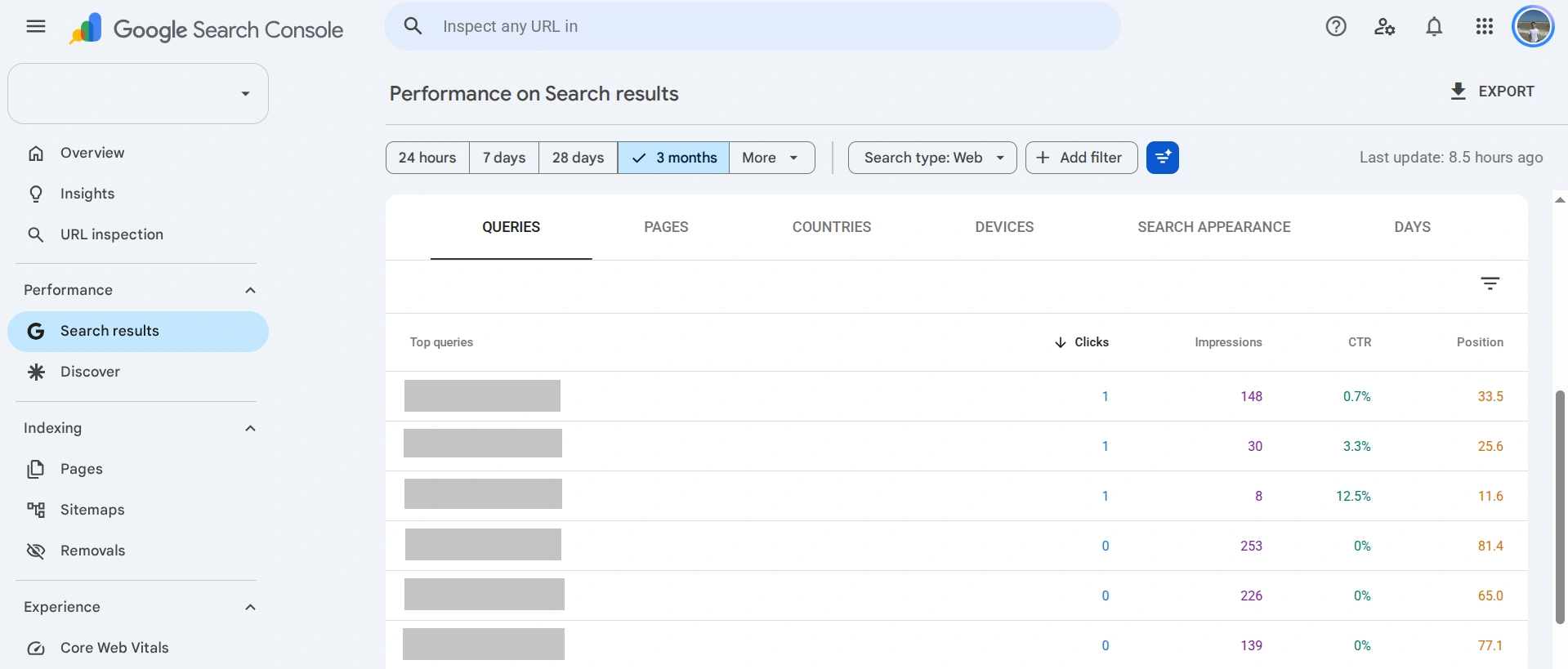
Google Search Console has four main metrics in the report:
- conversions (clicks) — how many times it was clicked;
- impressions — how many times your page appeared in the results;
- CTR — the percentage ratio of clicks to impressions. For example, if the page received 10,000 impressions and 300 clicks, the CTR would be 3%.
- average position — the place in the results calculated by Google's methodology.
Important! The average position does not reflect the specific place of the site in the results. This is an average number that is calculated differently depending on whether you view the report for one page or for the entire site over the same period.
How to use filters in Google Search Console
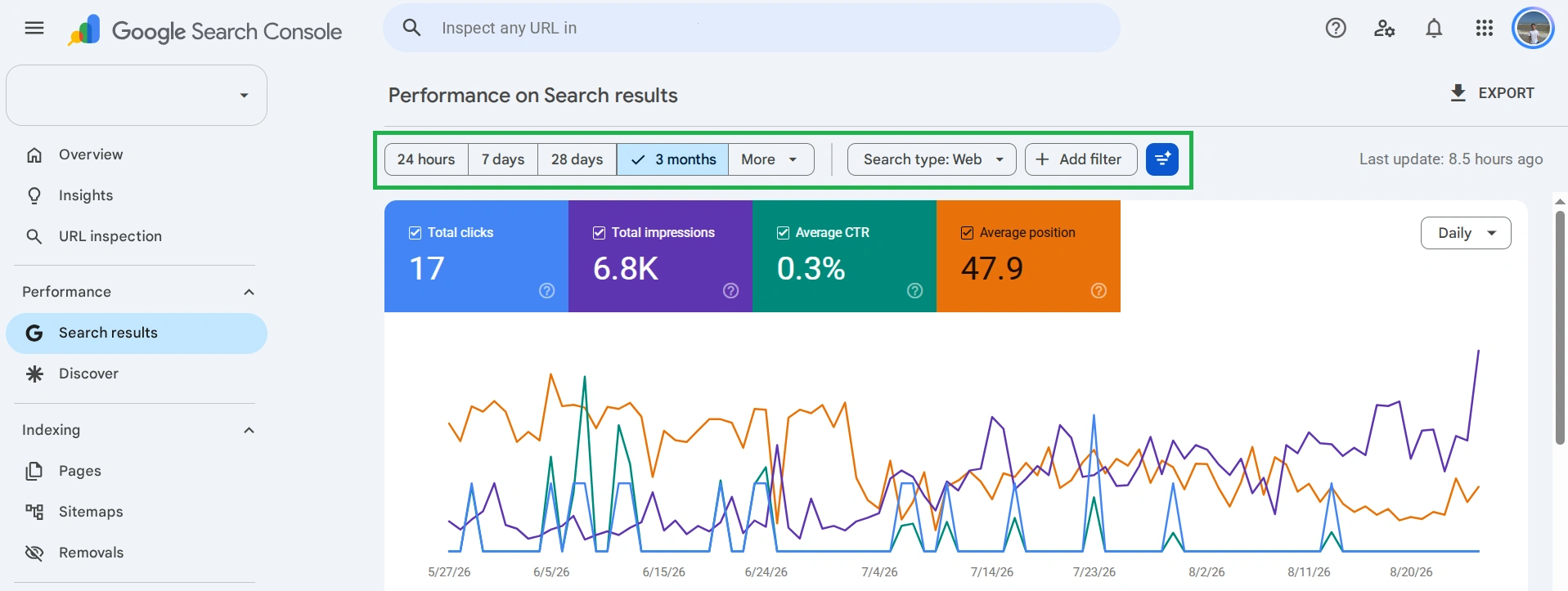
Above the graph, you can select the period — from 24 hours to 16 months or a custom range, type of search (web, images, videos, news), and filters by query, page, country, device, or appearance in the results.
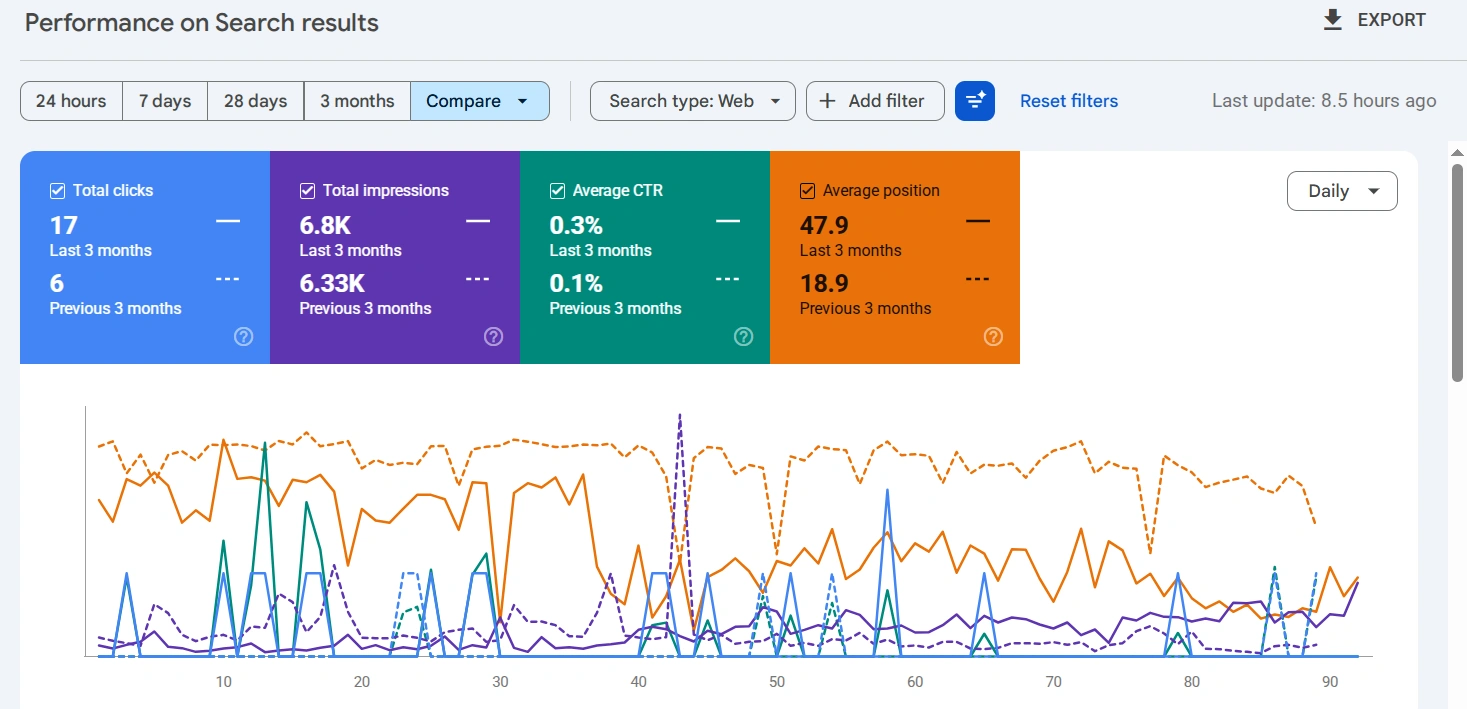
A separate "Compare" tab compares two periods or two types of search, allowing you to conveniently assess the effect of an article update or seasonality of traffic. Hourly granularity of the graph is available only in the "24 hours" period, while in others — only day, week, or month.
How to use artificial intelligence in Search Console
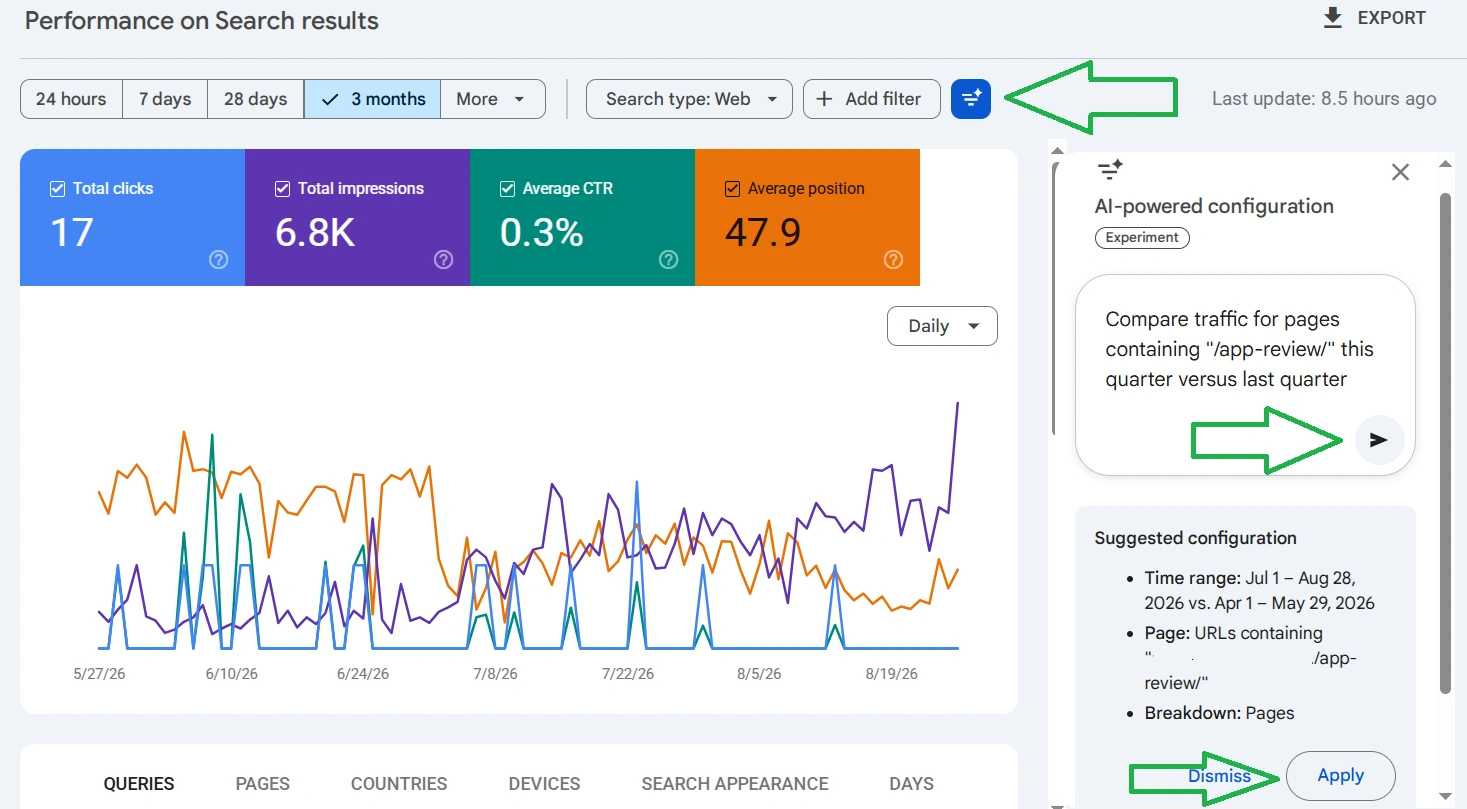
Since December 2025, Search Console has an experimental feature that allows you to set up the "Search results" report in plain language instead of manually selecting filters. By February 2026, it became globally available to all users.
The feature only works with the "Search results" report. It is not available for working with Discover or news, cannot sort tables, and cannot export data. Google itself warns that it may misunderstand the request.
I tested six different queries on my main account:
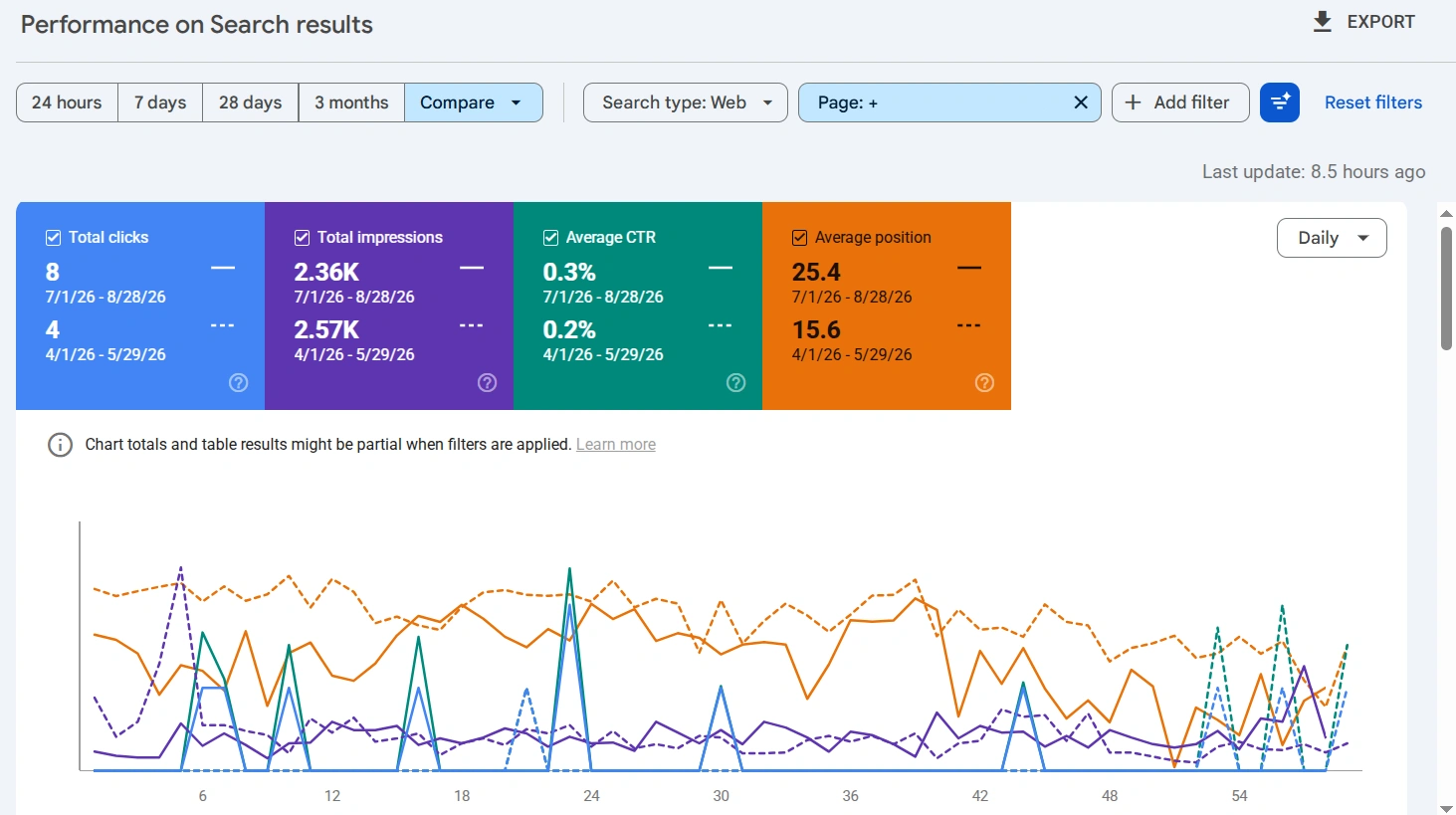
Example of how artificial intelligence set up the report for comparing quarterly data
The first three queries were executed correctly by the feature:
- "Show mobile queries with the word 'meditation' for the last 3 months" — the system correctly applied both the device and query text filters.
- "Compare traffic for pages with '/app-review/' for this quarter with the last quarter" — made the comparison and filter correctly. Although there is a nuance: the system understands "quarter" not as a calendar quarter, but as a window "from the beginning of the current quarter to now" against the same length window a quarter ago.
- "Show average CTR and position for queries from the United States for the last 28 days" — produced the cleanest result. The system activated exactly the two required metrics, country, and period, without adding anything extra.
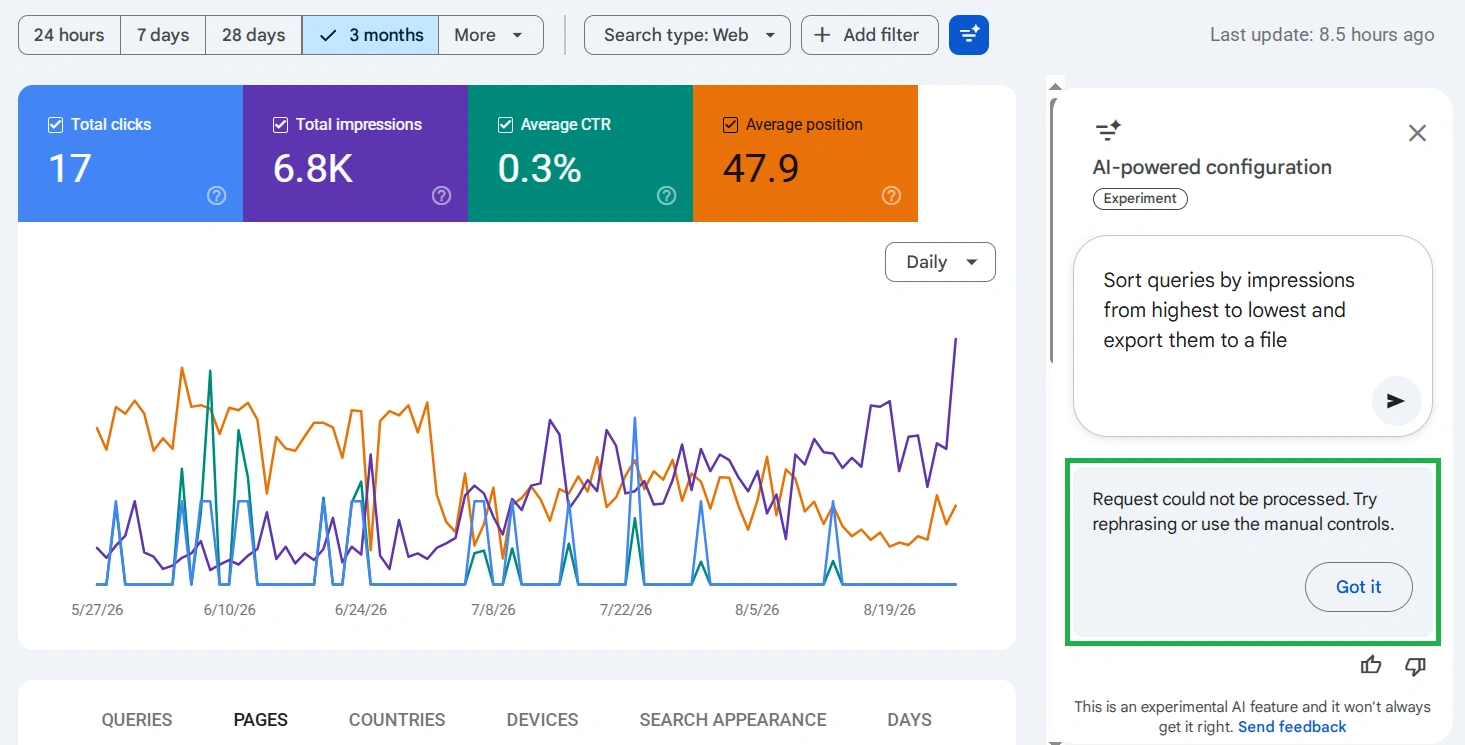
Example of AI's inability to fulfill a request
However, the next three queries showed the limits of its capabilities:
- "Show me the worst pages" — the system did not produce an error and did not confuse the worst with the best. It simply silently ignored the unfeasible part of the request, applying only the distribution by pages without any sorting.
- For the request about impressions from Discover and the request about sorting with export, the system honestly and equally replied: "Unable to process the request. Please rephrase it or set up the report manually." Moreover, without explaining that the reasons for refusal are different: in one case, it is a limitation of the scope (Discover is not supported), in the other — a limitation of functionality (sorting and export are not provided at all).
Overall, this feature is suitable for those who want to quickly gather a simple slice of data. But for more complex queries, it is worth checking what it suggested before clicking "Apply" instead of relying on it blindly.
Statistics — quick overview without digging into tables
"Statistics" — is a simplified version of "Search results" that immediately shows the main points without the need to scroll through tables. Visit here when you need to quickly understand the overall picture rather than analyze specific queries.
In the report, you will see a summary of clicks and impressions, the most popular and trending queries and articles from your site, the most active countries, and additional traffic sources. The "Show more" button expands the list to 20 items, and clicking on any row immediately leads to the corresponding "Search results" report, already filtered by that item.
Main update of 2026 — platform resources for social networks
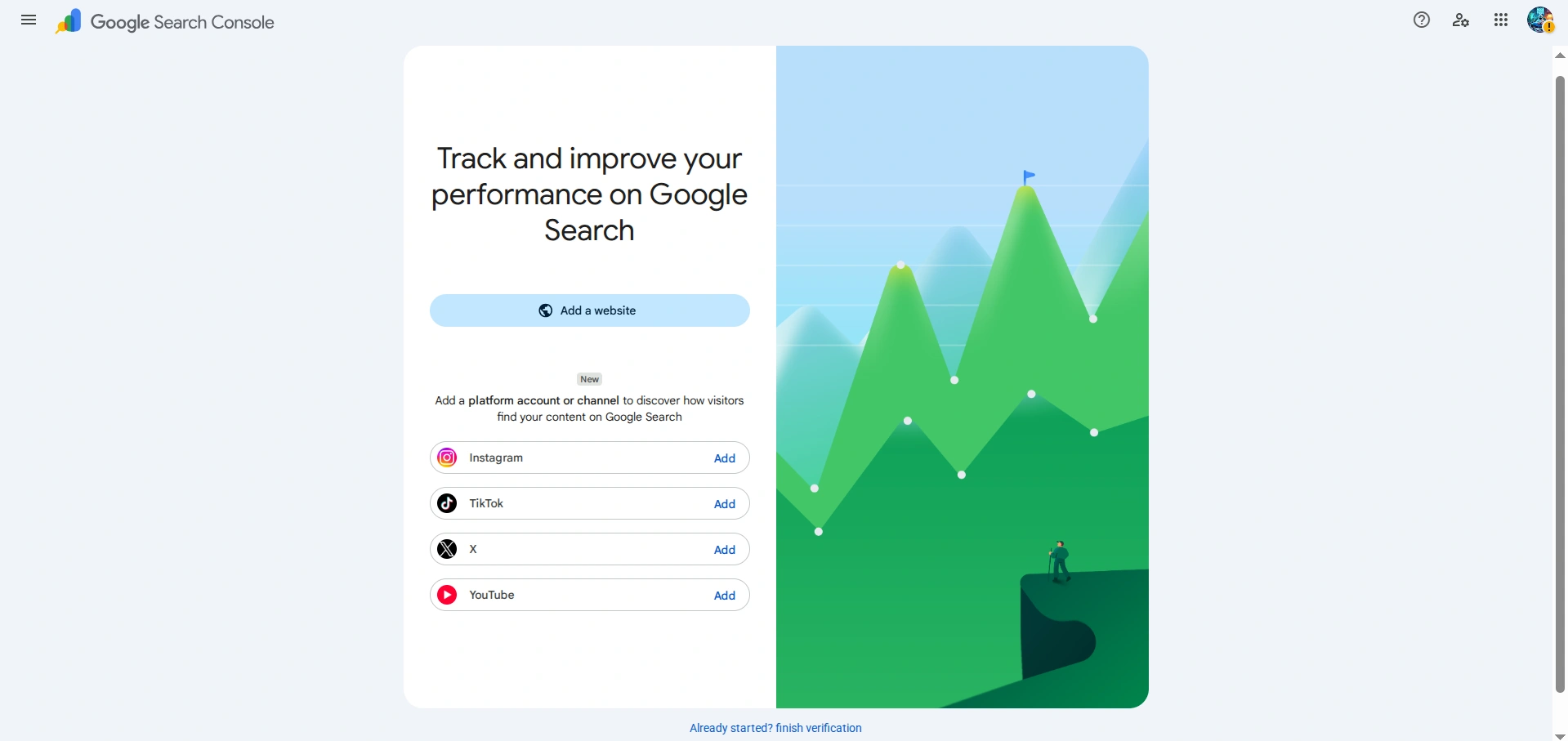
On July 7, 2026, Google officially introduced a new type of resource in Search Console — platform resources for Instagram, TikTok, X (Twitter), and YouTube. On July 29, the feature became globally available to all users.
How to add Instagram
Click "Add resource" → select Instagram → log into your account → grant permission to view basic profile information. In my testing, the entire process went smoothly in a few minutes — just wait for the first data to appear.
How to add TikTok
The process is identical to Instagram: "Add resource" → TikTok → log into your account → grant permission. It worked immediately, without delays or errors.
How to add YouTube
The process is the same as for Instagram and TikTok, but with one important clarification: the YouTube channel must be linked to the same Google account under which you manage Search Console.
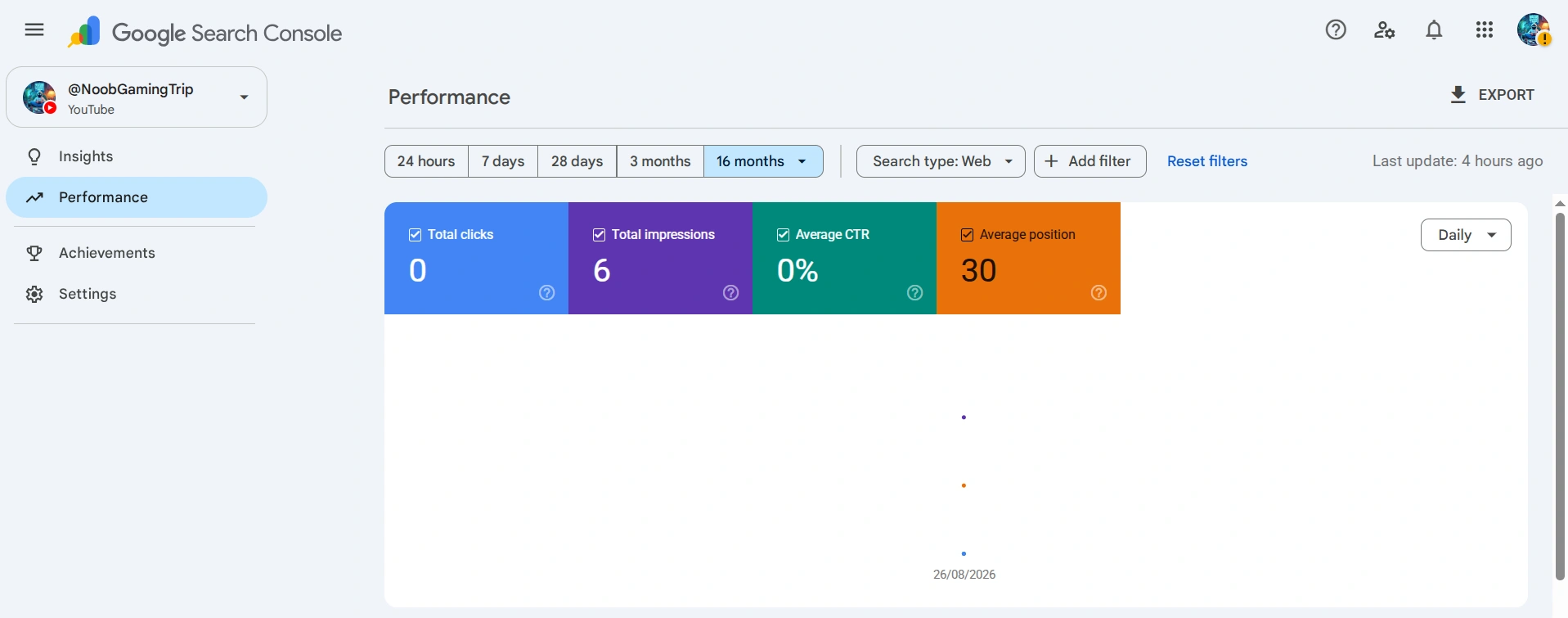
Data appears quickly: within a day after connecting, I saw the first real numbers — 6 impressions over three months, an average position of 30, and distribution by video, queries, countries, and devices. Clicks are still 0, which is normal for a channel with a minimal audience.
How to add X (Twitter)
You click "Add resource" → X → a request appears "Grant Google access to your X account" → you agree → you are redirected to the X authorization page, where you need to click "Authorize app" → the X application performs its part successfully. However, at the next step of returning to Google, an error message appears, and the process stops there.
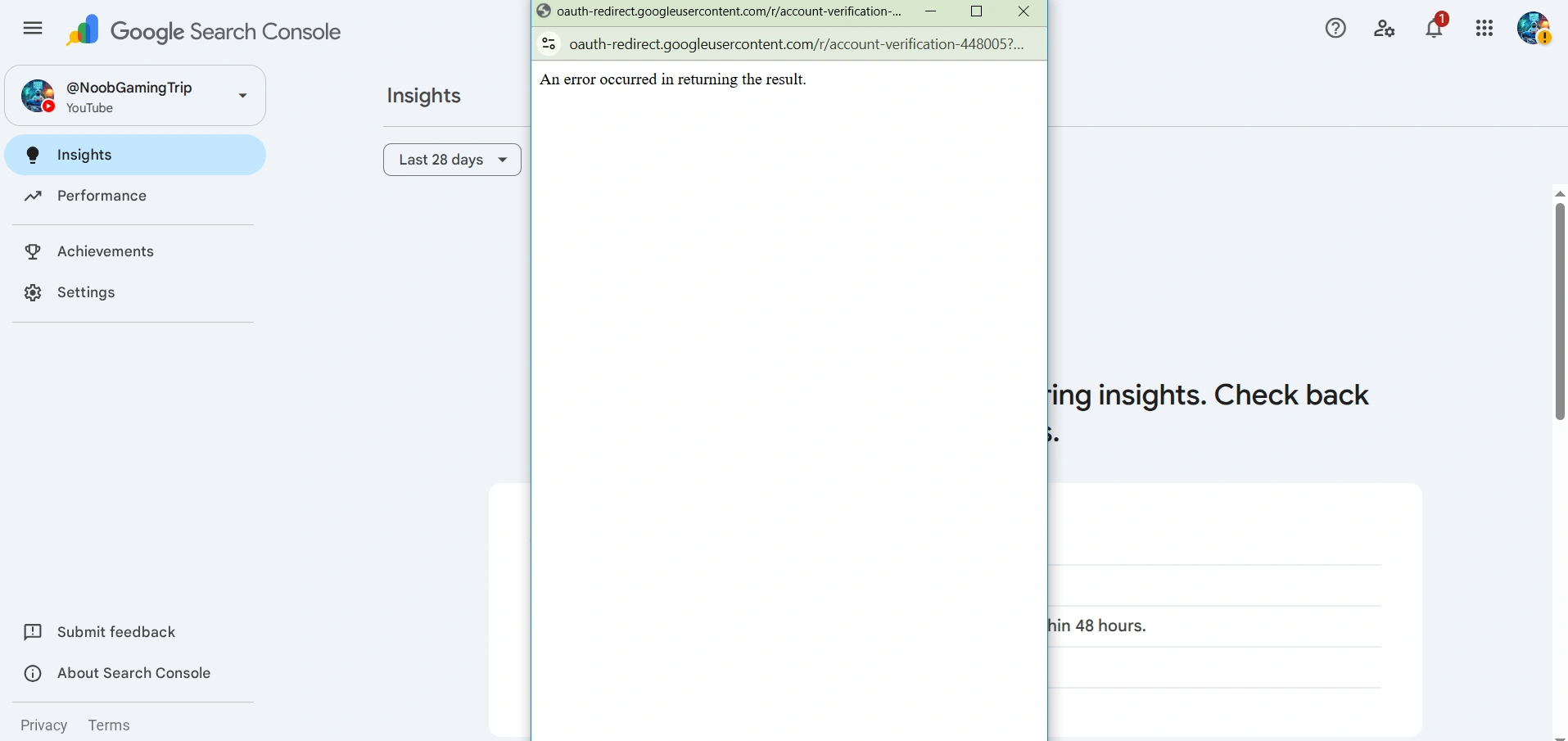
This is not an isolated failure. I checked the reason systematically: I tried on two different X and GSC accounts, in three different browsers and on two devices (computer and phone) — I consistently received the same error at the same step. In comparison, Instagram and TikTok — also third-party integrations through the same authorization mechanism — connected without any problems. So, currently, it is not possible to obtain data from X (Twitter), although I still recommend you to try.
Site performance reports in AI Overviews and AI Mode
On June 3, 2026, Google launched a separate view within the "Search results" report — the Generative AI performance report, which shows the visibility of the site specifically in AI Overviews and AI Mode. An important limitation: the report shows only impressions, without clicks, CTR, and queries. This is not a separate filter in the form of search — official documentation confirms that this data is included in the Performance report under the search type "Web", and the separate view only highlights them for convenience.
In my main and test accounts, this report has not appeared as of the end of August 2026. According to official Google data, the rollout of the feature is still ongoing, so we can only wait.
What is indexing in Google Search Console
The "Indexing" section answers the main technical question — does Google see your pages and why some of them may be invisible to search. There are three reports here: "Pages", "Sitemaps", and "Removals".
Indexing report about pages
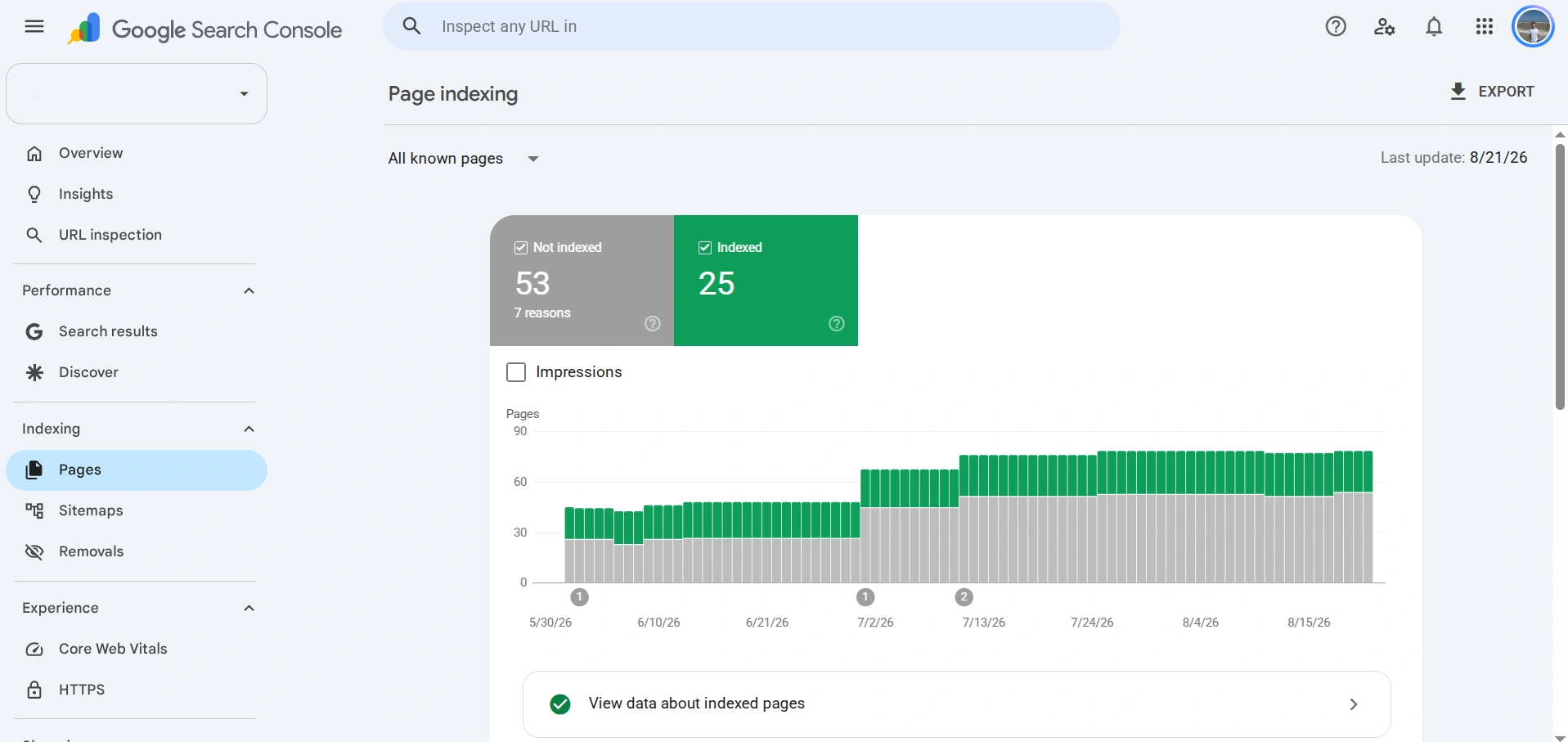
Immediately after opening the report, you see the distribution of "Indexed" and "Not indexed", and a graph of dynamics for the selected period. Clicking on a specific reason, for example, "Blocked by robots.txt file", you will see the date of first detection, the "Check fix" button (which initiates a recheck if you have already resolved the issue), and a list of specific URLs with this reason.
Important! Not every reason in this list is a real problem. For example, if among the blocked pages you see addresses like /feed/ — these are technical RSS feeds of WordPress, not content for readers. So before fixing anything in this table, always check whether a specific URL should indeed appear in the results.
Sitemaps
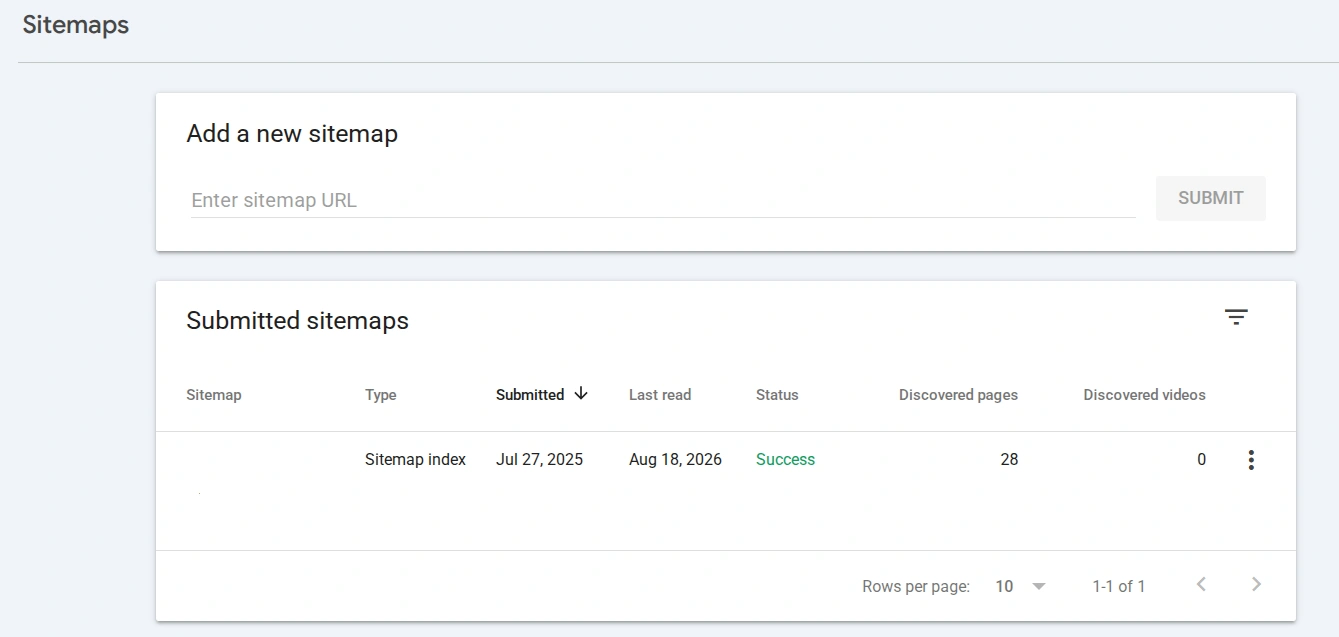
Here you add a sitemap by entering its URL in the appropriate field and clicking "Submit". After processing, Google will show the file type, submission date, last read date, status, and the number of pages found. If the sitemap is an index file with several sub-sitemaps, clicking on it will open the same information for each sub-sitemap separately.
Removals
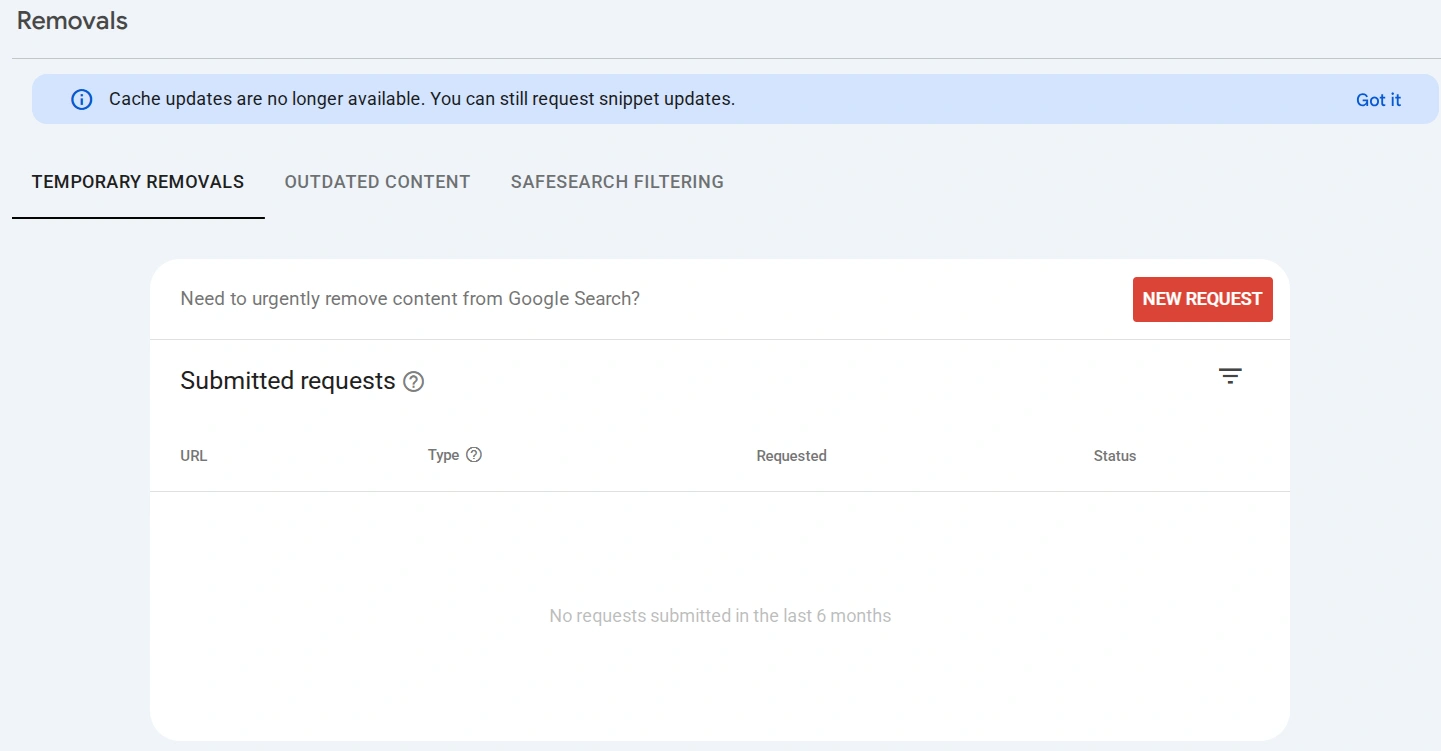
The "Removals" section allows you to temporarily hide a page from Google results for 6 months (for example, while you fix an error) or mark outdated content for snippet updates. If you plan to completely remove material and replace it with new content at a different address, first find a relevant replacement, then set up a 301 redirect, and only after that delete the old entry in WordPress.
Links: who links to your site
The "Links" report is divided into two columns — external and internal links. For external links, GSC shows the most popular linked pages, source sites, and the most popular anchor text; for internal links — only the most popular linked pages. This is a basic but useful way to understand which materials naturally gather the most mentions — and if there is anything among the sources that should be checked separately.
Also read: How to find external links to a site in 2026
Site security: manual actions and security issues
The "Security and manual actions" section contains two reports. "Manual actions" shows whether Google has imposed a manual penalty on the site for violating quality guidelines. "Security issues" signals if the site has been hacked or infected with malicious code. In both cases, the ideal and expected state — a green "No issues detected" message: if you see anything else here, it is a reason to act immediately, not to postpone.
How often to check Google Search Console
If your site is actively filled with content, check indexing monthly. If you publish less frequently — once a quarter. And after any major changes, including domain migration, redesign, or mass URL structure changes, conduct a full analysis immediately, without waiting for a scheduled check.
If you are just starting, then add the site, check the "Search results" and "Pages" reports. And you can additionally try one query through the AI filter. This will already allow you to understand the basic functionality of Google Search Console, which you will continue to explore right from the time of use.