
If you have lost or forgotten the access password to your virtual server, you can easily reset it and generate a new one directly through the Cityhost control panel.
!Please note: The password reset feature is currently in Beta and is only available for servers that have new distributions with up-to-date software installed. If your operating system does not support this feature, the panel will display an appropriate error.
Log in to your Cityhost personal account - https://cp.cityhost.ua/
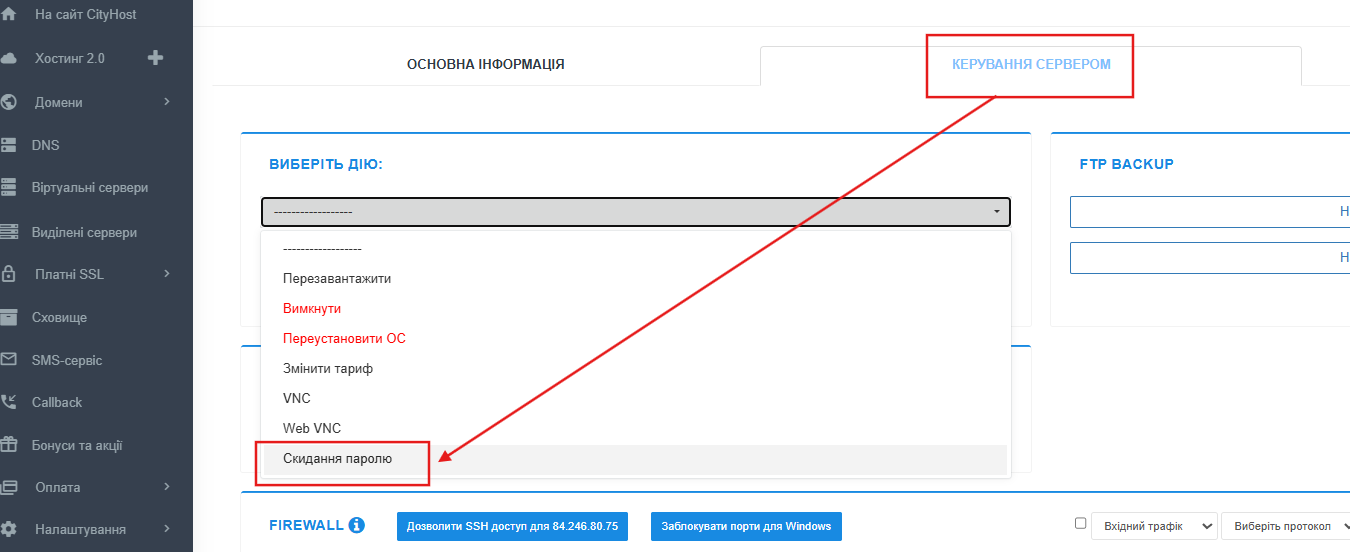
In the left sidebar menu, select the «Virtual Servers» section. Choose the desired server and go to the SERVER MANAGEMENT tab.
In the SELECT ACTION block, click on the dropdown list. From the list of options, select Password Reset.
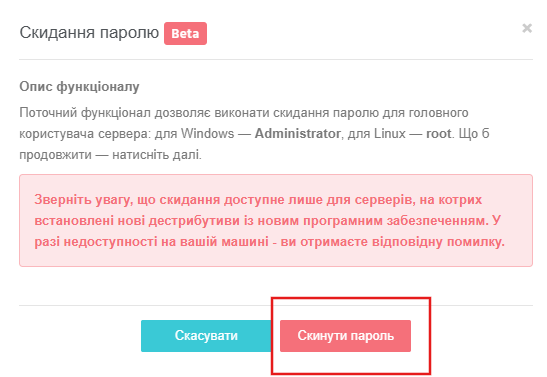
In the popup window, carefully review the information about which user the password will be reset for. Click the red Reset Password button (or Cancel if you changed your mind).
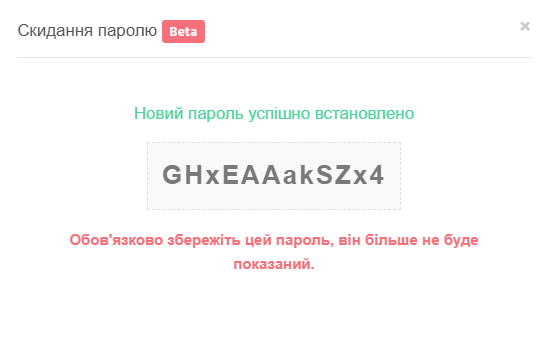
Copy the generated password from the text field.
!Important: Be sure to save this password in a secure place (for example, in a password manager). For security reasons, it will never be shown in the control panel again.
If you received a compatibility error after clicking the button, it means that your server's operating system does not support quick automatic reset through the panel. In this case, you can: Reset the password manually using our detailed guide: Recovering the root password via Recovery Mode (Ubuntu / Debian).
All question categories
CityHost
Services
Contacts


2004 - 2026 "CityHost" - professional
paid hosting in Ukraine.