
This instruction will help you recover the user root password if you have lost it.
Suitable for Ubuntu and most cases for Debian. It can also be used on Dedicated Server via IPKVM or Recovery Mode.
!Helpful tip: Before starting manual recovery, try using our new feature — [Automatic password reset for virtual server (VPS/VDS) via control panel]. This will allow you to change the password with one click without rebooting into Recovery Mode. If this method did not work or gave a compatibility error, proceed to the steps below.
First, you need to connect to the server via the VNC console.
This is necessary because SSH access without a password will be impossible.
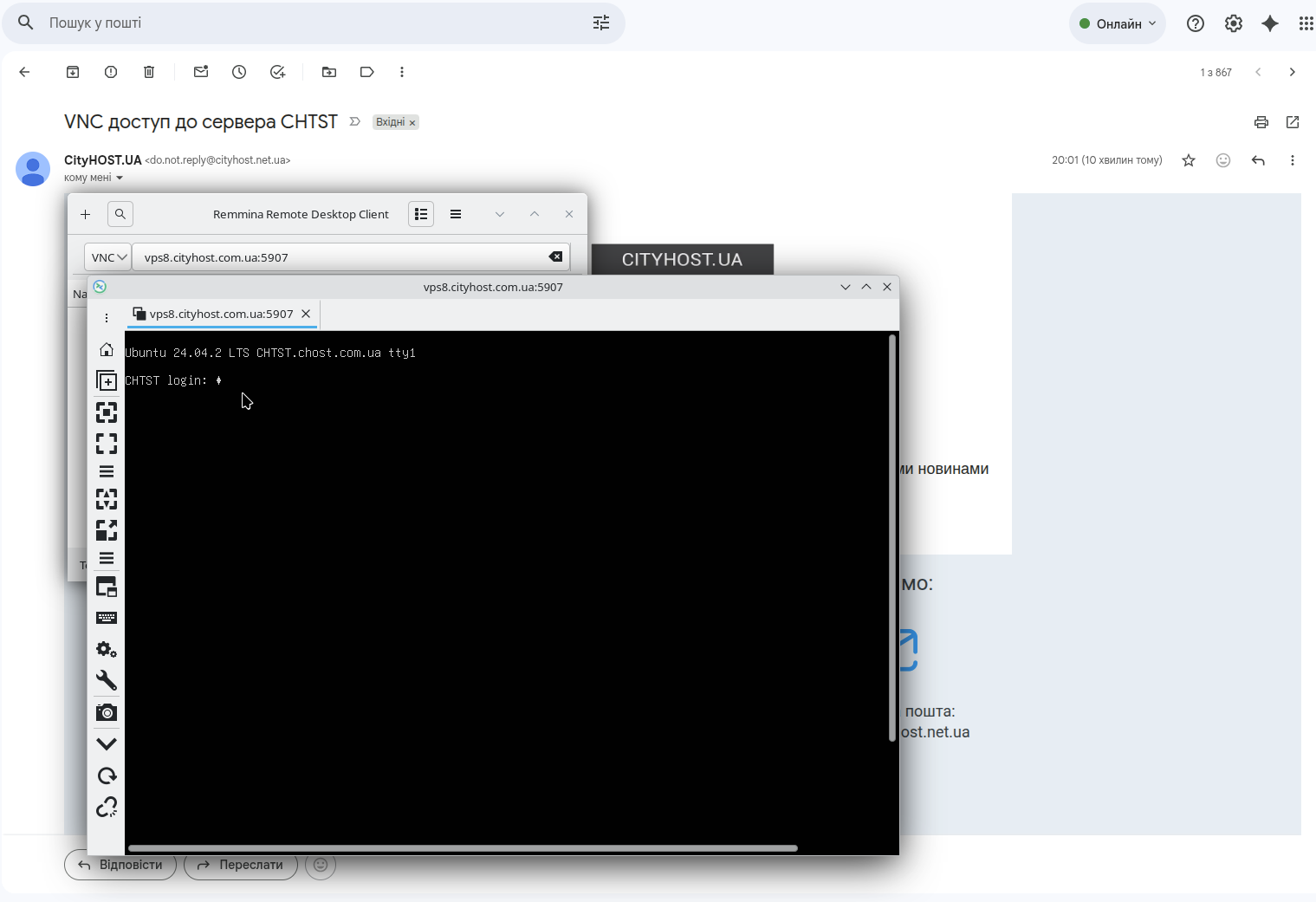
In the open VNC console:
This is needed to open the GRUB boot menu.
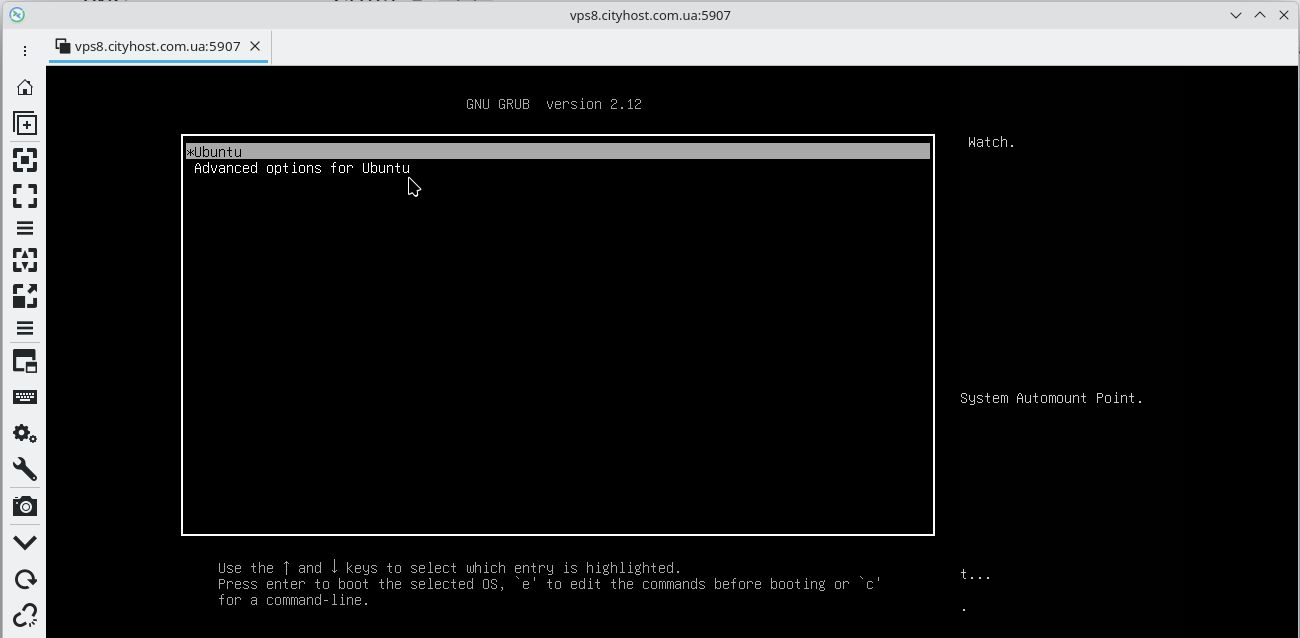
In the GRUB menu:
After this, the recovery menu will open.
In the menu, select: Drop to root shell prompt
If access to the root shell is blocked, you can change the boot parameters:
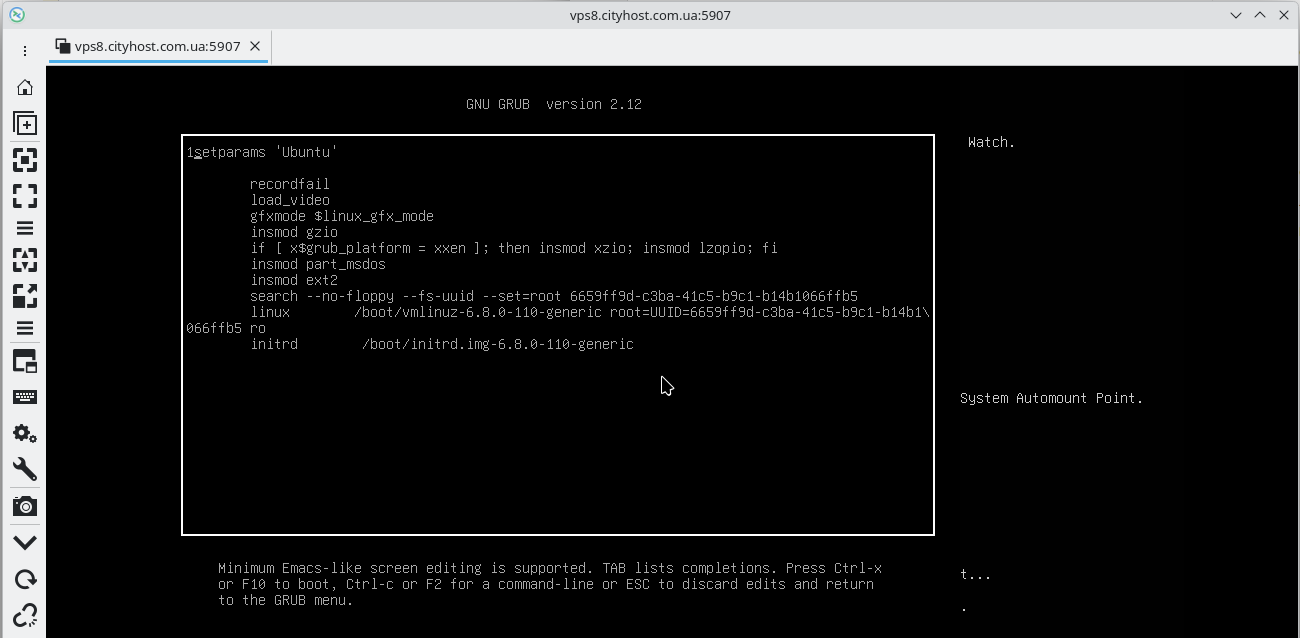
Find the line: linux /boot/vmlinuz...
In this line, replace ro with rw and add at the end: init=/bin/bash
Example: linux /boot/vmlinuz-... root=UUID=... rw init=/bin/bash
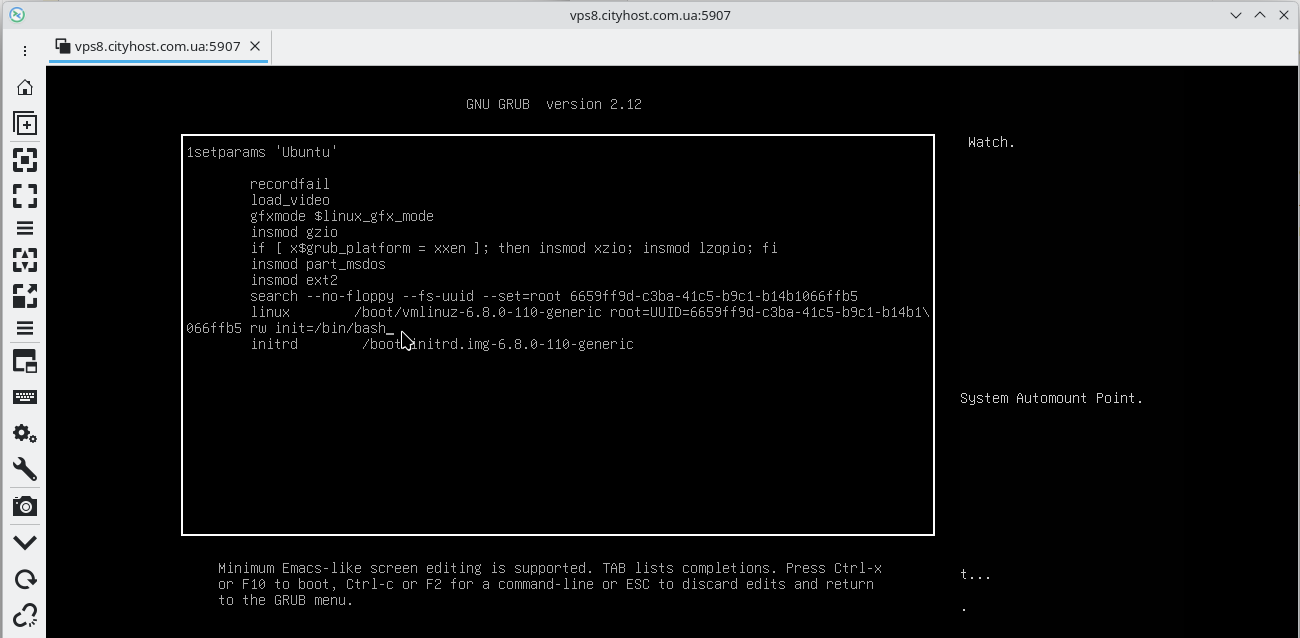
Then press Ctrl + X or F10 to start. The system will boot into the root console without a password.
After booting, you will see something like: root@(none):/#
Execute the command: passwd root and enter the new password twice.
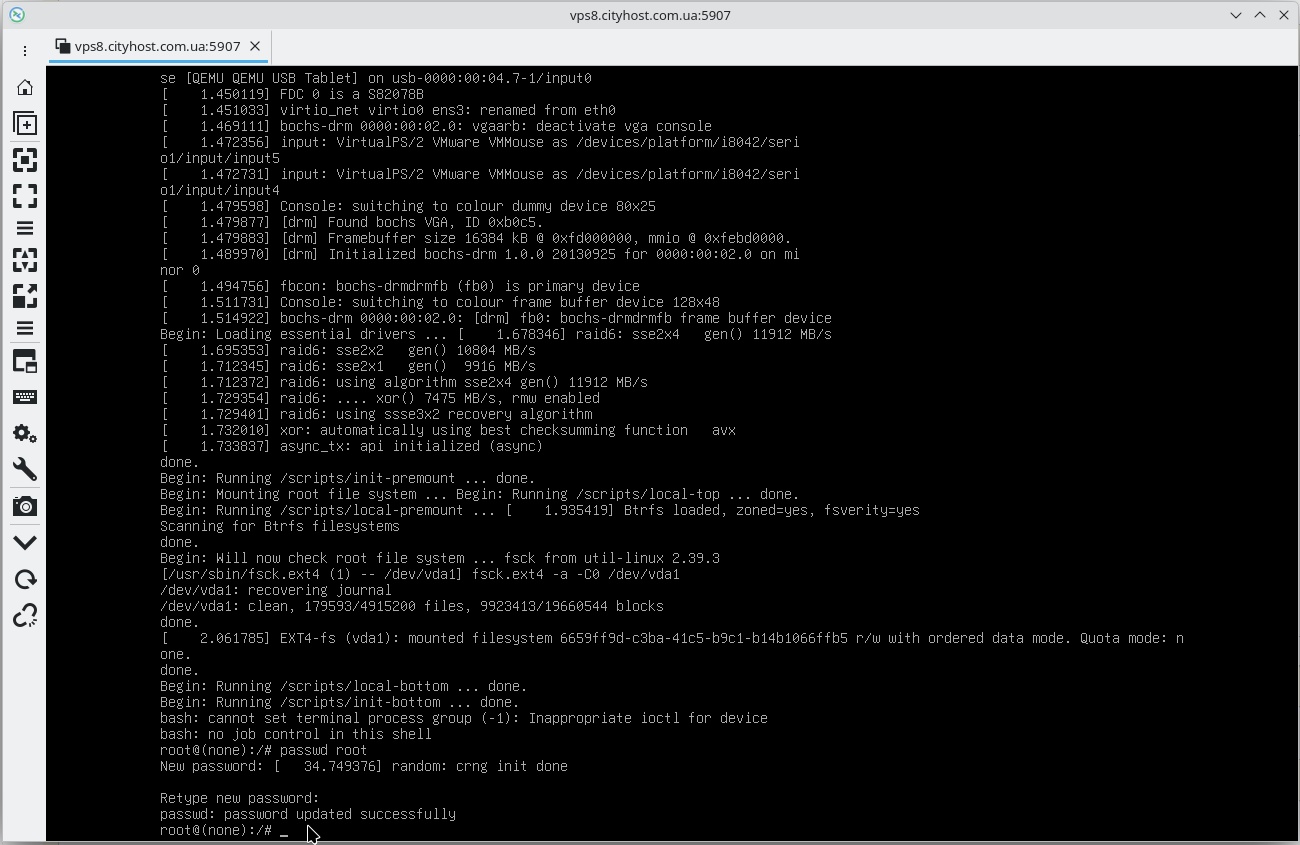
After changing the password, execute reboot -f
Done! The root password has been successfully changed. You can now log into the server with the new credentials.
All question categories
CityHost
Services
Contacts


2004 - 2026 "CityHost" - professional
paid hosting in Ukraine.