
CityHost.UA
Help and support

How to change the VDS (VPS) tariff?

Changing the VDS (VPS) Tariff Plan

Attention! Arbitrary changes to server parameters (CPU, RAM, disk space) are not possible. The configuration can only be changed by switching to one of the available tariff plans.

How to Change the Tariff Plan

1. Go to the control panel.

2. Open the section VDS / DS → Management → Server Management.
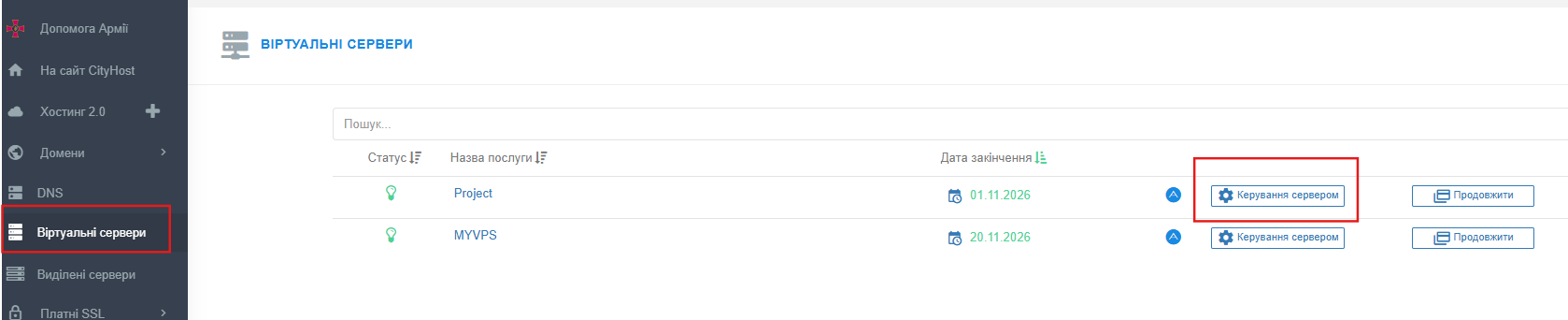


3. In the list «SELECT ACTION», choose the item «CHANGE TARIFF».

4. Select the desired tariff plan. If there are insufficient funds in the internal balance to change the tariff, click «GENERATE INVOICE AND PROCEED TO PAYMENT» to create an invoice.
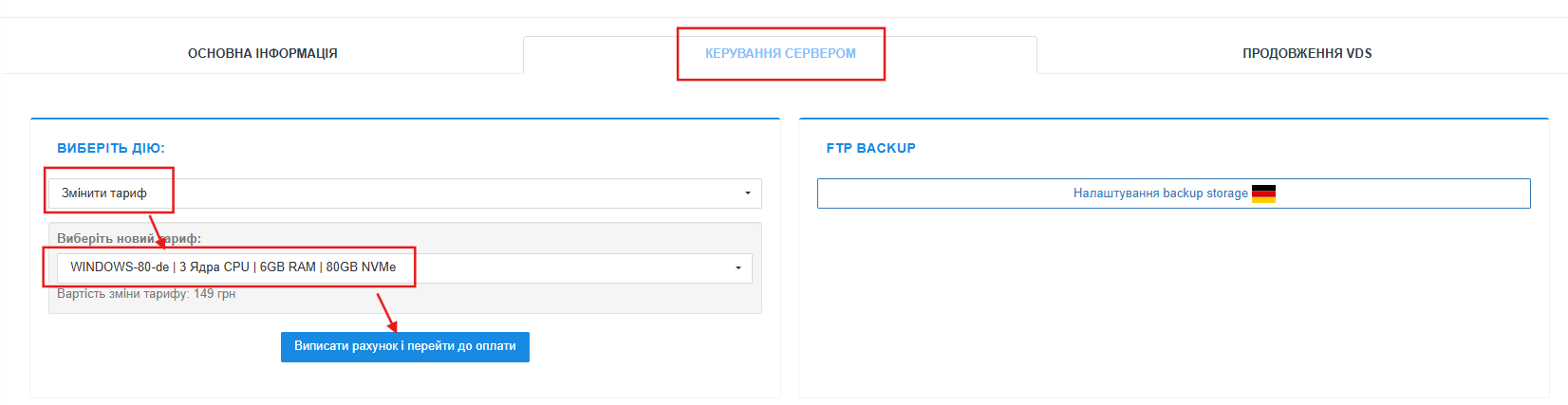


Changing the tariff plan is only available with funds in the internal account balance. You can top up your balance using the instructions for topping up the account.

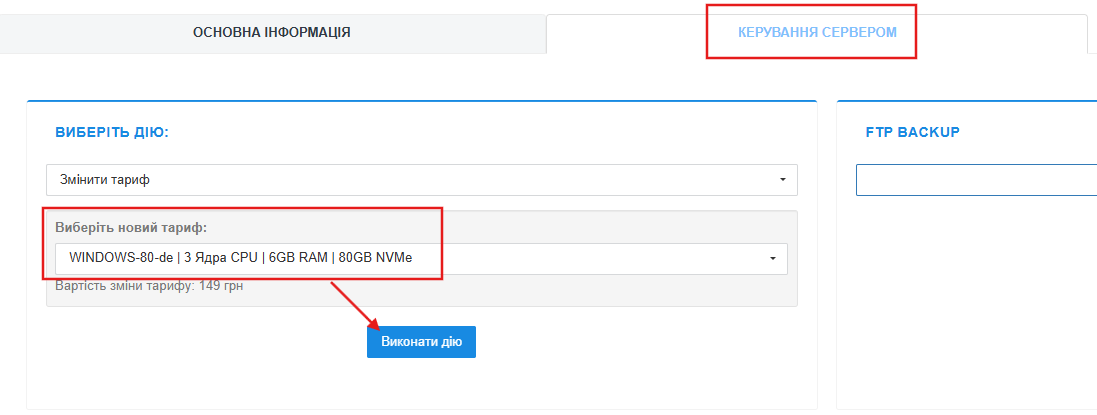
5. If there are sufficient funds in the internal balance, confirm the change of the tariff plan by clicking the «EXECUTE ACTION» button.


6. When changing the tariff, pay attention to the option for automatic disk space expansion. To have the disk automatically expanded after changing the tariff plan, check the corresponding box.

If the box is not checked, the tariff will change without automatic disk expansion. In this case, after changing the tariff, you will need to separately contact technical support to expand the disk space.


Automatic disk space expansion option during tariff change


What You Need to Know About Changing the Tariff

— The cost of changing the tariff plan is calculated as the difference between the costs of the tariff plans. The term of the server does not shorten, the end date of the service remains unchanged.

— After confirming the tariff change, the server will be rebooted once.

— After rebooting, the server will receive the parameters of the new tariff plan.

— The process of changing the tariff plan may take up to 15 minutes.

— Switching to a tariff plan with a smaller disk space is not possible, as this may lead to file system corruption.


Disk Space Expansion

When changing the VDS (VPS) tariff plan, you can choose automatic disk expansion by checking the box «Automatically expand the disk after changing the tariff».
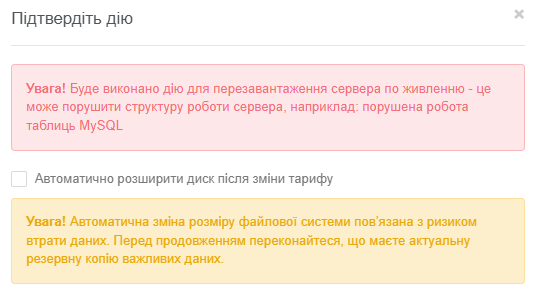


  • If the box is checked — after changing the tariff plan, the system will automatically expand the disk.
  •  
  • If the box is not checked — after changing the tariff, the disk will need to be expanded manually using the unallocated space. If necessary, you can contact technical support.

Important Warnings

  • Before proceeding, be sure to create an up-to-date backup of important data. Automatic expansion of the file system carries a risk of data loss. A backup is not created automatically.
  •  
  • During the tariff change, the server will be rebooted through power management. This may disrupt its operation, potentially causing damage to MySQL tables and other data issues.

Features of KVM Disk Expansion

After increasing the disk, the additional space may appear as unallocated space. It can be used to create a new partition or merged with an existing one to increase its size.

If you need assistance with disk expansion, submit a written request from your personal account.


  • • During business hours (Monday–Friday, from 9:00 to 18:00) — free of charge.
  •  
  • •  Outside business hours — according to the pricing of paid technical support.
  •  

Note: disk space expansion is only possible after the actual change of the tariff plan. Switching to a tariff with a smaller disk space is not possible.