
To activate the SSL certificate (HTTPS mode) for a website managed by the OpenCart CMS, it is important to do it correctly, as simply issuing an SSL certificate on hosting and enabling HTTPS redirection may cause the site to "break," and you may see something like this:

There are several options to activate SSL mode on the site: automatic through the site admin panel, and manual through editing the config.php files. We will consider both, and you can choose the one that works for your case.
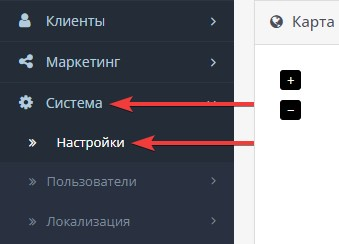
Go to the site admin panel - in the menu block, select the System item - click on the Settings button
Next to the store name, click the Edit button

Go to the Server tab

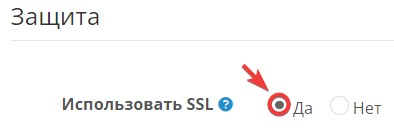
In the Security settings block, check the Use SSL - Yes option and save the settings.
Depending on the version of OpenCart and personal settings, the automatic mode does not always work; in this case, editing the configuration files will help.
So, open the file manager and go to the site directory.
Open the editing of the config.php file, which is located directly in the site directory
Find the directive HTTPS_SERVER and change http:// to https:// in the line with the site address, then save the changes in the file.
Go to the admin directory, open the editing of the next config.php file, where in the directives HTTPS_SERVER and HTTPS_CATALOG, also change http:// to https:// and save the changes.
As a result, both files should look as follows:


All question categories
CityHost
Services
Contacts


2004 - 2026 "CityHost" - professional
paid hosting in Ukraine.