
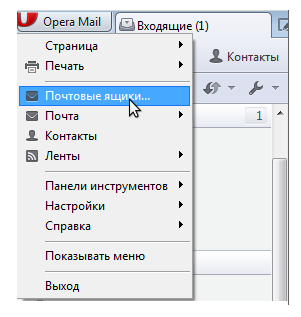
To set up your email account in the email client Opera Mail, you need to open «Opera Mail Menu» and go to the «Mailboxes» menu
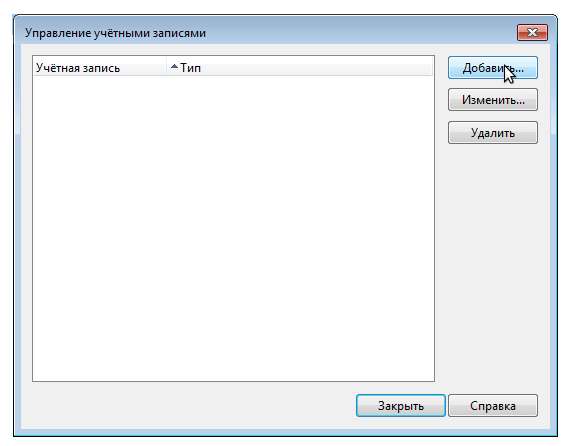
A window for managing accounts will open, and you need to click Add.
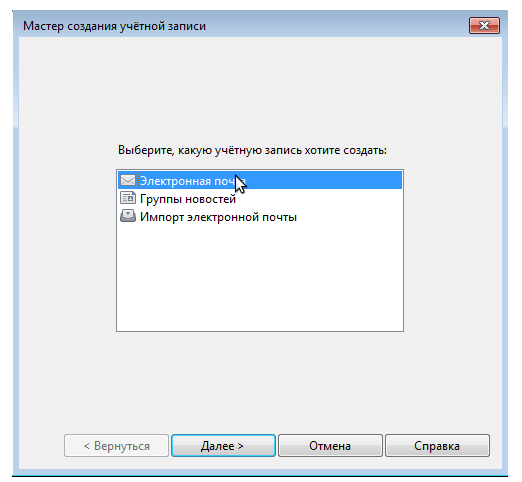
Next, the account creation wizard opens, and on the first step, you need to select "Email" and click "Next >"
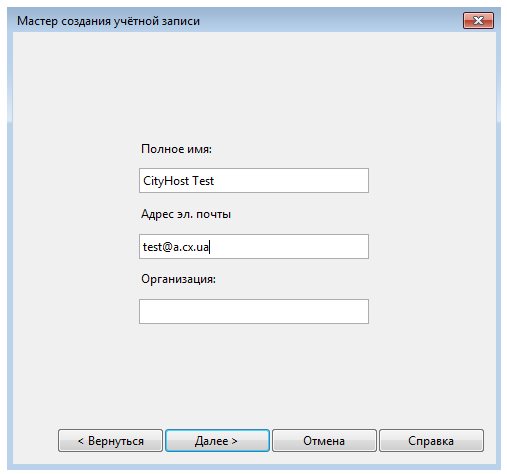
The email client will ask for your full name (the name that the recipient will see in the FROM field), your email address, and the name of your organization (if not, you can leave it blank).
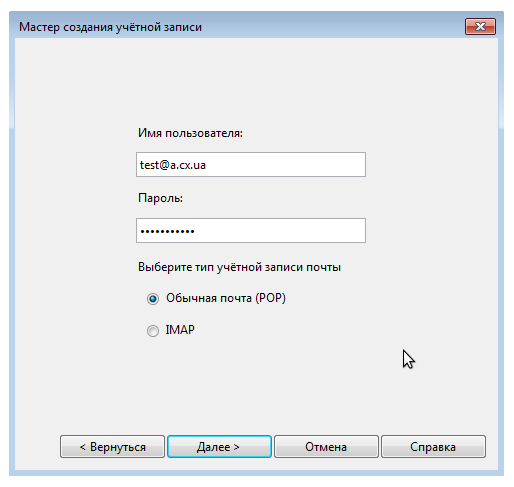
Next, re-enter your email address in the "Username" field, the password for the mailbox, and choose the protocol that the email client will use to work with the incoming mail server, which can be IMAP (mail is accessed remotely) or POP (all mail is stored on your computer), once everything is on the computer) click "Next >
Here you need to enter the incoming mail server: mx1.cityhost.com.ua:995, enable "Secure connection (TLS)" for it, and choose other incoming mail parameters as desired.
For outgoing mail, we also specify the server: mx1.cityhost.com.ua:587 and enable "Secure connection (TLS)" for it.
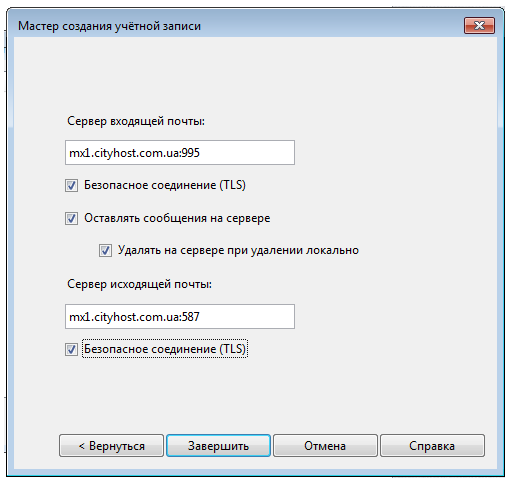
After entering all settings, click Finish, and the client setup for the POP3 protocol is complete, and you can now use the email.
Here you need to enter the incoming mail server: mx1.cityhost.com.ua:993, enable "Secure connection (TLS)" for it, and choose other incoming mail parameters as desired.
For outgoing mail, we specify the server: mx1.cityhost.com.ua:587 and enable "Secure connection (TLS)" for it.
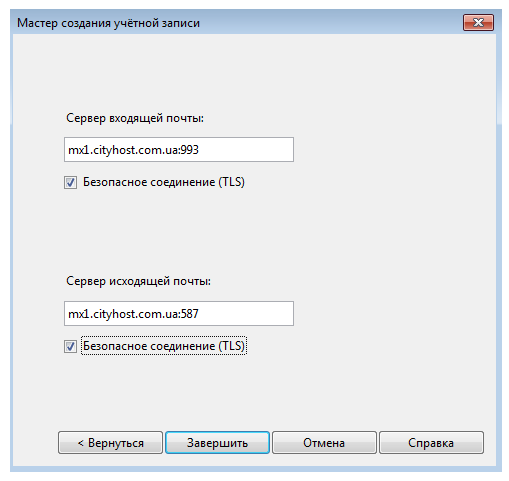
Once all fields are correctly filled in - click Finish and you can start using the email.
At this point, the email client setup is complete.
All question categories
CityHost
Services
Contacts


2004 - 2026 "CityHost" - professional
paid hosting in Ukraine.